Not Everyone Drank? Split by Custom Shares or Amounts

Dinner's over, time to split the bill. You pull out the calculator and someone goes "I didn't drink," then "my kid barely ate," then "that dessert was just mine"...
Splitting equally sounds easy, but everyone's secretly doing math in their heads, and suddenly the vibe gets weird, right?
This is when "Custom Split" saves you
When you add an expense in Lightsplit, there's a small but powerful feature called Custom Split. No calculator needed. One button lets you switch between three modes for uneven splits, and you can even mix them together. Built for exactly this kind of "I don't want to split equally" situation.
What is Custom Split?
Open the Add Expense screen and look for the "How to Split" row. Next to it, there's a subtle settings button. Tap it and you enter the world of Custom Split.
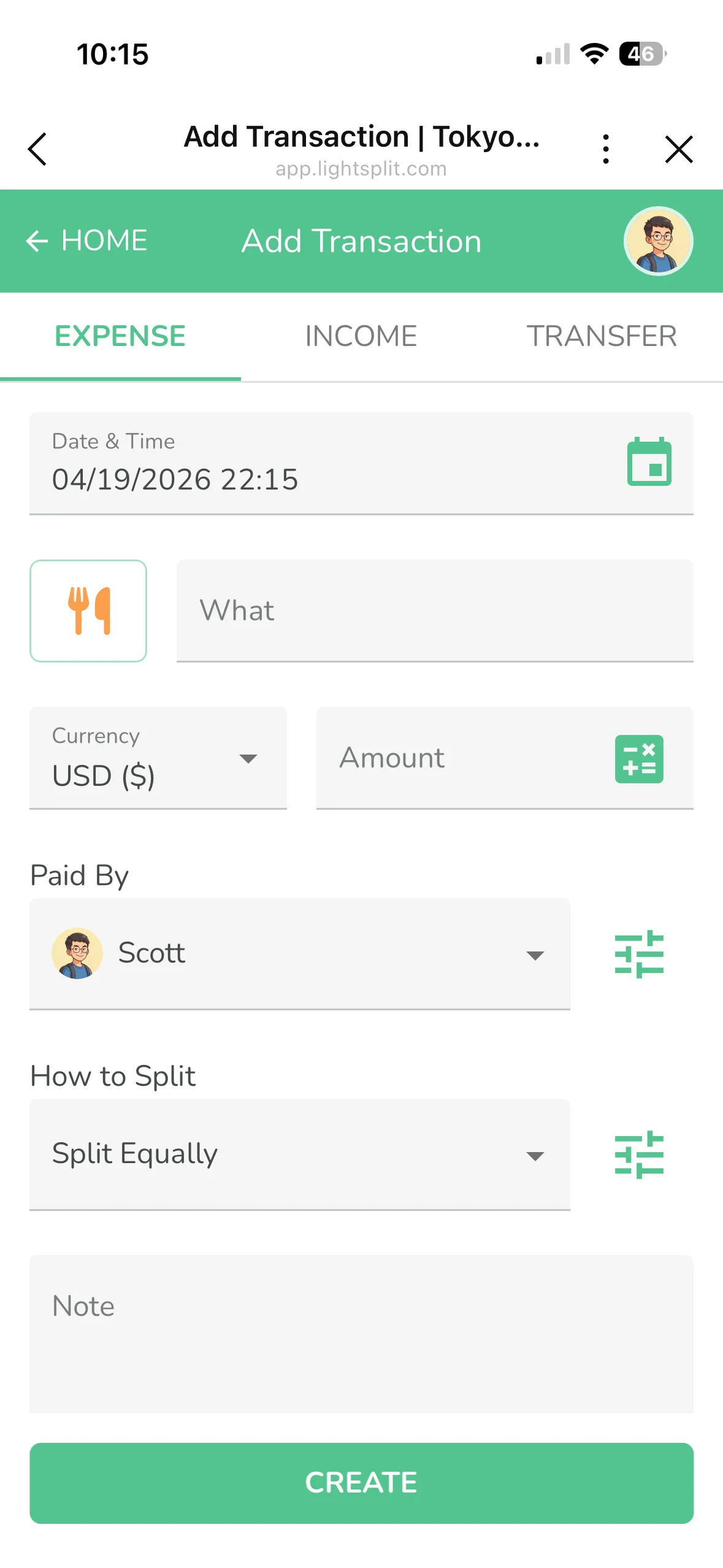
This feature lets you freely decide:
- Who participates in this expense
- How many shares each person takes
- Exactly how much each person pays
Three modes for three common scenarios, and they can be mixed. Let's look at them one by one.
Three ways to split for three situations
Pick specific people: someone wasn't there for this one
The most common case. Five of you are traveling together, but two went back to the hotel early because they weren't feeling well and missed dinner. That bill shouldn't land on them.
In "How to Split," tap member avatars to select or deselect people. If you see a dropdown instead, open it and use the checkboxes. Remove anyone who didn't join. With no custom split weights set, the selected people split the expense equally.
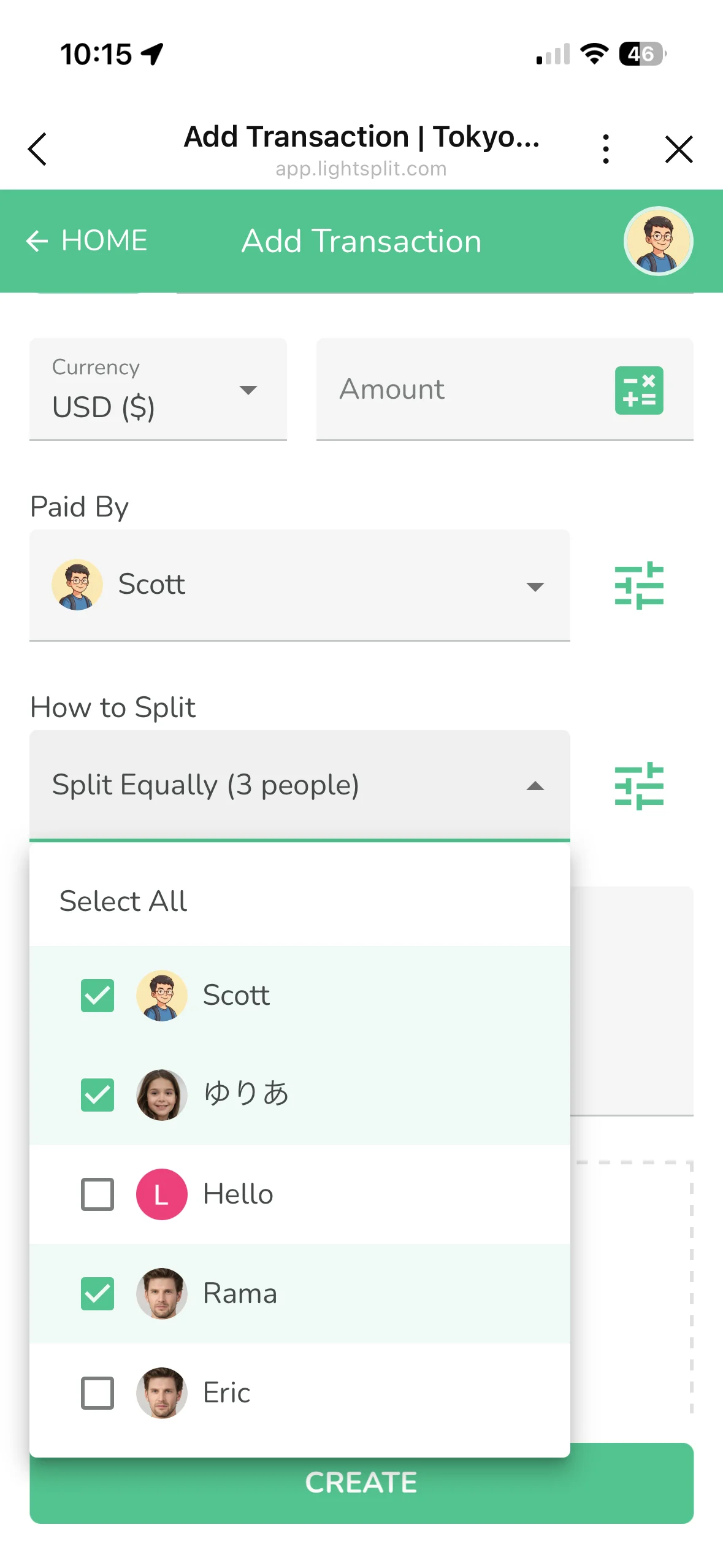
People who weren't there skip it, people who were split it. No arguments.
Split by shares: 2 for adults, 1 for kids
A family-trip classic. You might want a child to cover half as much as an adult, or someone with a bigger appetite to cover more. Shares let you adjust that ratio.
Tap the adjustment button to the right of "How to Split" to open the Custom Split detail page, and use the Shares column. Shares use whole numbers to set the ratio. For a child to cover half as much as an adult, enter 2 shares for the adult and 1 for the child. The system figures out the amounts for you.
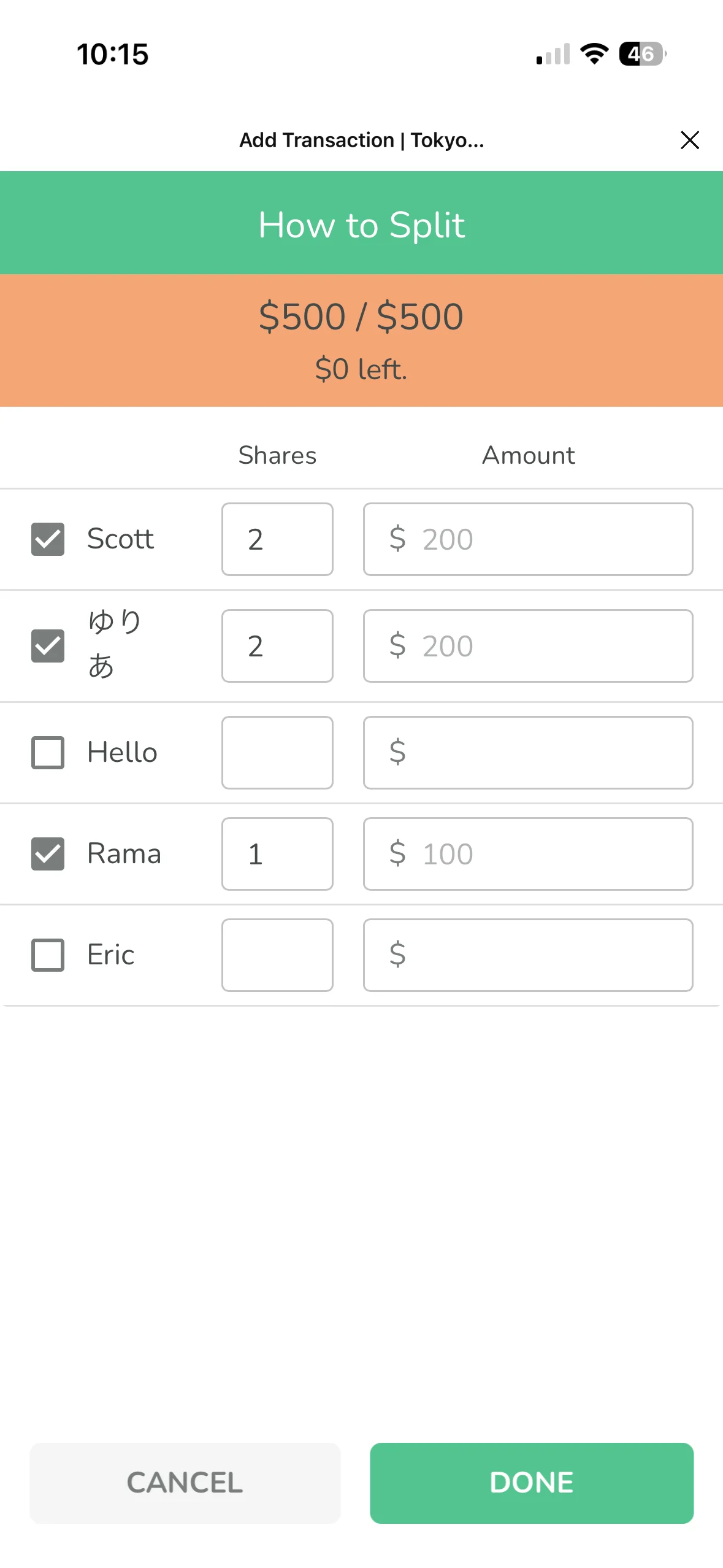
Example: a $500 meal with Scott (2 shares), ゆりあ (2 shares), and Rama (1 share). That's 5 shares total, so each share is $100. Scott and ゆりあ pay $200 each, Rama pays $100. You don't do the math, Lightsplit does.
Specify amounts: everyone pays for what they got
Sometimes you know exactly what each person owes. Someone added an extra item to a group order, or one person stayed in a private room while others shared.
Same button on the right of "How to Split" opens the Custom Split page. Switch to the Amount column and type in what each person owes.
The summary at the top shows "Allocated / Total" and what's left. Check that everyone's amounts add up to the total and the remainder is zero before tapping Done.
The power move: mixing shares and amounts
This might be the smartest trick Custom Split has. Within the same expense, some people can use Shares while others use Amount. Mix them however you want.
Here's the real example: three friends have a $500 dinner. Scott ordered something pricier and wants to cover $200 himself, and the remaining $300 should be split evenly between ゆりあ and Rama.
On the Custom Split page:
- Scott's Amount field gets 200, leave Shares blank
- ゆりあ and Rama's Shares fields both get 1, leave Amount blank
The system subtracts Scott's $200 first, then splits the remaining $300 by share ratio. ゆりあ and Rama each get $150.
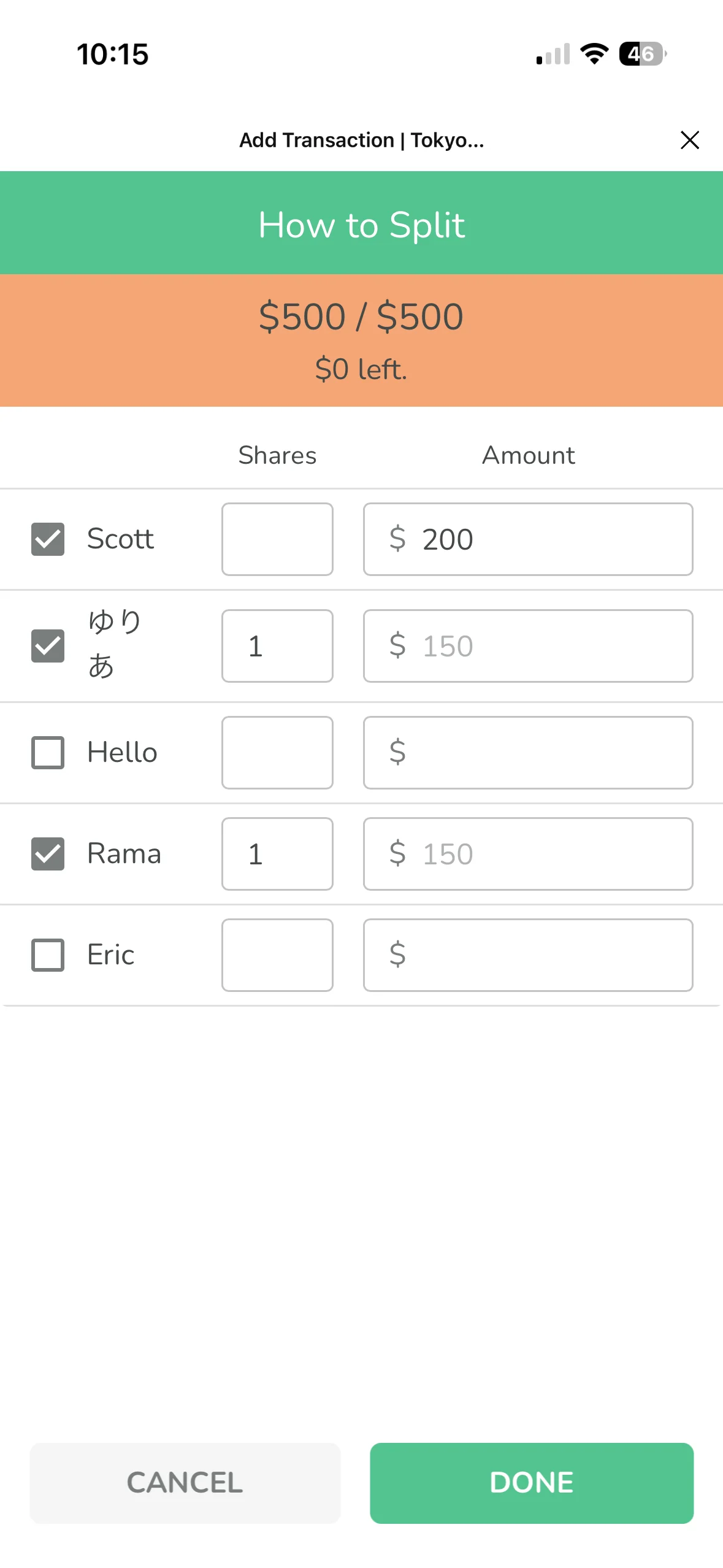
The summary shows "$500 / $500, $0 left." Everything is allocated. Perfect for "someone ordered the expensive thing and covers it, everyone else splits the rest evenly."
Let me walk you through one
Same scenario as above: five people traveling. One night Hello and Eric feel sick and go back to the hotel, skipping dinner. Scott, ゆりあ, and Rama go out to eat. Total: $500, Scott paid. Scott ordered something pricier and wants to cover $200, the remaining $300 should be split evenly between ゆりあ and Rama.
Step 1: Fill in the amount and who paid
Title: "Dinner". Amount: $500. Paid by: Scott.
Step 2: Tap the adjustment button next to "How to Split"
With no custom transaction defaults set for the group, each member starts with 1 share and the expense is already split equally. The Custom Split page opens with "$500 / $500, $0 left" at the top.
Step 3: Uncheck Hello and Eric
Scott, ゆりあ, and Rama remain.
Step 4: Enter 200 in Scott's Amount field
Once Scott has a fixed amount, the other two members keep 1 share each. The remaining $300 is automatically split between them, $150 each. The summary still shows "$500 / $500, $0 left."
Step 5: Check the shares and amounts
Check that ゆりあ and Rama each have 1 share. There's no need to enter it again. The final amounts should be Scott $200, ゆりあ $150, and Rama $150, adding up to $500.
Step 6: Tap "Done"
Tap Done to return to the record page, then Create to save. Under 30 seconds, uneven split done right.
When this is a lifesaver
- Someone missed this one: just uncheck them, no charge
- Family trip, kid = half share: adults 2, kids 1, one tap
- Roommate stayed an extra night: assign that night's rent directly
- Group buy with someone adding extras: give them an amount, others split the rest by shares
- Vegetarian eats less: give everyone else 2 shares and them 1, so they cover half as much
A few heads-ups
- Each person uses either Shares or Amount, don't fill both fields for the same person
- Different people can use different columns, Scott with Amount, others with Shares, totally fine
- Check that Allocated = Total before tapping Done, the app checks the amounts for you
- You can always edit later, change the split anytime by reopening
- Equal split is the default, if you don't touch anything, everyone splits evenly
Pair it with "Transaction Defaults" for even less work
If your group splits the same way most of the time (fixed adult/kid ratios, fixed proportional splits), pair this with Transaction Defaults. Pre-set the shares ratio once and new expenses auto-fill them. You won't even need to open Custom Split.
Next time someone says "I didn't drink" or "my kid only had a bite," skip the calculator gymnastics and the quiet resentment. Open Lightsplit, use Custom Split, and your uneven splits are handled in seconds. Back to actually enjoying the meal.