Tired of Setting Split Ratios Every Time? Try Transaction Defaults

Three families go on a trip together. Family A has 2 people, Family B has 3, Family C has 4. That's 9 people total.
Everyone agrees to split meals by headcount, so every expense needs to be set to a 2:3:4 ratio. Sounds fair, right?
The problem is, every time you add an expense, you have to manually adjust the ratio to 2:3:4. Breakfast, lunch, tickets, gas... over the course of a trip, that's dozens of expenses, and you're adjusting the split for each one. Just thinking about it is exhausting.
Transaction Defaults to the Rescue
Lightsplit has a "Transaction Defaults" feature. The group owner sets it up once, and every new expense automatically picks up those default values. No more repetitive adjustments. Just record and go.
What Are Transaction Defaults?
Simply put, they let you pre-configure values that automatically fill in when you add a new expense.
The group owner can set four things:
- Default Currency — always record in a specific currency
- Default Category Icon — your most-used category, auto-filled
- Default Exchange Rates — a fixed rate so you don't type it every time
- Default Share Settings — who's splitting and at what ratio
Once configured, every new expense automatically uses these defaults. Of course, you can still manually change any individual expense. Nothing is locked.
Four Things You Can Configure
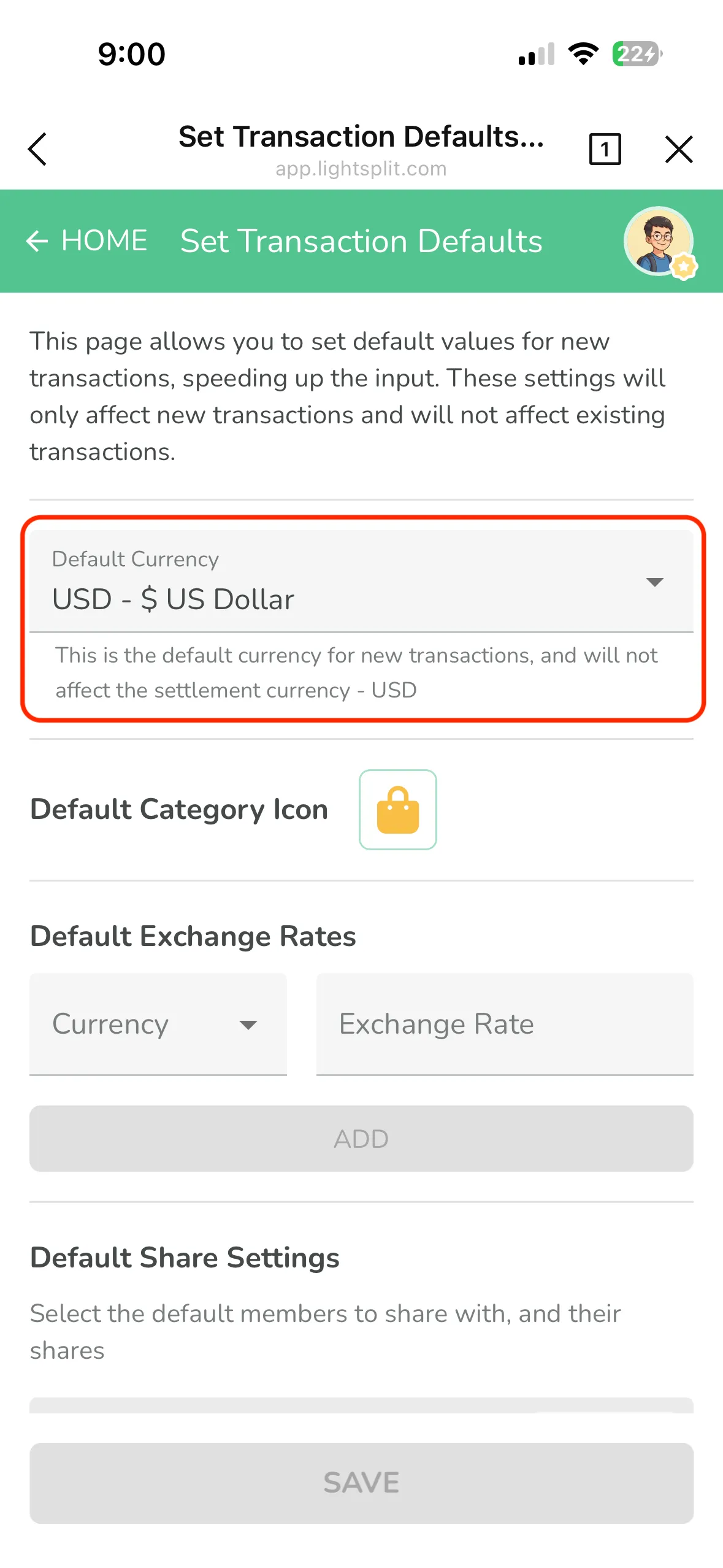
Default Currency
When you're traveling abroad, you're recording everything in the local currency. Switching currencies every time is annoying. Just set a default and be done with it.
Default Category Icon
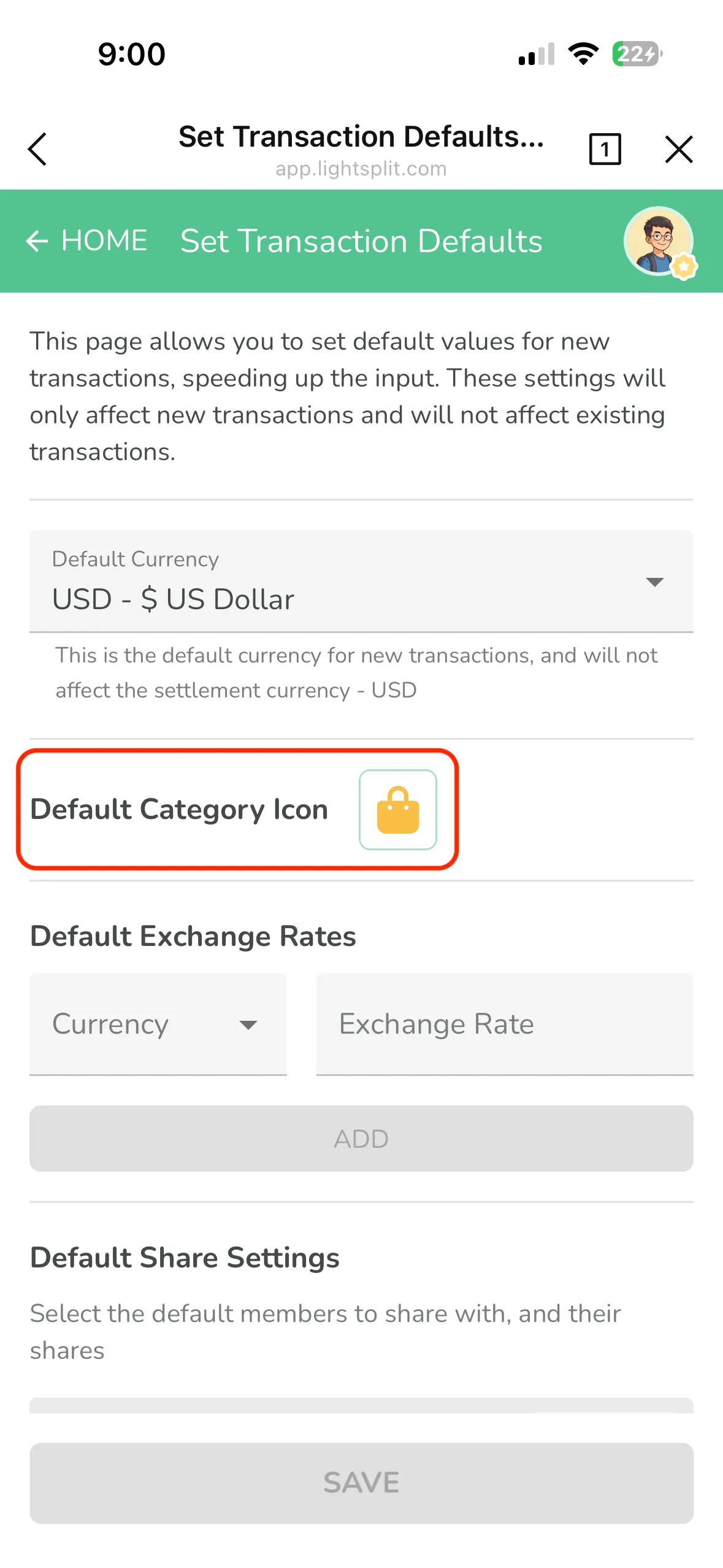
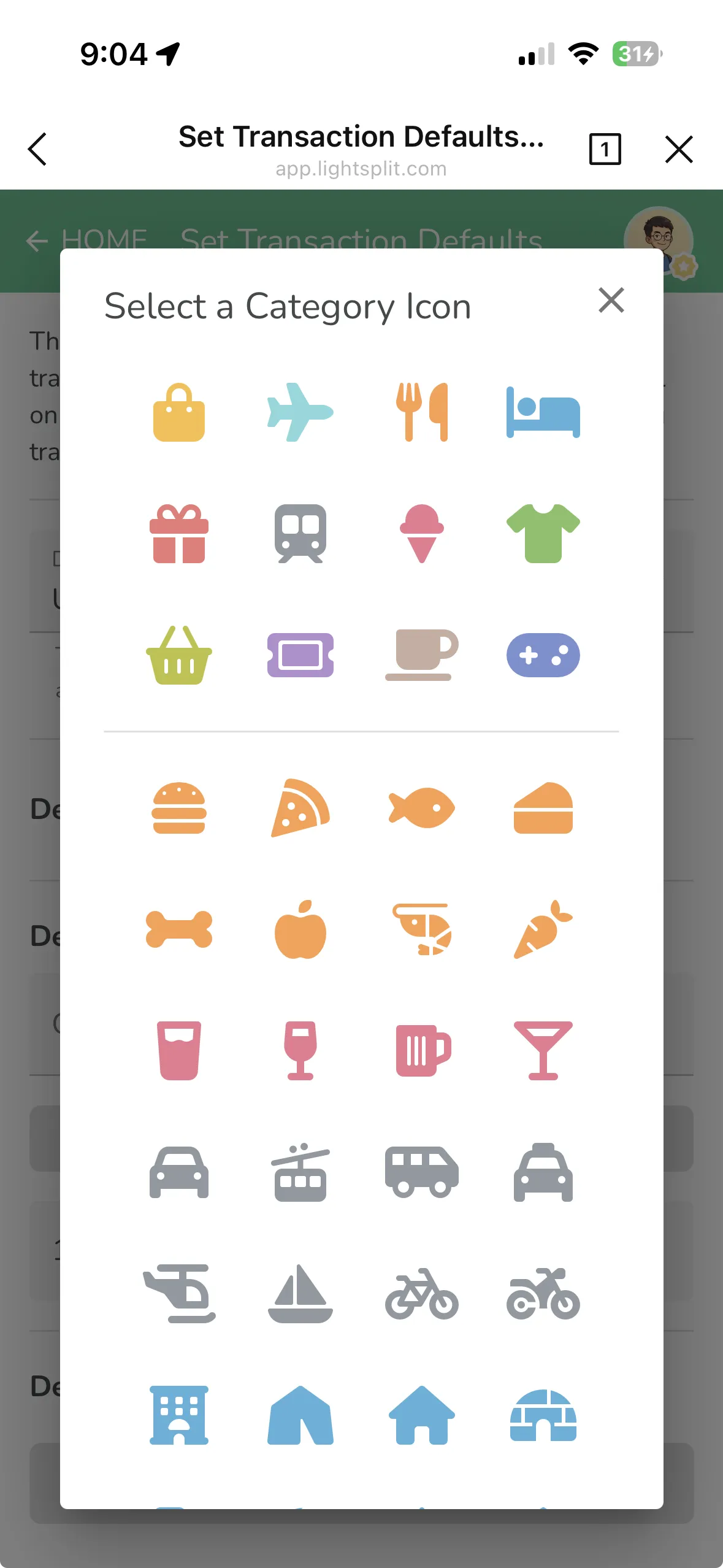
If most expenses in your group are the same type (like a travel group where almost everything is food), set the default category icon to your most-used one. Saves you a tap every time.
Default Exchange Rates
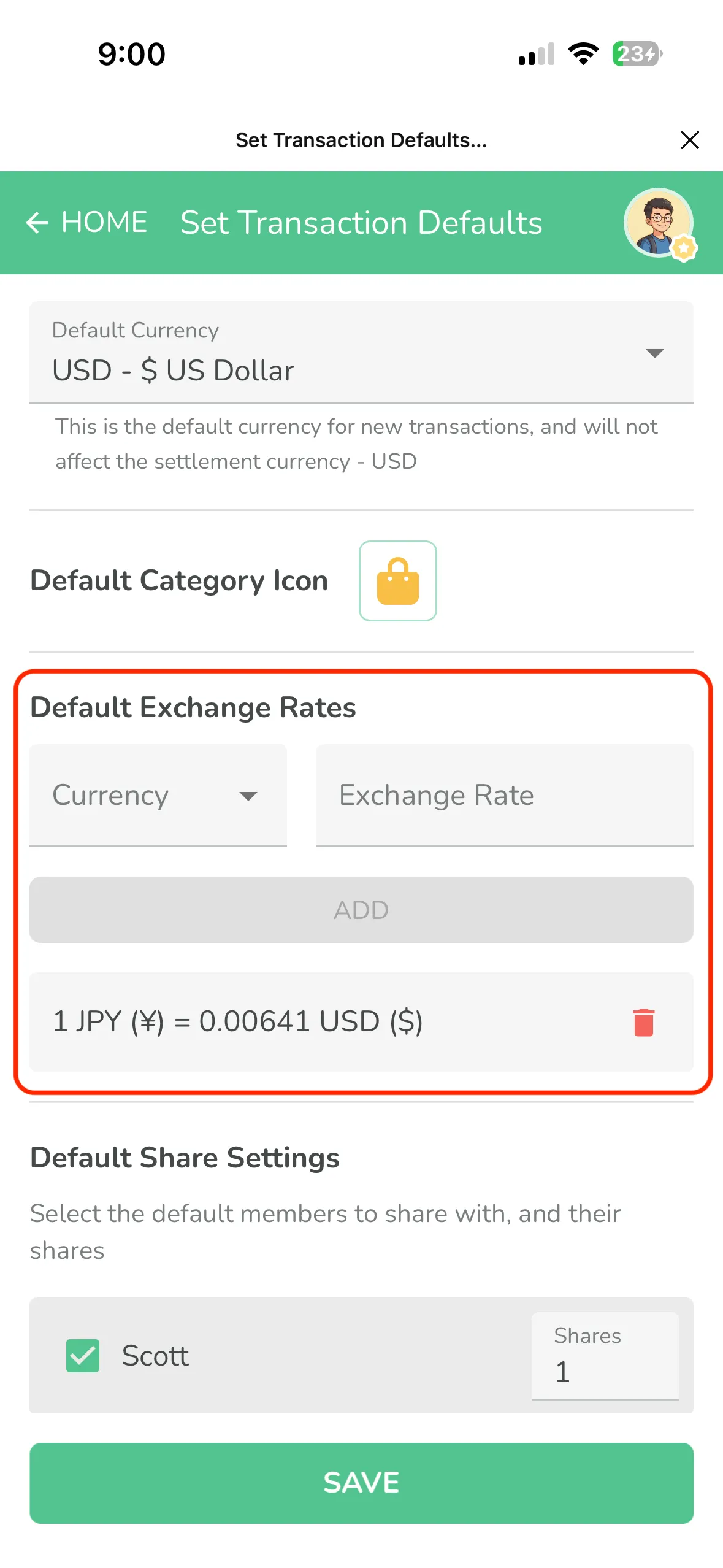
If you've already exchanged currency and know the actual rate, you can set it as the default. Every foreign currency expense will automatically use that rate, so you don't have to type it in each time.
Default Share Settings
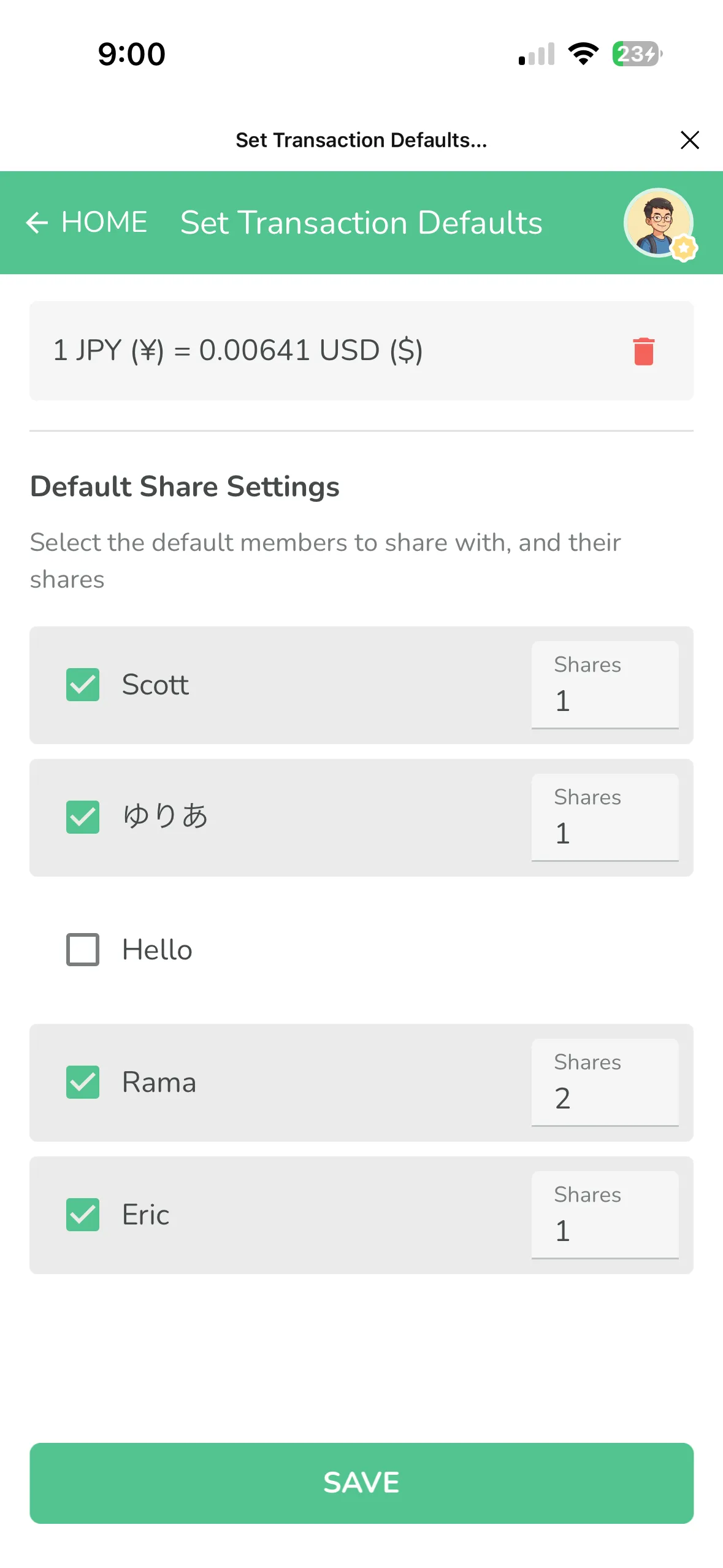
This is the most useful one. Going back to the three-family trip example, you can set the split members to Family A, B, and C with a 2:3:4 ratio. Set it once, and every expense automatically splits that way.
It's not just for family trips. Any situation with a fixed split ratio works great. Roommates splitting rent and utilities, club events, you name it.
Step-by-Step Guide
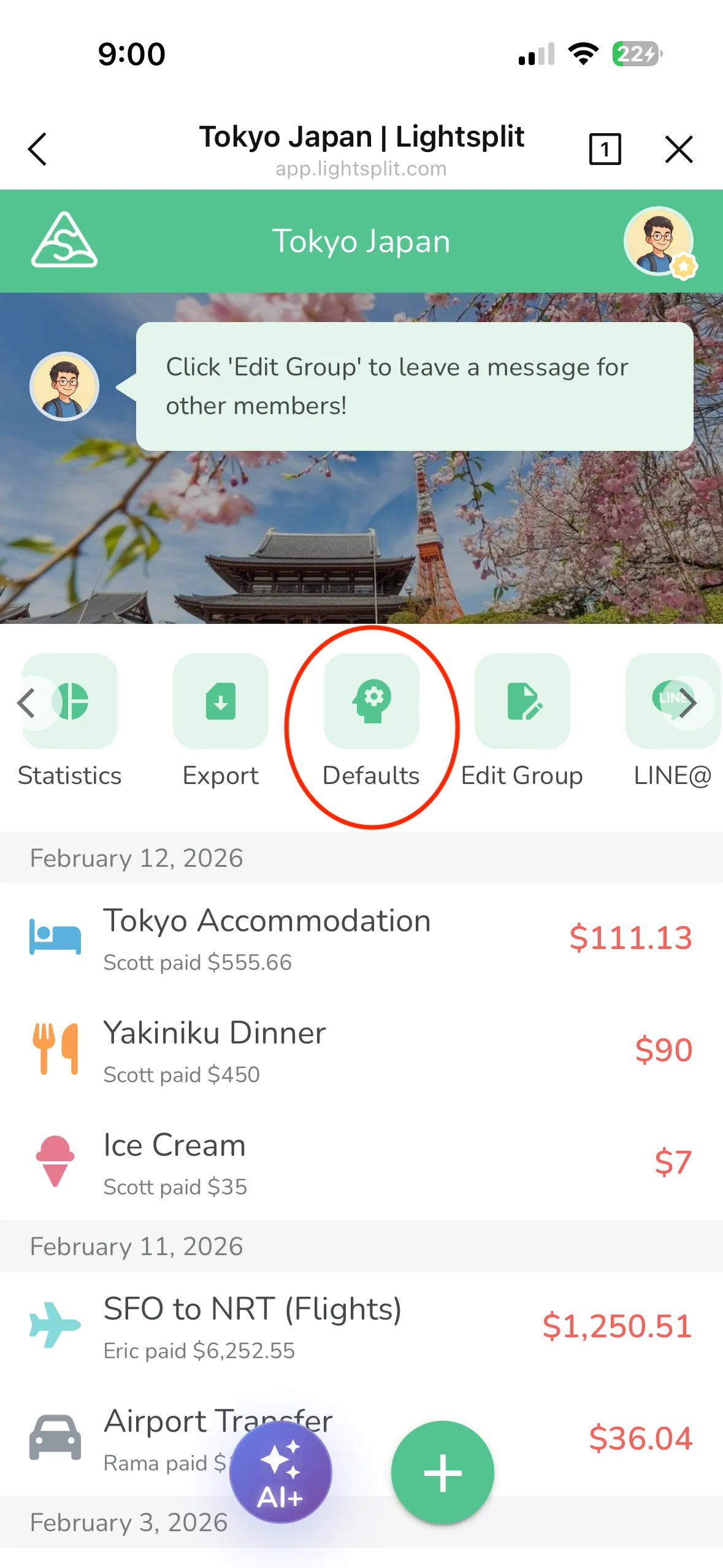
Step 1: Open your group, tap "Defaults"
Open your group and find the "Defaults" button in the toolbar.
Step 2: Set the default currency
Pick the currency your group uses most. Traveling in Japan? Pick JPY. In the US? Pick USD.
Step 3: Set the default category icon
Choose your most-used category icon. Not sure? Skip it for now and come back later.
Step 4: Set a default exchange rate (optional)
If you have a fixed exchange rate, enter it here. If not, skip it and the system will use the real-time rate.
Step 5: Set the split members and ratios
This is the most important step. Select who's participating in the split and set each person's ratio.
For the three-family trip:
- Select Family A's member, set ratio to 2
- Select Family B's member, set ratio to 3
- Select Family C's member, set ratio to 4
Step 6: Save
Make sure everything looks right and hit save. Done!
See It in Action
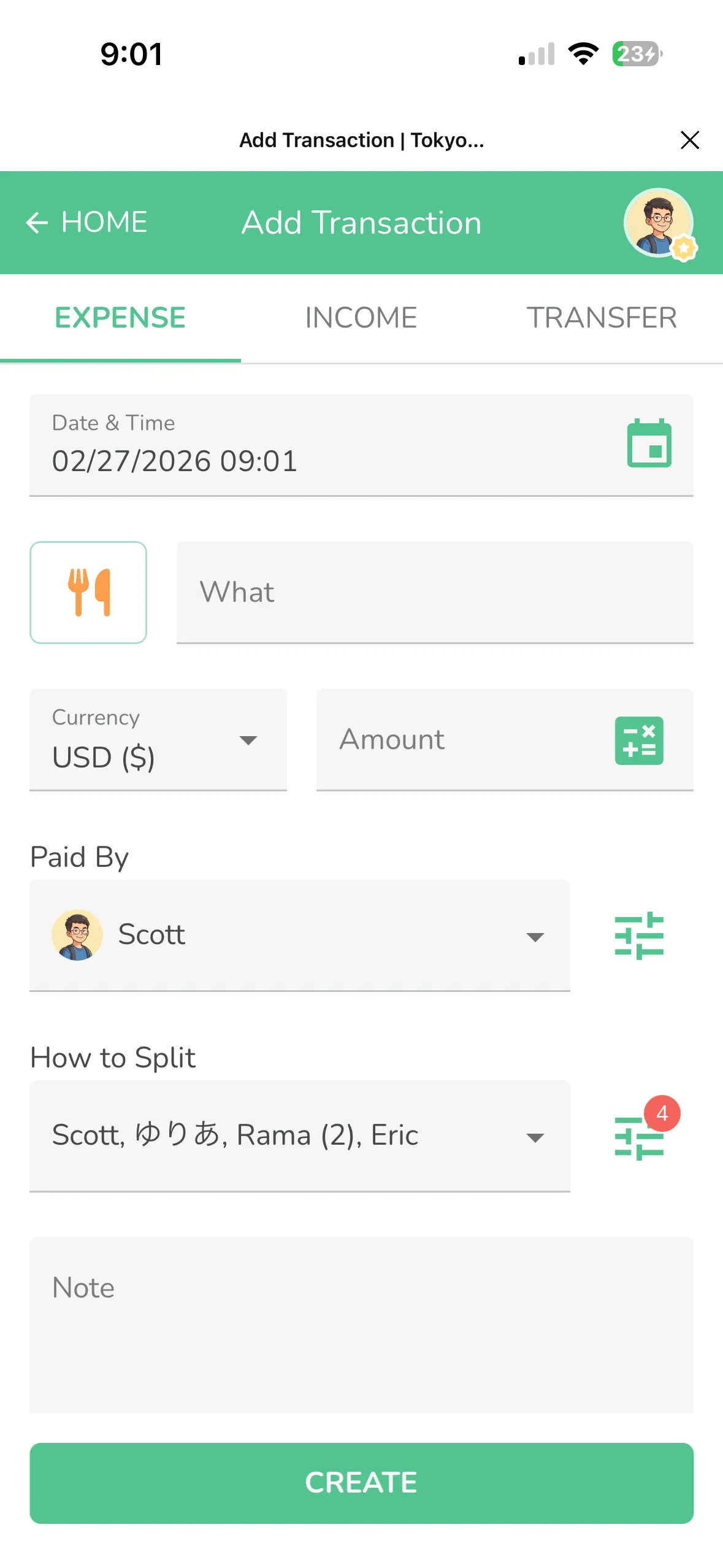
After setup, the next time you add an expense, the currency, category, exchange rate, and split members are all filled in automatically. All you need to enter is the amount and a note. Super easy!
Tips
- Only the group owner can change defaults. All group members can see them.
- Existing expenses aren't affected. Only new expenses added after the change will use the defaults
- You can still override any individual expense. Defaults just pre-fill, they don't lock anything
- Disabled members are automatically excluded. No worries about someone who left still being included
Family trips, roommate expenses, club budgets. If you have a fixed splitting pattern, Transaction Defaults will save you a ton of time. Try it now at Lightsplit!