Discord Expense Splitting Bot: A Guide to Lightsplit

You plan dinner with friends on Discord. Someone covers the bill, and everyone else says, "I'll pay you back later." By the next day, the chat has moved on, and the amounts are buried under game invites. A Discord expense splitting bot can keep track of it all, so you don't have to scroll back through the conversation.
Keep track with a Discord expense splitting bot
Add Lightsplit to your server to create an expense group, record shared bills, and see who owes whom, right in your channel.
Think of a Lightsplit group as a shared expense ledger for your dinner or trip, linked to the channel where you chat. Use commands for everyday entries. When you need the full details or want to change a split, open Lightsplit from a button in the reply.
Add Lightsplit to your server
- Open Add Lightsplit to Discord.
- Choose Add to Server, select your server, and follow the authorization steps.
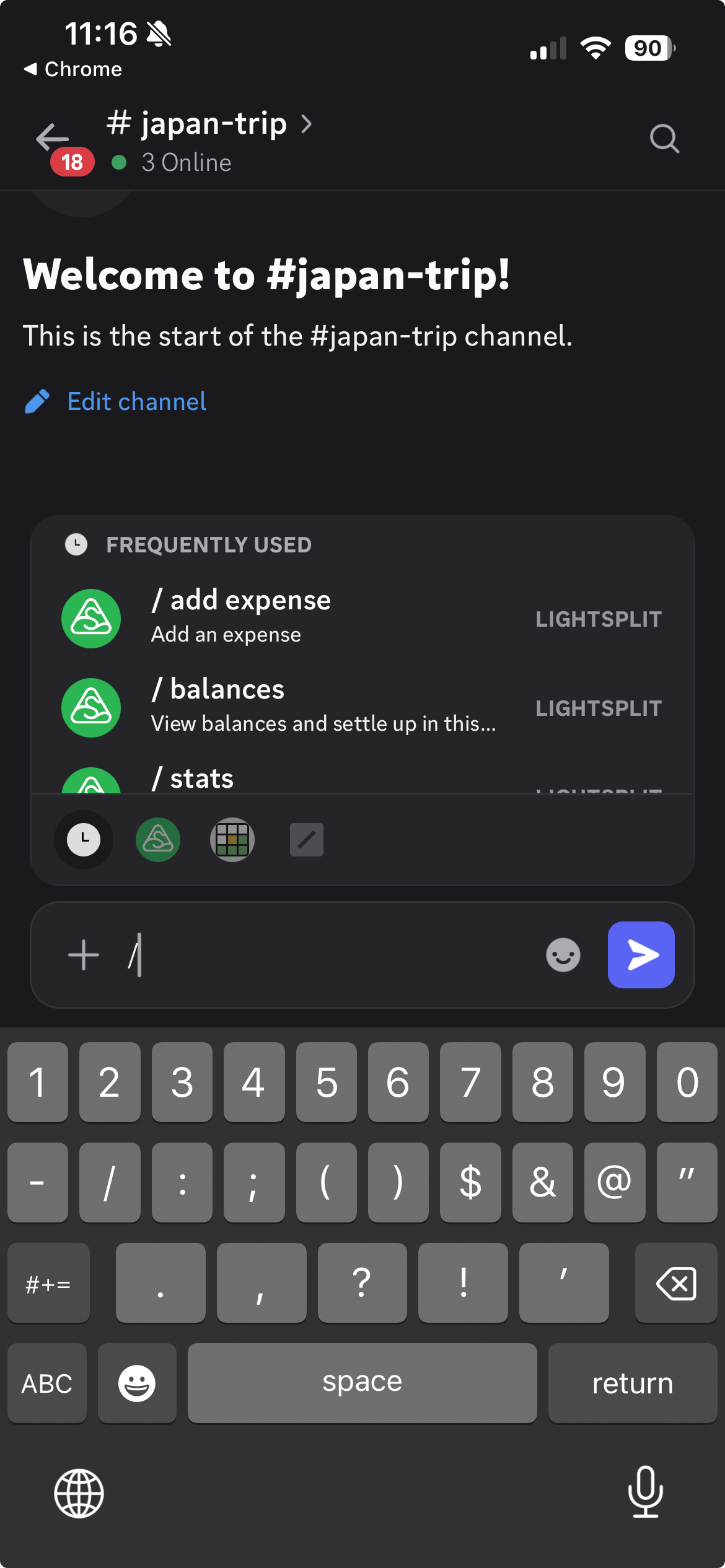
- Return to the text channel where you'll track expenses. Type
/in the message box and choose a Lightsplit command.
You'll need to own the server or have the Manage Server permission to install Lightsplit. If your server isn't listed, ask a friend with that permission to install it. See Discord's guide to using apps.
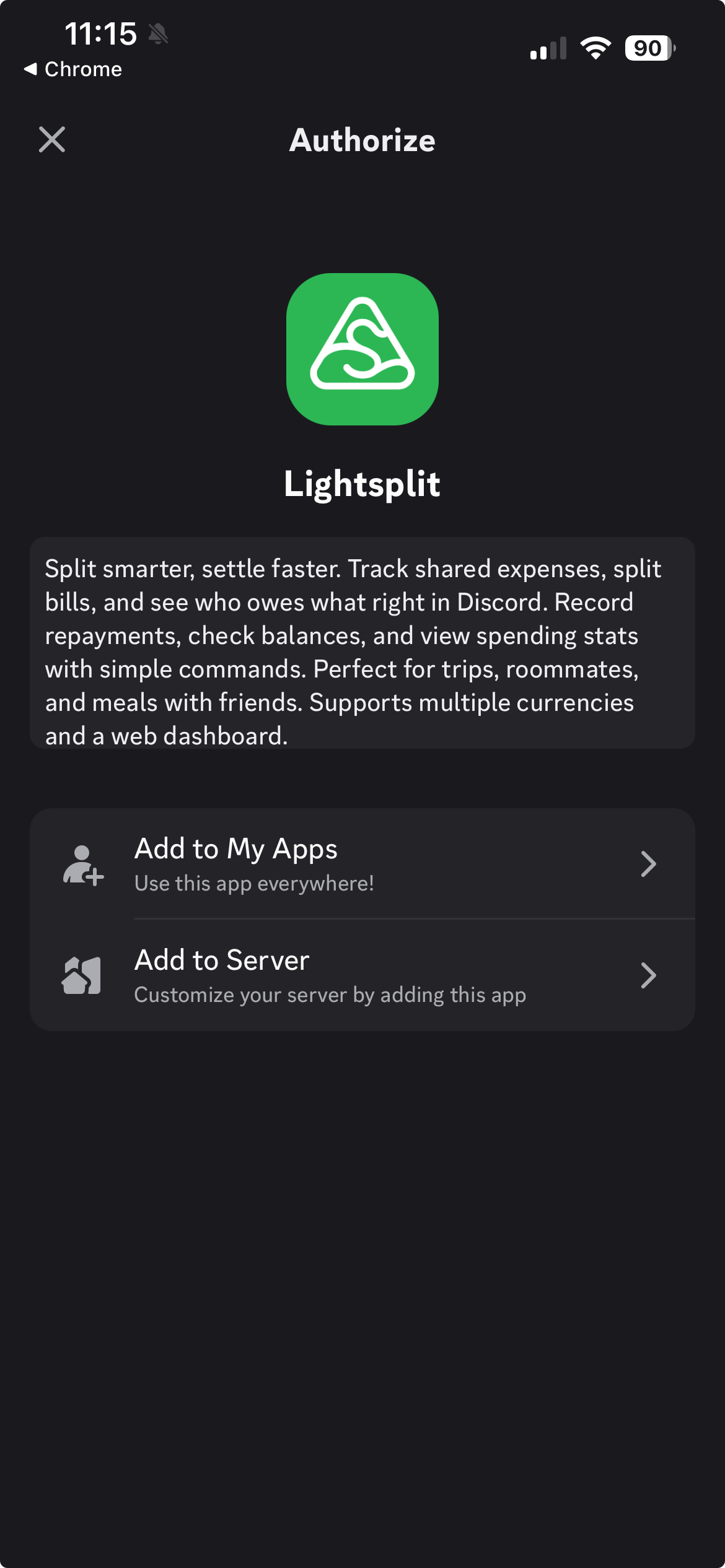
For the examples below, choose the command from the menu first, then fill in its fields.
Create a group and invite your friends to join
1. Create your expense group with /group create
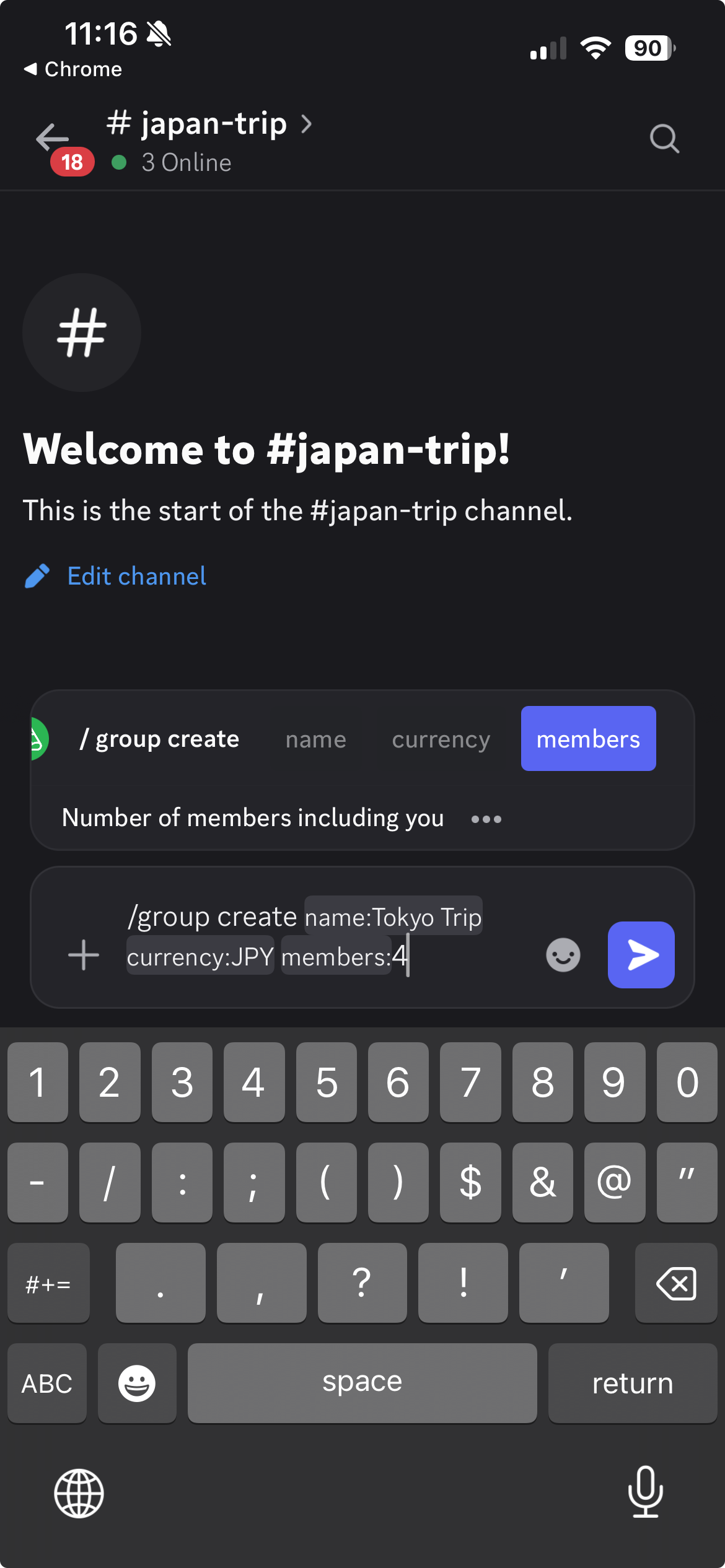
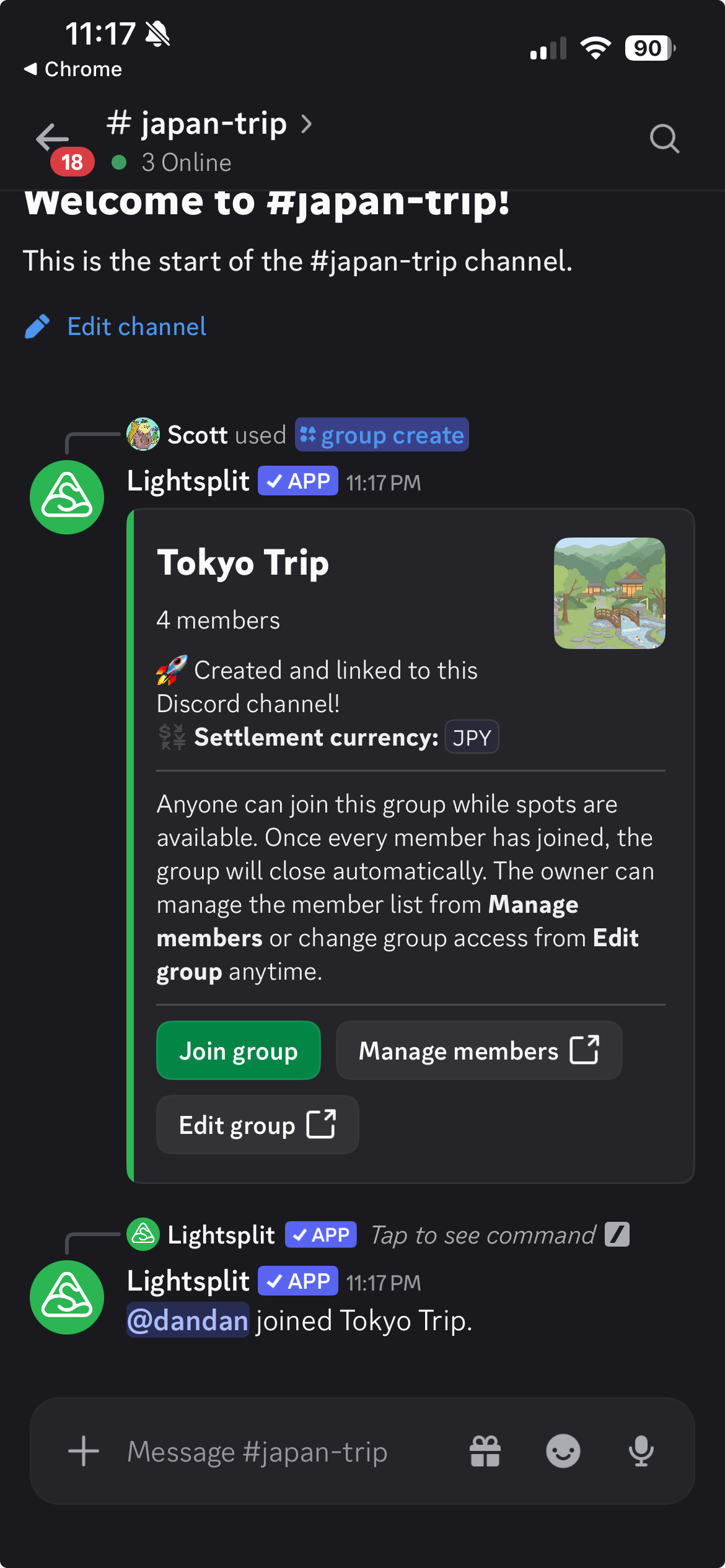
Let's say Scott and three friends are taking a trip to Tokyo. Scott selects /group create in the japan-trip channel and enters:
/group create name:Tokyo Trip currency:JPY members:4
- name: A name for the group, such as "Tokyo Trip" or "Weekend Dinner."
- currency: The currency you'll settle up in. Choose
JPYfor Japanese yen. - members: The total number of people sharing expenses, including the person creating the group.
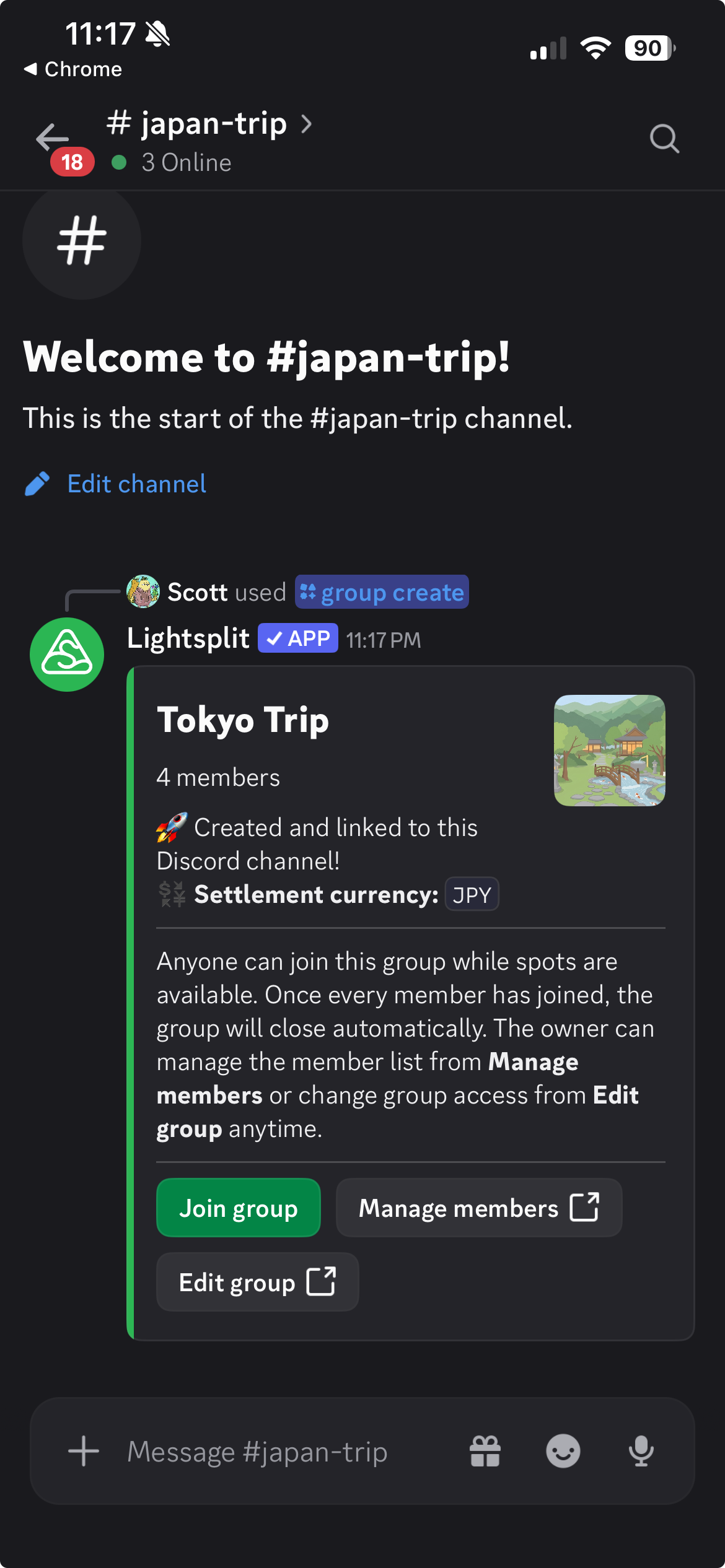
All three fields are required. Submit the command, and Lightsplit creates the group and links it to the current channel.
2. Ask your friends to select Join group
Each friend selects Join group on the reply card to join the shared ledger with their Discord account. The screenshot below shows dandan joining successfully.
You can start recording expenses as soon as the group is created, without waiting for everyone to join. If the original message gets buried, use /group open to bring up the current group again.
Record expenses and see who owes whom
Record a bill you covered with /add expense
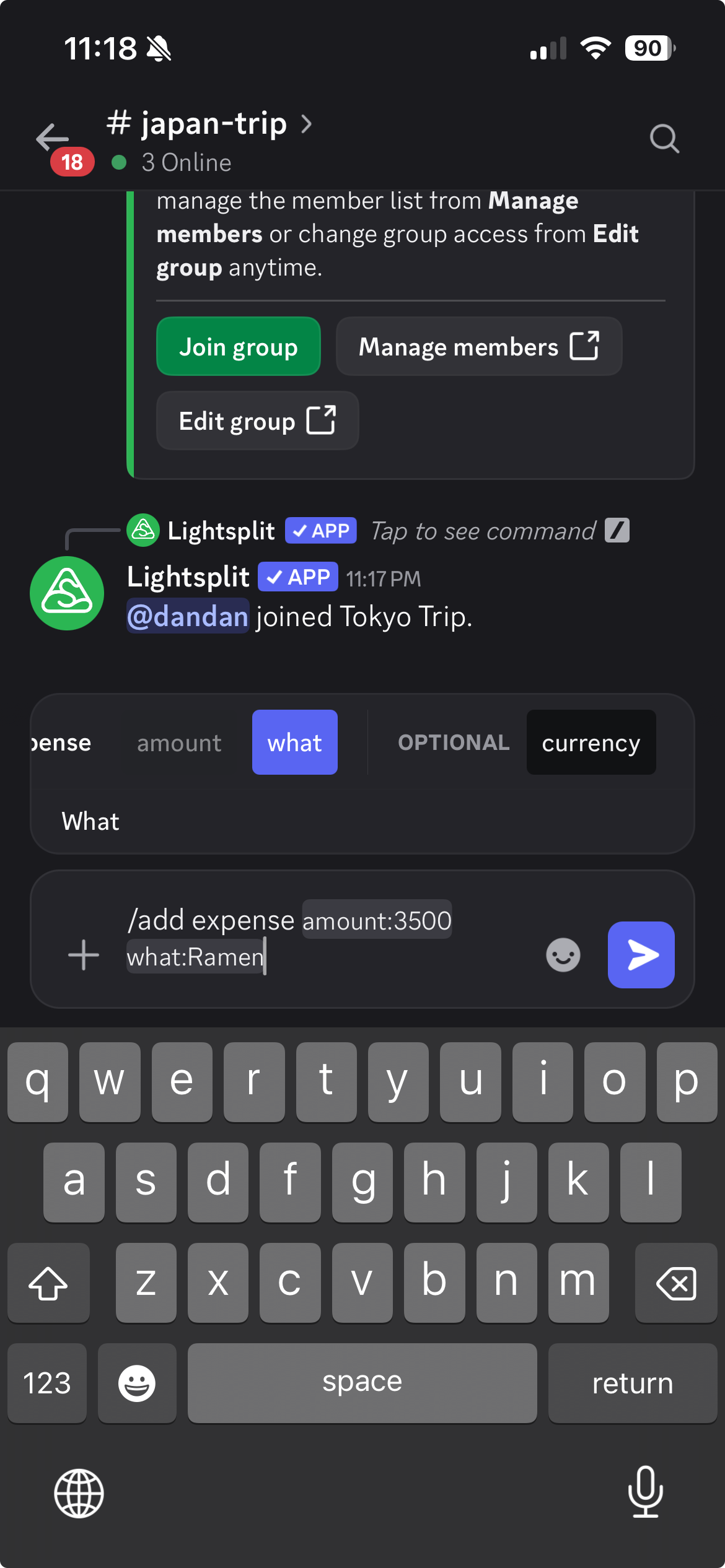
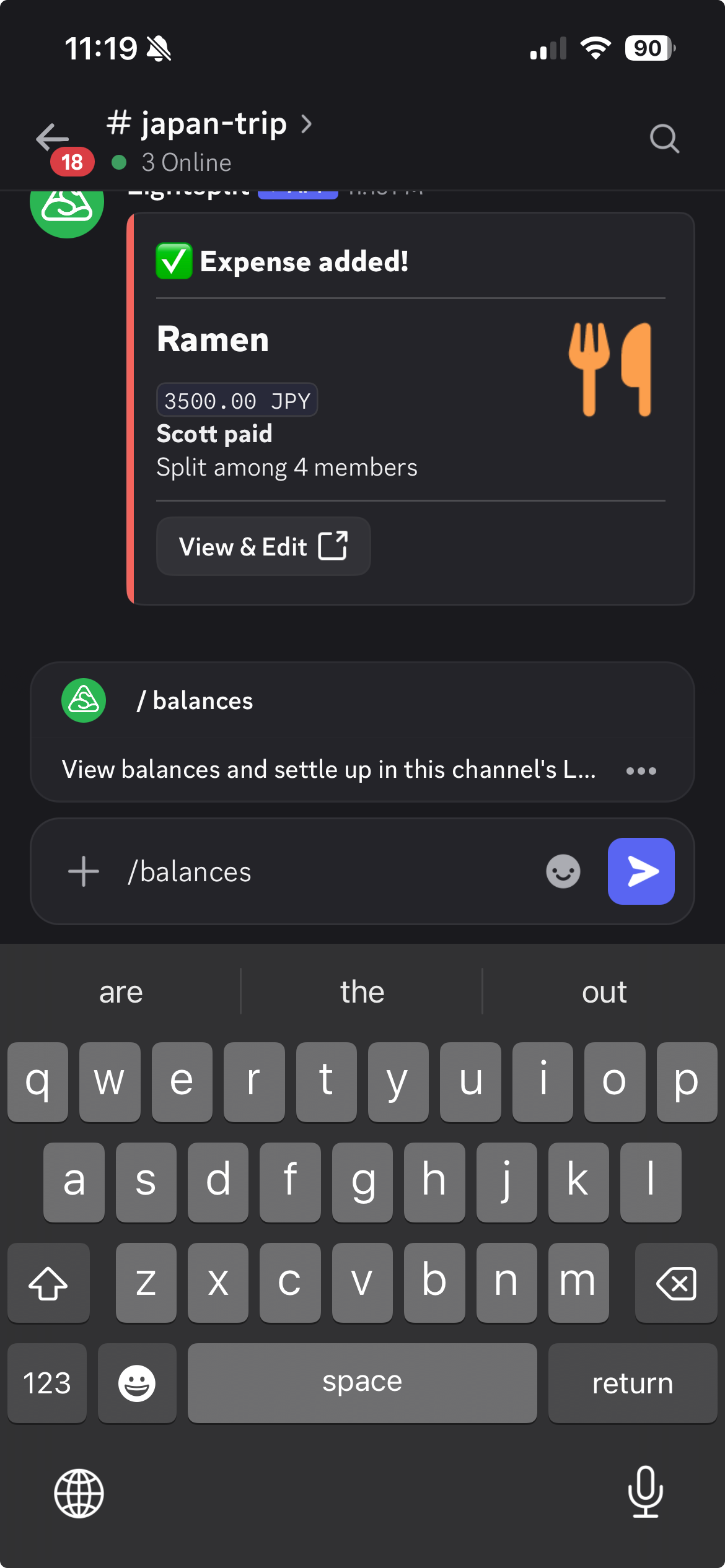
The four friends spend 3,500 JPY on ramen, and Scott pays. Scott selects /add expense and enters:
/add expense amount:3500 what:Ramen
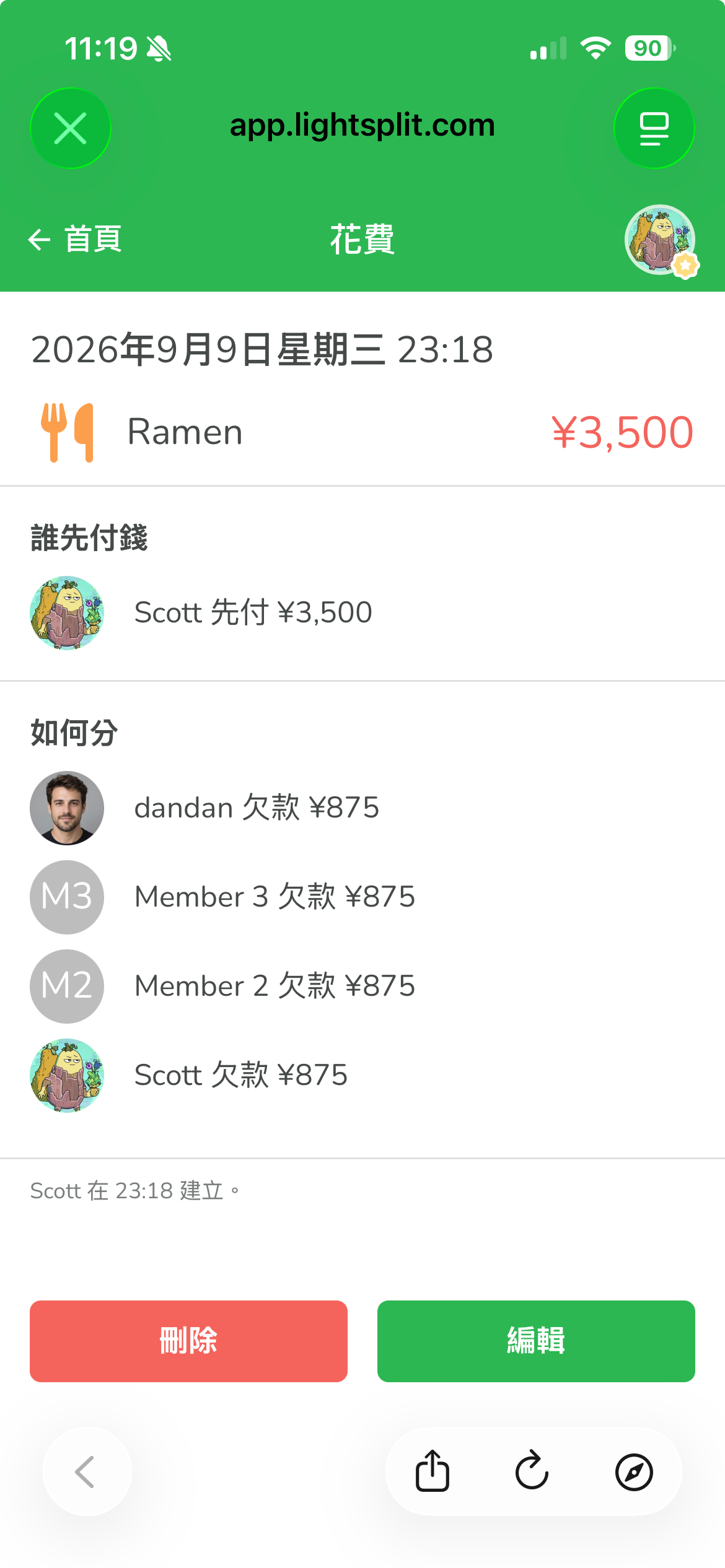
amount and what are required; currency is optional. Leaving out the currency uses the group's JPY. This records Scott as the person who paid and splits the bill equally among four members, at 875 JPY each.
If you've changed the group's Defaults, the split follows those settings. Check the reply after adding an expense to confirm the amount and number of members included.
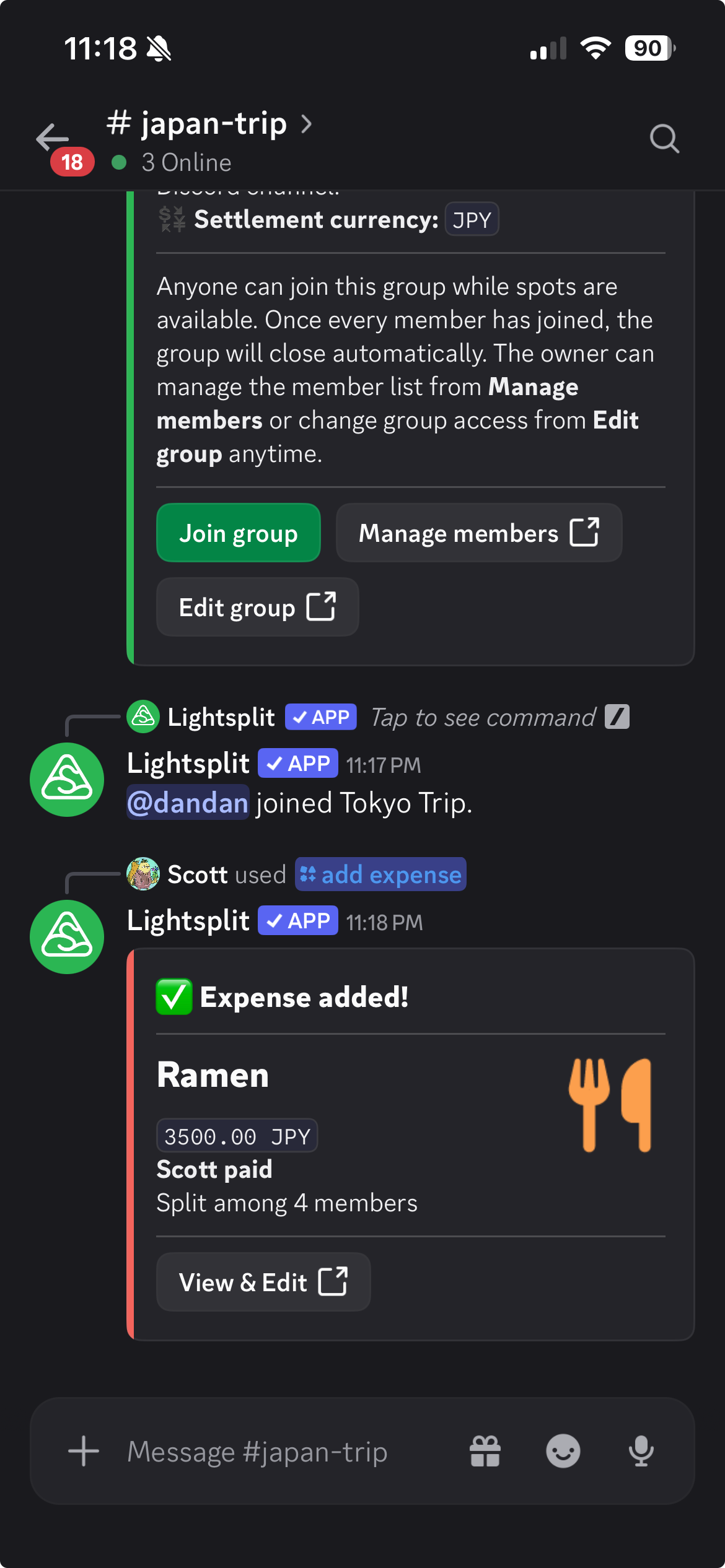
Select View & Edit to open the record and see who paid and each person's share. To make changes, select Edit on the details page.
Check who owes whom with /balances
Select /balances to see where everyone stands. There are no other fields to fill in.
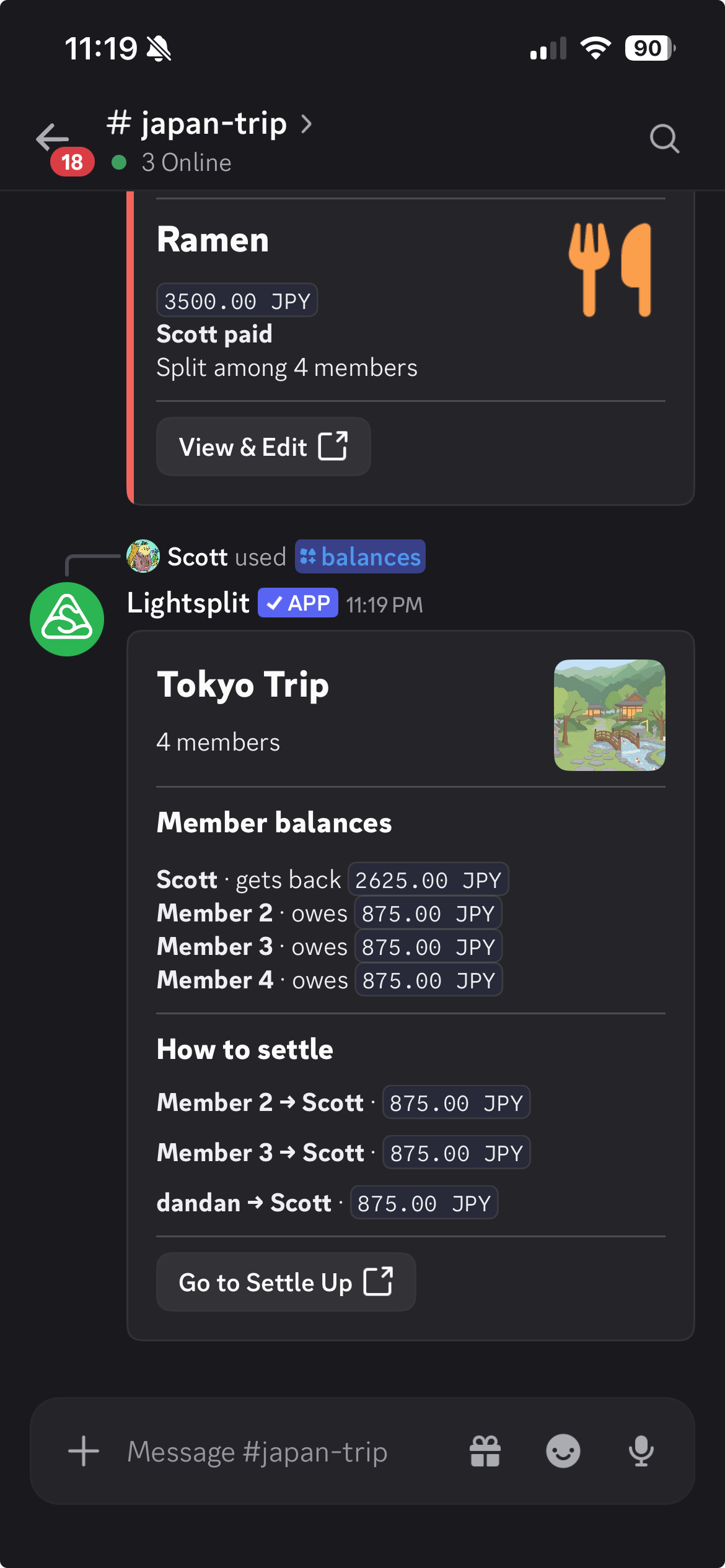
After recording the ramen bill, the balances are:
| Member | Current balance |
|---|---|
| Scott | Gets back 2,625 JPY |
| Member 2 | Owes 875 JPY |
| Member 3 | Owes 875 JPY |
| dandan (Member 4) | Owes 875 JPY |
Scott's own share is 875 JPY, so the other three members owe him a total of 2,625 JPY.
The How to settle section lists who should pay whom and how much. Select Go to Settle Up for the full details.
Record payments between members with /transfer
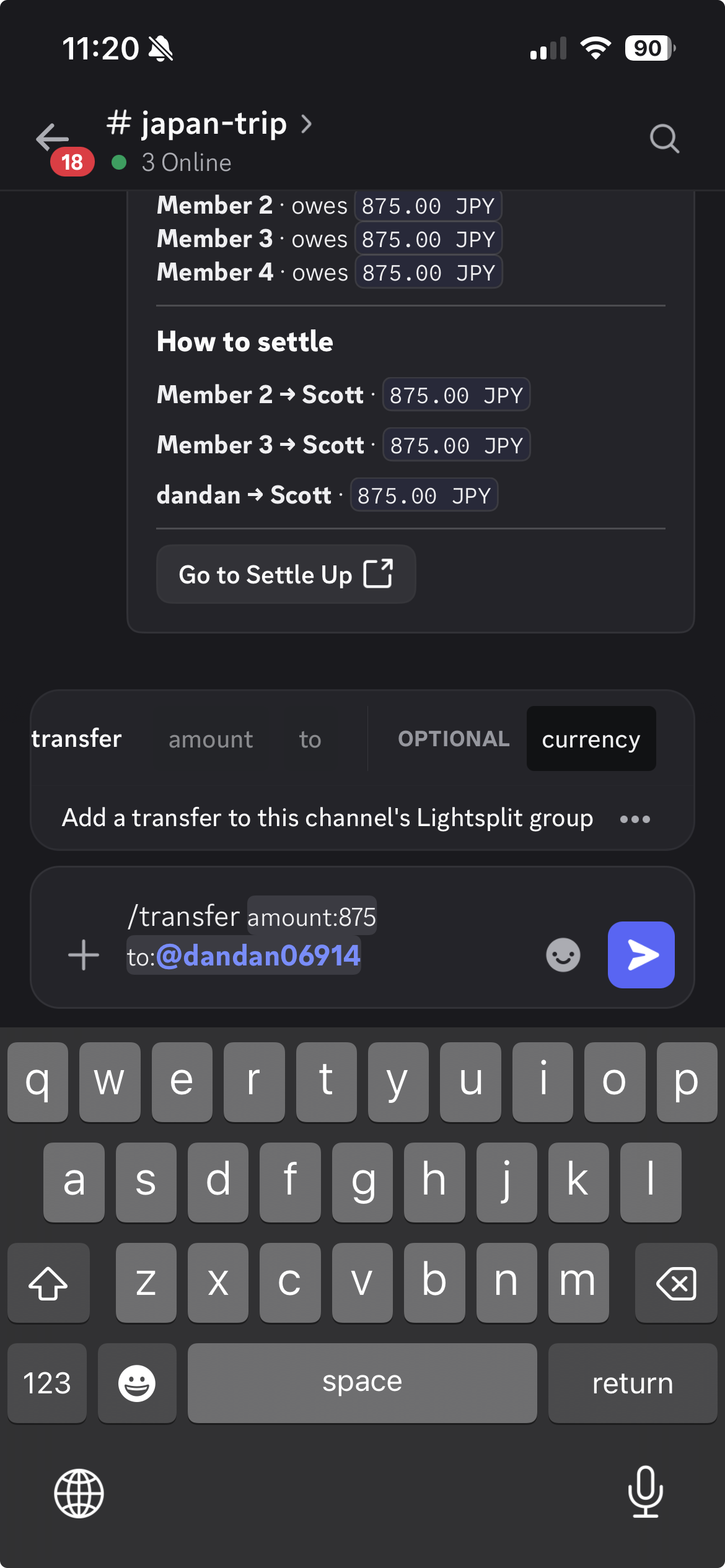
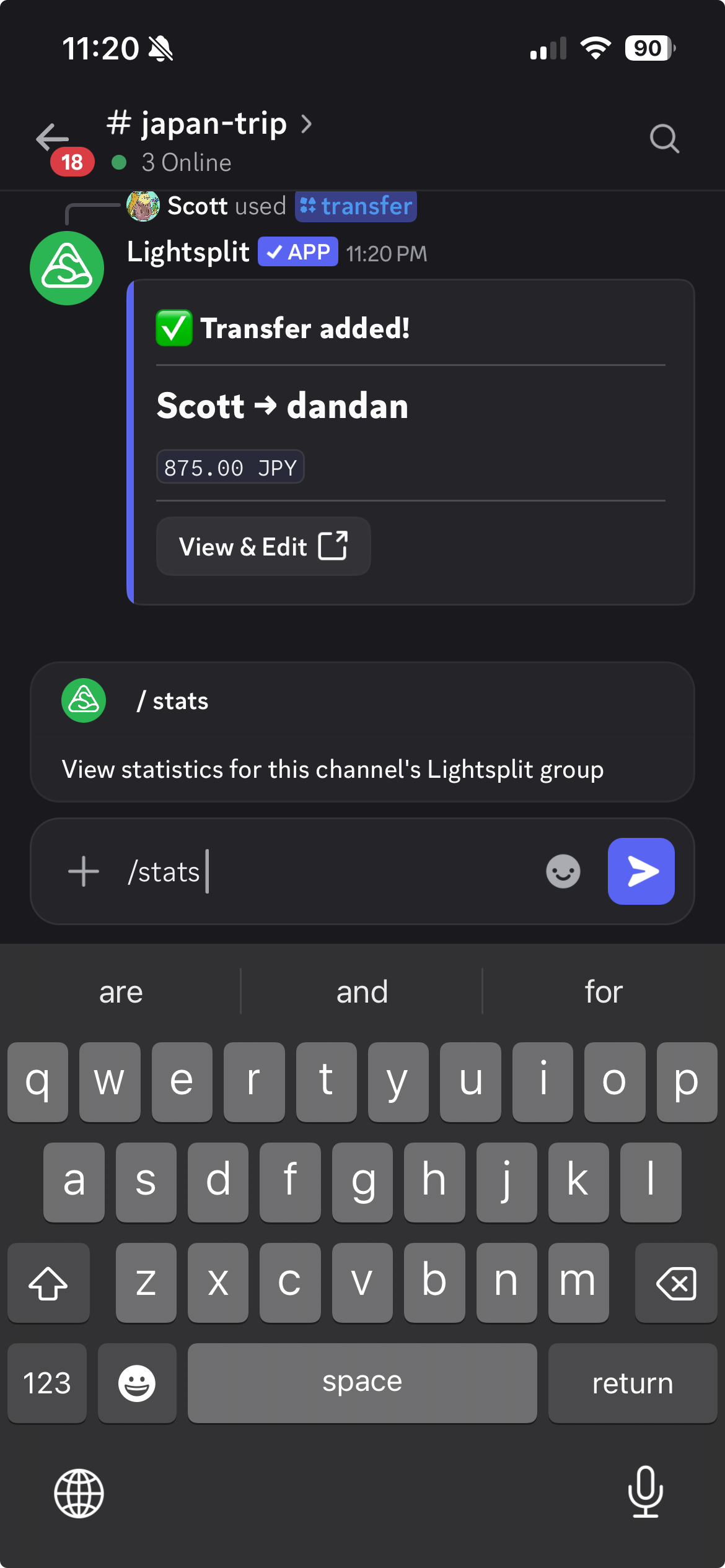
Once one member has paid another, the person who paid selects /transfer. Here's a separate example of Scott paying dandan 875 JPY. Scott enters:
/transfer amount:875 to:@dandan06914
Choose dandan from Discord's user picker in the to field. amount and to are required; currency is optional. The recipient must already have joined the same Lightsplit group.
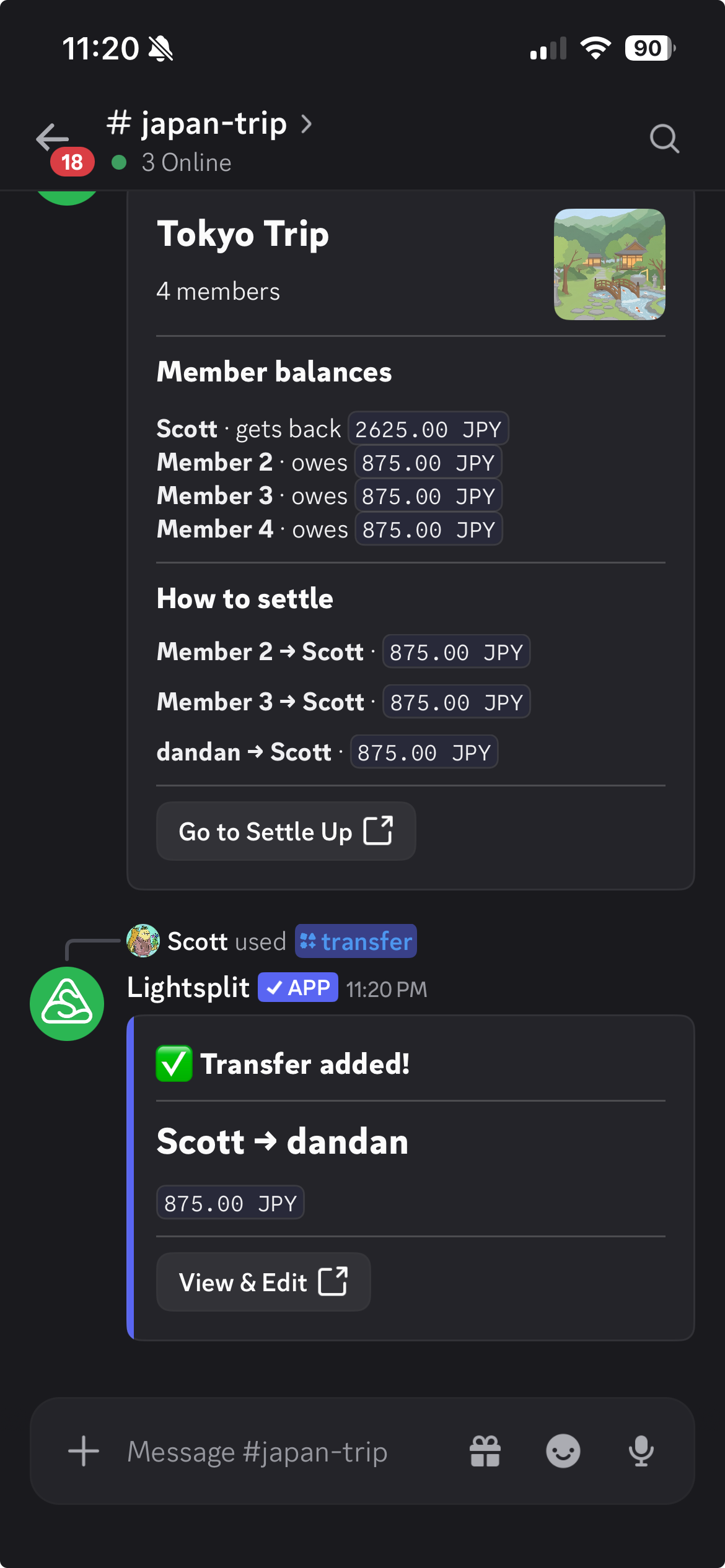
The reply shows Scott → dandan, 875 JPY. If dandan is paying Scott back for the ramen instead, dandan should run the command and select Scott in the to field.
/transferrecords a payment that has already happened. It doesn't move money from a bank account. Record the payment after it's complete to update the balances.
See where the money went with /stats
Select /stats to see the group's total expenses and a breakdown by category. For the full charts, select View statistics.
In this example, the ramen expense is still 3,500 JPY. Transfers between members update their balances without counting as additional expenses.
Record income and expenses in other currencies
Record a tax refund or other refund with /add income
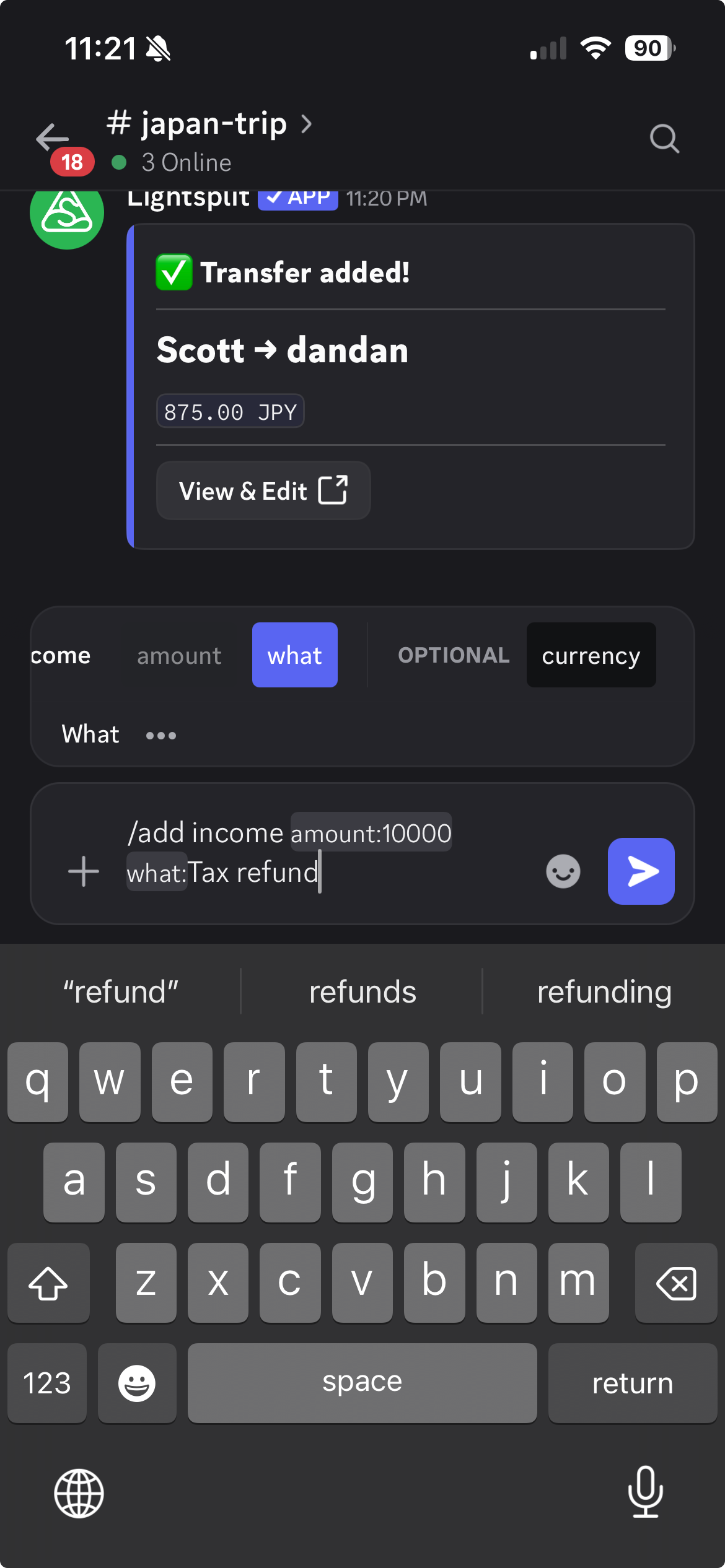
Suppose you receive a 10,000 JPY tax refund during the trip. The person who receives the money selects /add income and enters:
/add income amount:10000 what:Tax refund
The fields are the same as for expenses: amount and what are required, while currency is optional. This example uses the group's JPY. If you receive US dollars, choose USD in the currency field.
The entry records you as the person who received the income, then allocates it among members according to the group's settings.
If a friend is paying you back for a bill you covered, use /transfer instead so the payment updates what you owe each other.
Choose the currency you paid in
To specify Japanese yen for the ramen bill, include JPY when recording it:
/add expense amount:3500 what:Ramen currency:JPY
An expense can use a different currency from the group's settlement currency. For example, a group that settles in USD can still record expenses in JPY. When you check balances, the amounts are converted to the group's settlement currency.
If you don't specify a currency, Lightsplit uses the group's settlement currency.
Open, link, or switch groups
Open the full group with /group open
Select /group open in the channel to bring up the linked Lightsplit group.
Select Open group to view all its records or change the group details in Lightsplit. Friends can also join from the card when there are available spots and the group is open to new members.
Link an existing group with /group link
Already have a "Japan Trip" group in Lightsplit? The owner of that group selects /group link and chooses it in the group field:
/group link group:Japan Trip
Here, "Japan Trip" is a group selected from the menu. You can also enter a group link or ID in the field.
The menu lists groups owned by your current Discord identity in Lightsplit that aren't already linked to another Discord channel. Once linked, you can continue recording expenses in this channel.
Switch groups with /group unlink
Each Discord channel can be linked to one Lightsplit group at a time, and each group can be linked to one Discord channel.
To switch to a different group:
- Run
/group unlinkin the original channel. - Use
/group createto create a new group, or/group linkto choose another existing group.
The Lightsplit group owner, or someone with Discord's Manage Channels or Administrator permission, can unlink the group. The original group and its records are kept. Only the link to the channel is removed.
Lightsplit Discord command reference
Can't remember which command to use? Come back to this table.
| Command | Purpose |
|---|---|
/group create | Create a group and link it to the current channel |
/group open | Show the current group and a button to open it |
/group link | Link an existing group you own |
/group unlink | Unlink the group from the current channel |
/add expense | Record an expense you paid |
/add income | Record income you received |
/transfer | Record a payment you made to another member |
/balances | See what everyone owes or gets back, and how to settle up |
/stats | View total expenses and a breakdown by category |
/support | Find support contact details |
You can also specify a currency when adding an expense, income, or transfer.
A few habits that make splitting bills easier
- Record expenses as you go. Add each bill in the channel where you're already discussing the trip or dinner, so you don't have to piece it together later.
- Check the reply. Confirm the amount, description, and number of members. If someone wasn't part of that expense, adjust the split through View & Edit.
- Let everyone check the balances. Any group member can use
/balancesto see what they owe or get back, without asking one person for an update.
Frequently asked questions
Why can't I see the Lightsplit commands?
Check that Lightsplit has been added to the server, then type / in a text channel. If the commands still don't appear, ask an admin to check the channel's Use Application Commands permission and Lightsplit's command permissions.
My friend is in the server. Why can't they add an expense?
Use /group open and ask them to select Join group. If they've already joined but still can't add records, ask the group owner to check that they have editing access in the Lightsplit group.
If a transfer says the recipient hasn't joined, ask them to join the same expense group first.
What if the group is full or Join group isn't available?
Ask the group owner to adjust the available spots through Manage members and check that joining is allowed under Edit group, then try again.
Can I use it to track my own expenses?
Yes! Create a Lightsplit group in your private Discord server and set members to 1. You can use it to record your everyday expenses.
Split the next dinner bill in your channel
Add Lightsplit to Discord, create a group, invite your friends to join, and record your first shared expense. This Discord expense splitting bot keeps track of who paid and who still owes money, right alongside the conversation.
Explore more ways to share expenses on the Lightsplit website.