Add Lightsplit to Your Home Screen: Split Bills, No Download
If you've used Lightsplit before, you may have opened it through LINE, Telegram, Discord or a group link. Having to scroll through chat history to find the link every time you want to split expenses is a bit of a hassle, right?
Great news! 🎉
We've launched a PWA version of Lightsplit! You can add it to your phone's home screen just like an app, and from now on, just tap the icon to start splitting expenses. Super convenient!
This article will show you how to install Lightsplit PWA on Android and iOS, step by step. No downloads, no storage space needed. You'll be set up in seconds!
What is PWA?
PWA (Progressive Web App) is an advanced web application. Simply put:
It looks like an app, works like an app, but you don't need to install it from the App Store or Google Play.
Its advantages include:
- Takes up no phone storage
- No updates needed, always the latest version
- Opens quickly with a smooth user experience
How to Install Lightsplit PWA on Android?
If you're an Android user, installing Lightsplit PWA is super simple. Just a few steps and a few seconds, and you'll have it on your home screen just like any other app.
Step 1: Open Lightsplit Website in Chrome
- Open Google Chrome on your phone (Chrome is recommended, as other browsers may not support all features)
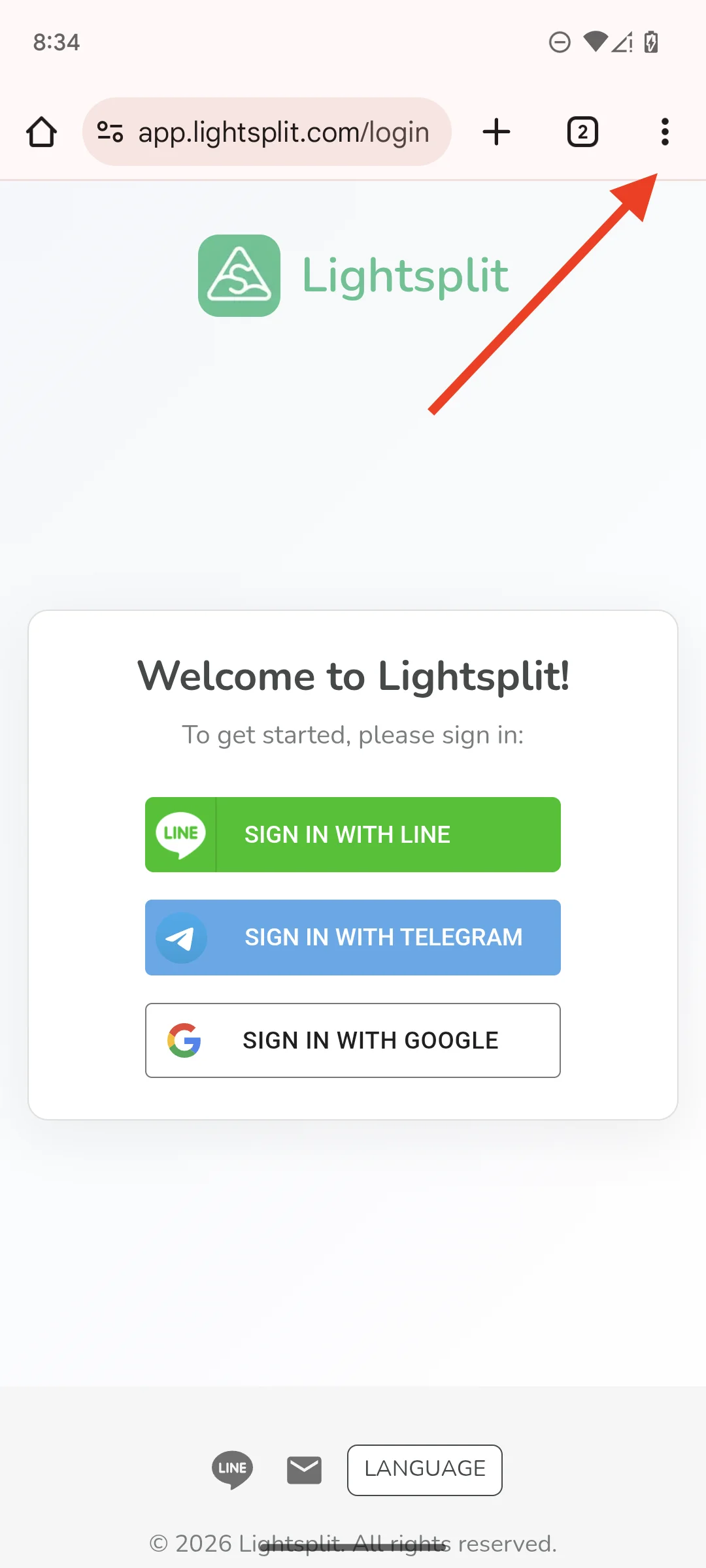
- Enter Lightsplit's URL in the address bar: https://app.lightsplit.com/login
- After the page loads, you'll see a prompt at the bottom or top of the screen saying "Install Lightsplit" or "Add to Home screen" (if you don't see it, no worries! We'll show you how to do it manually in the next step)
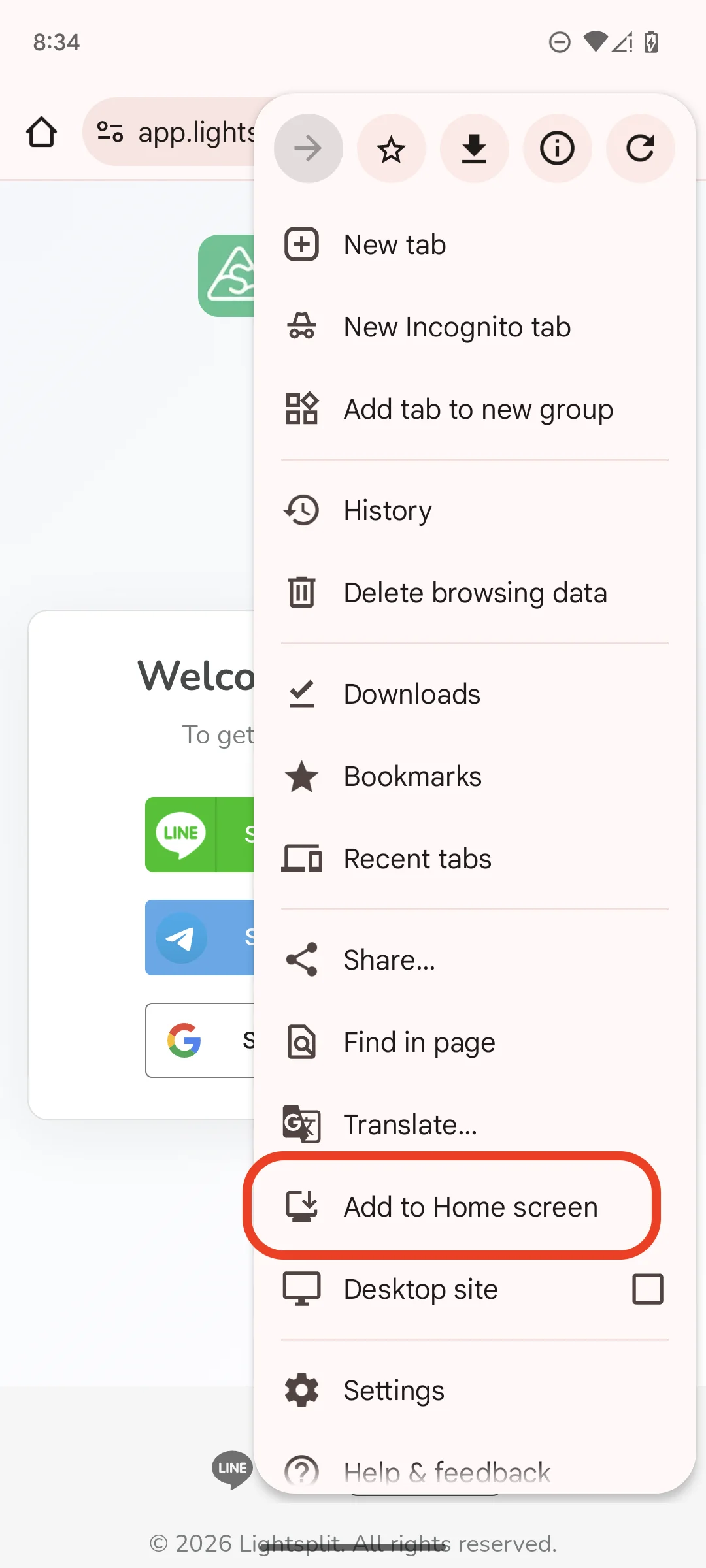
Step 2: Manually Add to Home Screen
If the prompt doesn't appear automatically, you can do this:
- Scroll down to find the "Add to Home screen" or "Install app" option
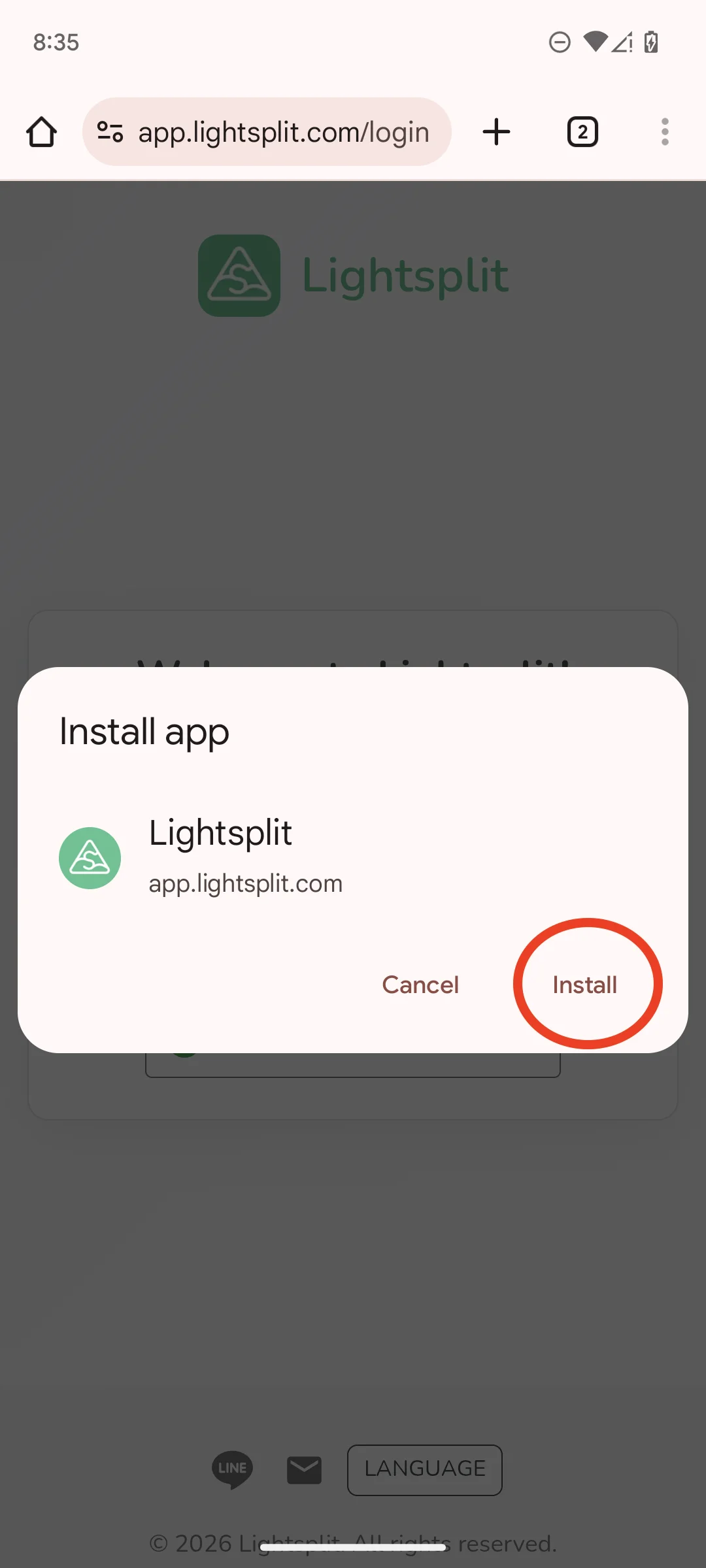
- Tap it, and the system will prompt you to name the app (you can just use the default "Lightsplit")
- Confirm, and it will be installed on your home screen!
Done
Now the Lightsplit icon will appear on your phone's home screen. Just tap it to open and use it. It feels just like a native app. You'll never have to search through chat history for the link again!
iPhone Users: Lightsplit Is Now on the App Store
Before we get to the home screen steps, here's something new. Lightsplit now has a native iOS app!
Download Lightsplit on the App Store
If you'd rather not install anything, no problem at all. The home screen method below still works exactly the same.
How to Install Lightsplit PWA on iOS (iPhone / iPad)?
iPhone and iPad users, don't worry! You can also add Lightsplit to your home screen and use it like an app anytime. However, there's one important thing to note:
⚠️ You must use Safari browser, because currently only Safari supports the "Add to Home Screen" feature. Browsers like Chrome and Firefox can't do this on iOS.
Step 1: Open Lightsplit in Safari
- Open Safari
- Enter in the address bar: https://app.lightsplit.com/login
- Wait for the page to load completely, then continue to the next step
Step 2: Add to Home Screen
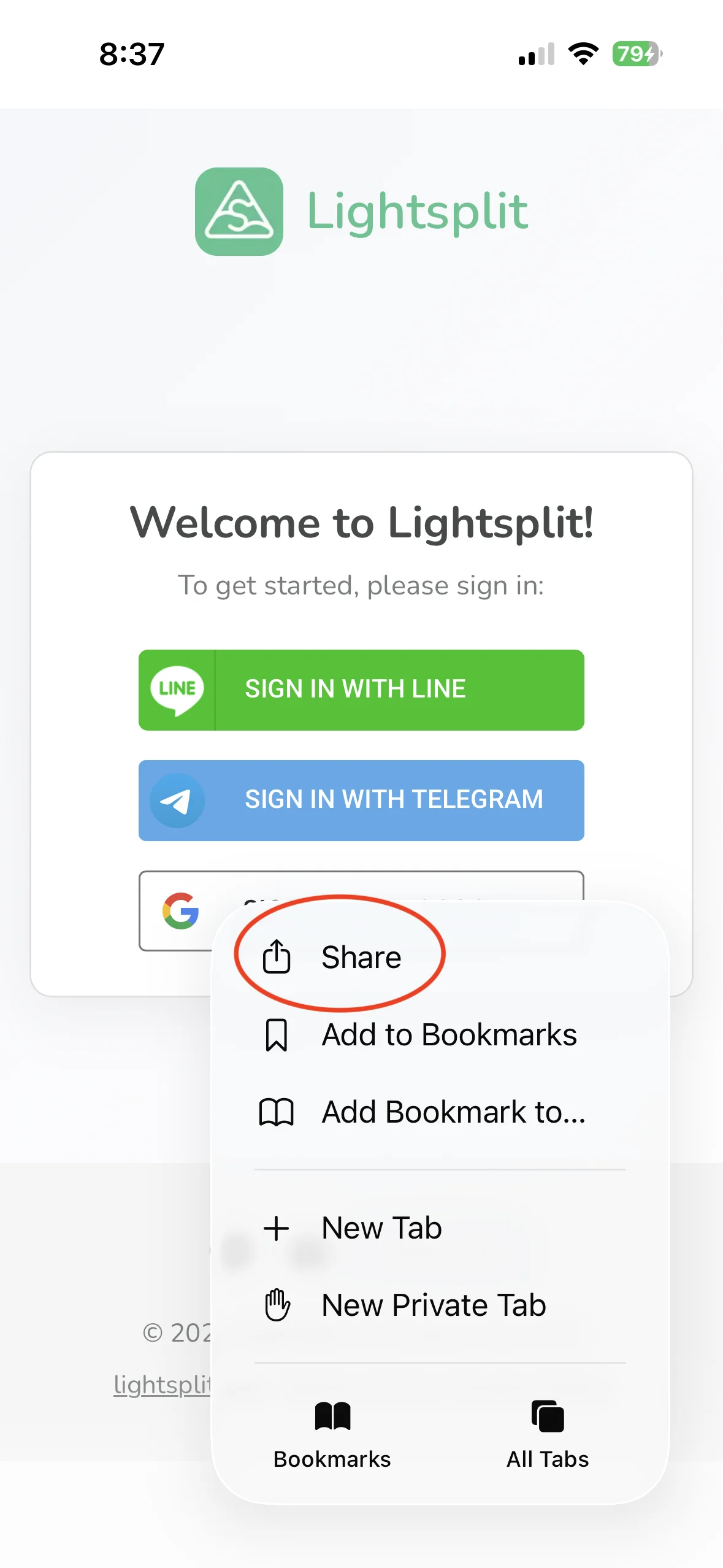
- Tap the "..." button in the bottom right corner
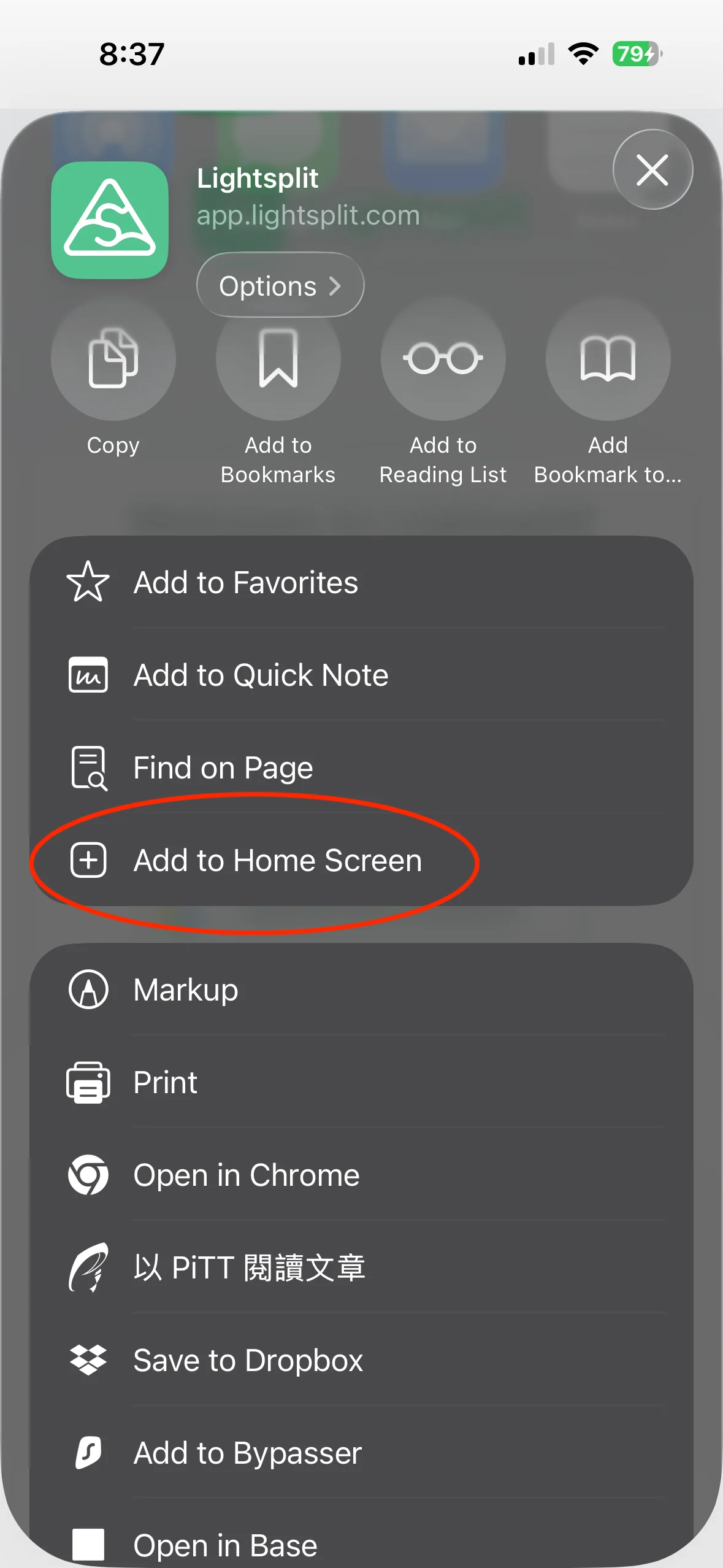
- After tapping, select "Share"
- Tap "Add to Home Screen"
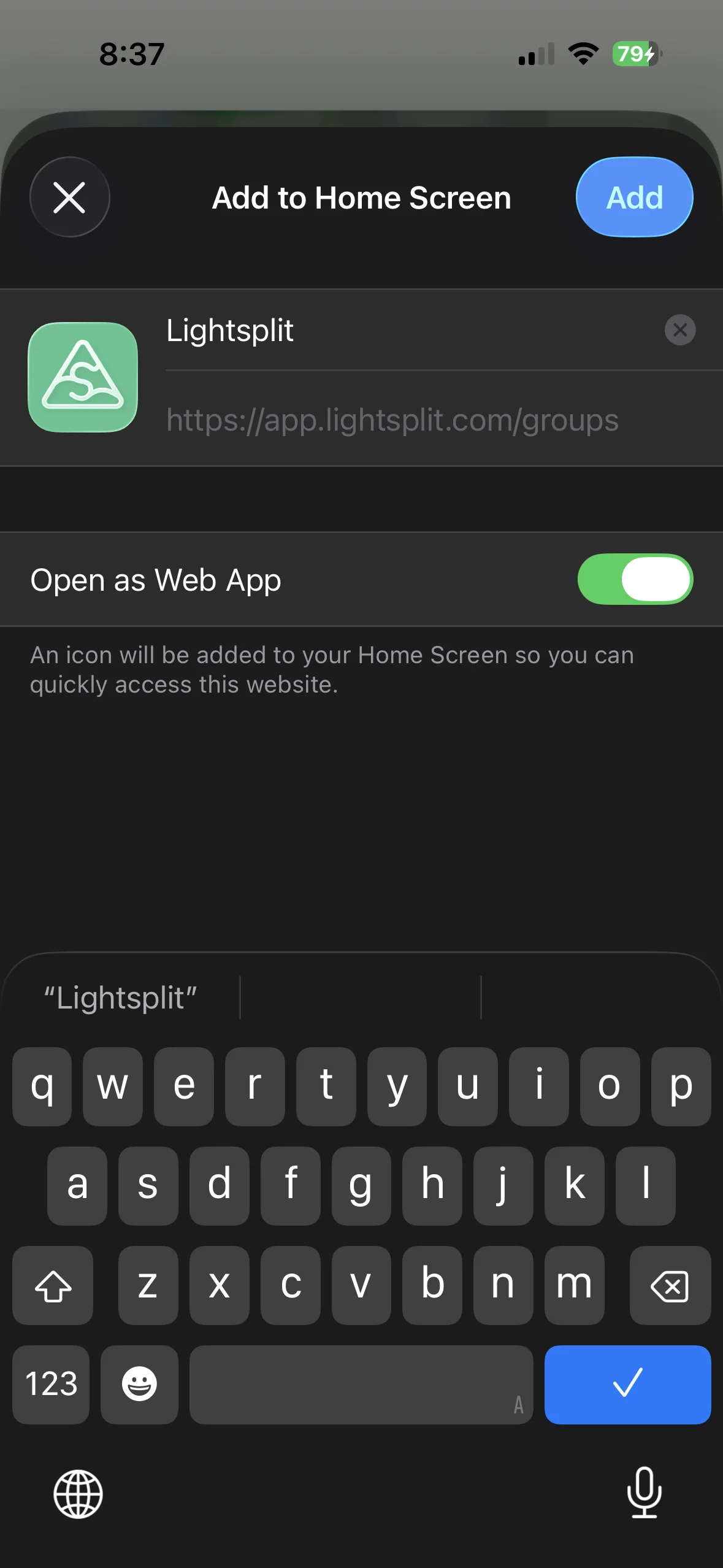
- After tapping, you can name the app (default is "Lightsplit", we recommend keeping it unchanged)
- Tap "Add" in the top right corner, and you're done!
Done
Now the Lightsplit icon has appeared on your home screen. From now on, just tap it to open directly. No need to go through LINE, Telegram or Discord, or re-enter the URL every time.
Usage Tips & Tricks
Open Directly from Home Screen
Once installed, the Lightsplit icon will appear on your home screen. Just tap it to start splitting expenses immediately, without opening a browser or searching your chats for a link.
Automatic Updates, No Manual Work Needed
Because it's a PWA, Lightsplit automatically loads the latest version every time you open it. You don't need to manually update, and you don't have to worry about using an outdated version. If you encounter any display issues, usually just refreshing (or closing and reopening) will fix it.
How to Remove the PWA App?
If you ever want to remove it, it's simple:
- Android: Long-press the Lightsplit icon on the home screen and select "Remove" or "Uninstall"
- iOS: Long-press the icon, select "Remove App", then tap "Remove from Home Screen"
Just as simple as deleting any regular app.
Having Issues?
- Make sure you're connected to the internet
- Manually refresh the page in your browser
- Try removing the PWA and reinstalling it
If you have any other issues, feel free to report them to the Lightsplit team at [email protected]