Lightsplit ChatGPT Plugin: Set Up and Split Trip Costs

You cover ramen, a friend pays for the taxi, and your drugstore receipt has everyone's shopping on it. Want to split trip expenses in ChatGPT while you're still on the go? This Lightsplit ChatGPT plugin guide walks you through it on your phone.
Lightsplit is available in the ChatGPT Plugins Directory. Find it under Plugins, install it, and connect your account. Then you can create a trip group and record shared expenses right in the chat.
ChatGPT understands the amount, who paid, and how you want to split it. Lightsplit keeps the records. You can open entries from the links in each reply and share the split with your travel buddies or friends.
Install the Lightsplit ChatGPT plugin
These steps use ChatGPT on an iPhone. Sign in to ChatGPT and have your Lightsplit account ready. This connection is available to Lightsplit Premium subscribers on an annual plan.
1. Find and install Lightsplit
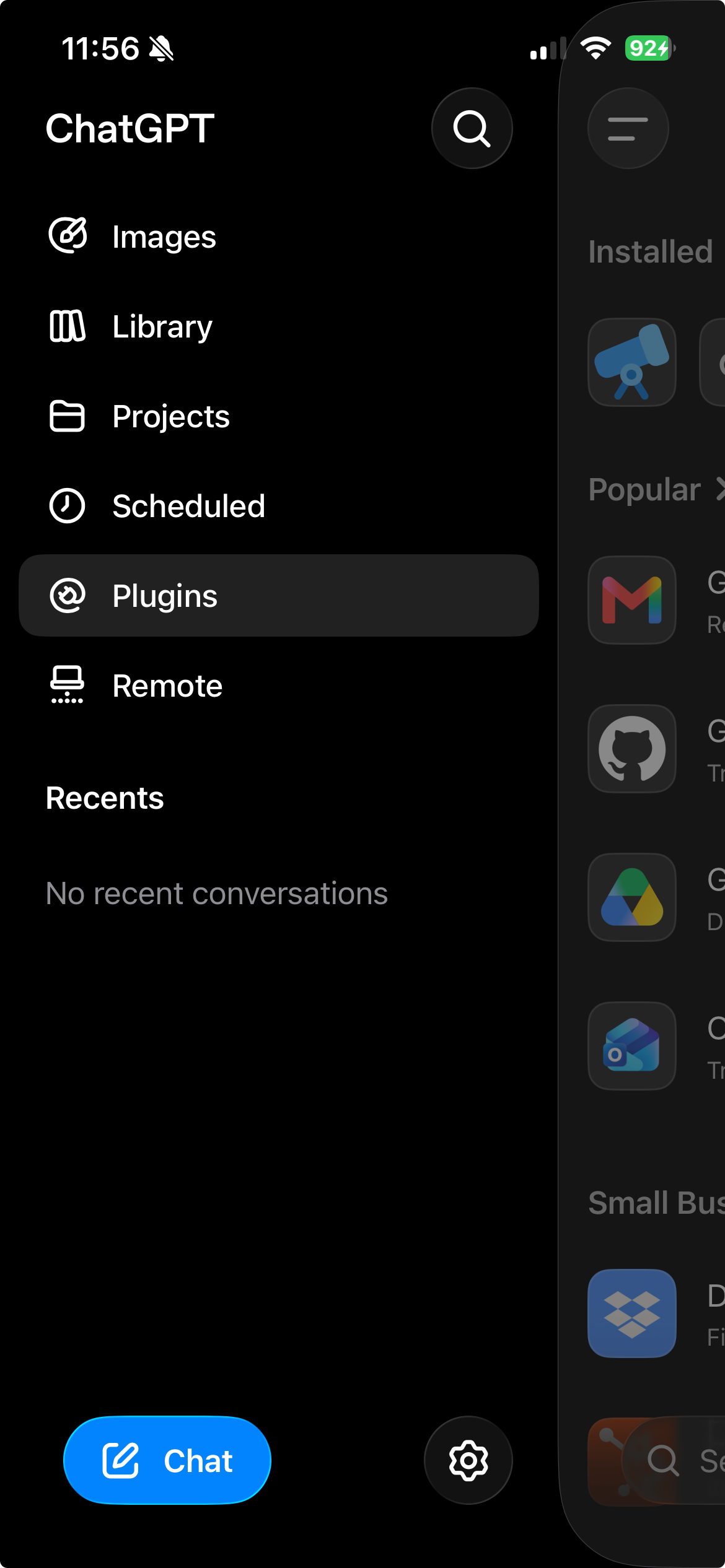
Open the menu in the top left of ChatGPT and tap Plugins.
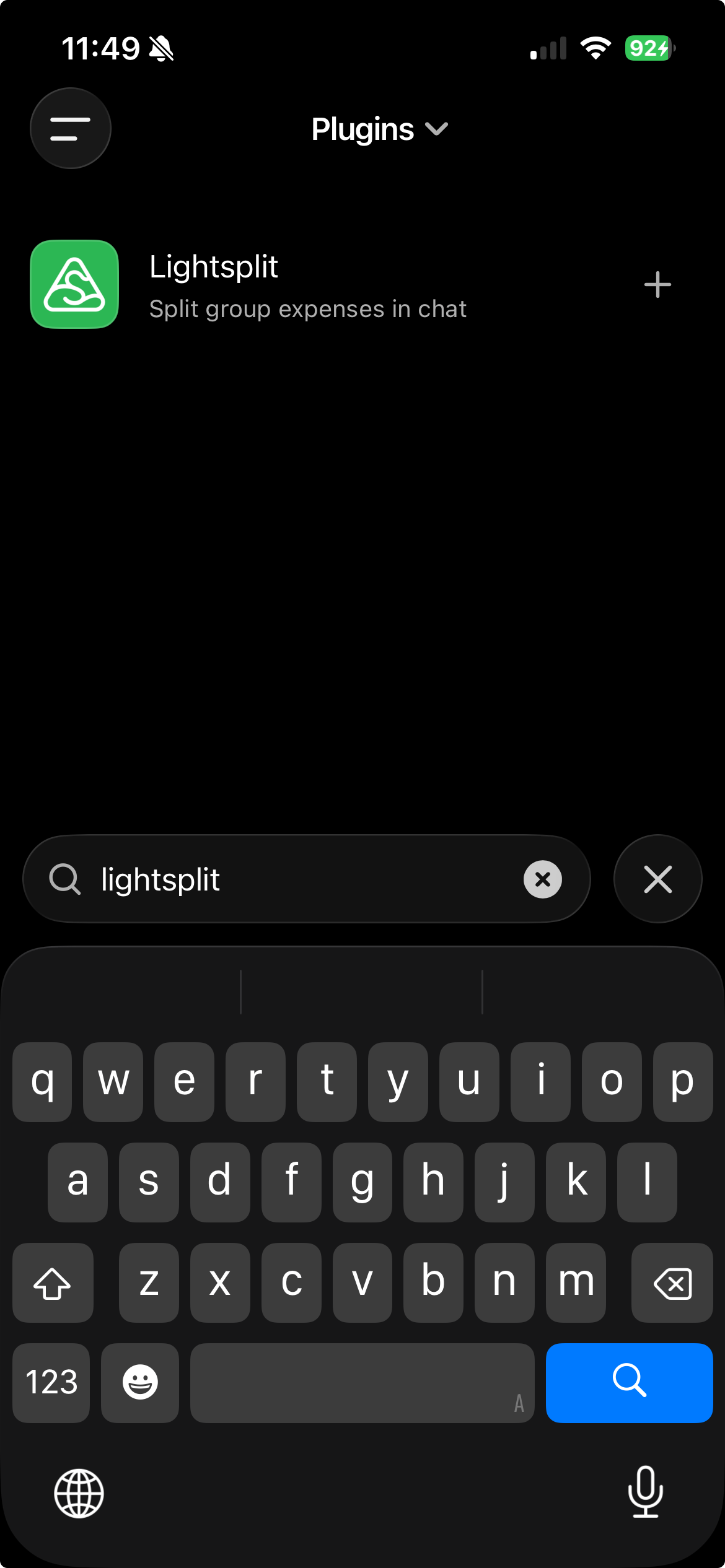
Type Lightsplit in the search bar at the bottom of the directory. Look for its green icon, then tap the + on the right to start installing and connecting it.
2. Sign in to Lightsplit and connect
When your iPhone asks to let ChatGPT use api.lightsplit.com to sign in, continue.
On the Lightsplit sign-in page, use the same account you normally use for your expenses. If you usually sign in through LINE, choose LINE here too so you connect to your existing groups.
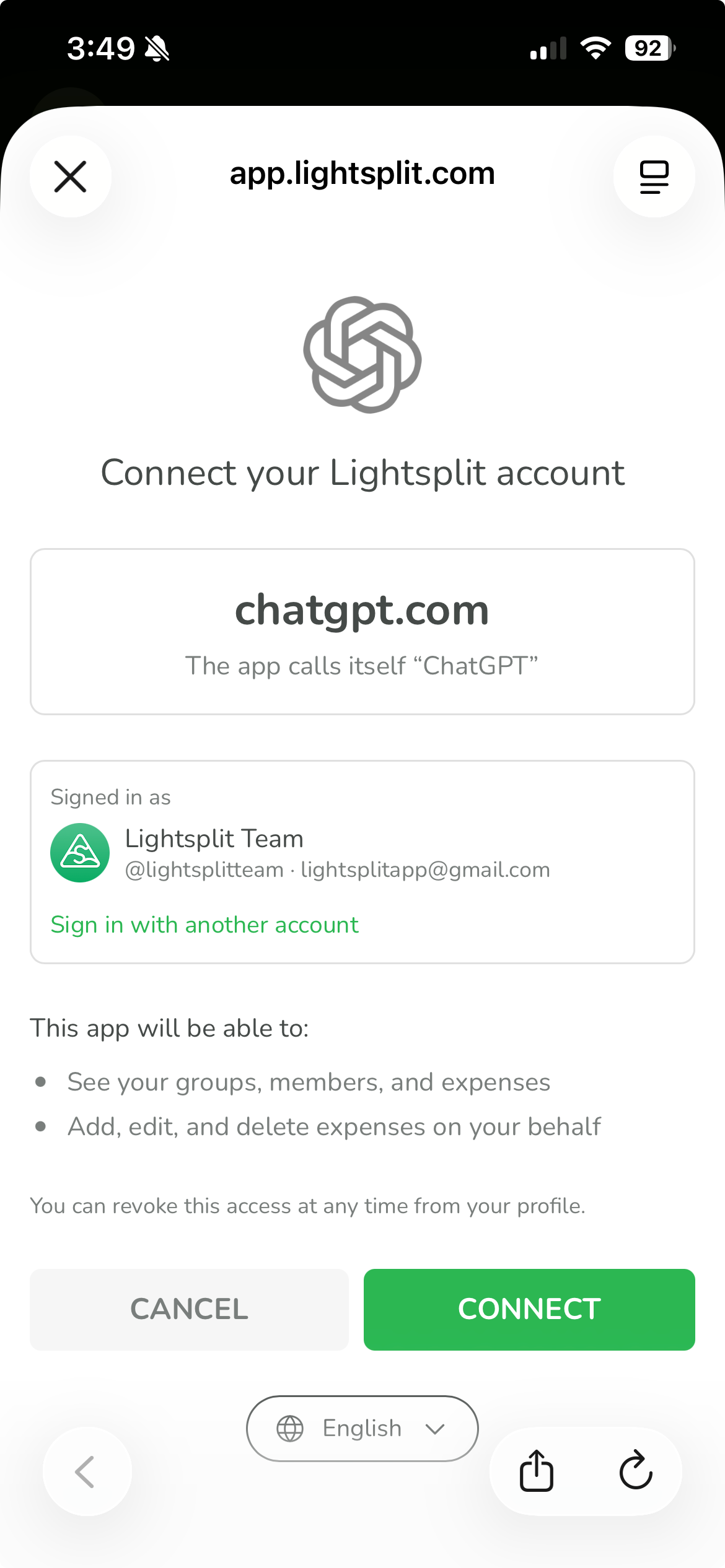
You'll see Connect your Lightsplit account. Check the account under Signed in as and confirm that the app is chatgpt.com. Review its access to your groups, members, and expenses, including permission to add, edit, and delete expenses. Then tap CONNECT.
Once you're back in ChatGPT, start a new chat and try recording your first trip expense.
Create your Japan Trip group
Let's say you're traveling to Japan with Emma, Alex, and Ben, and you want to settle up in yen. In a new chat, type:
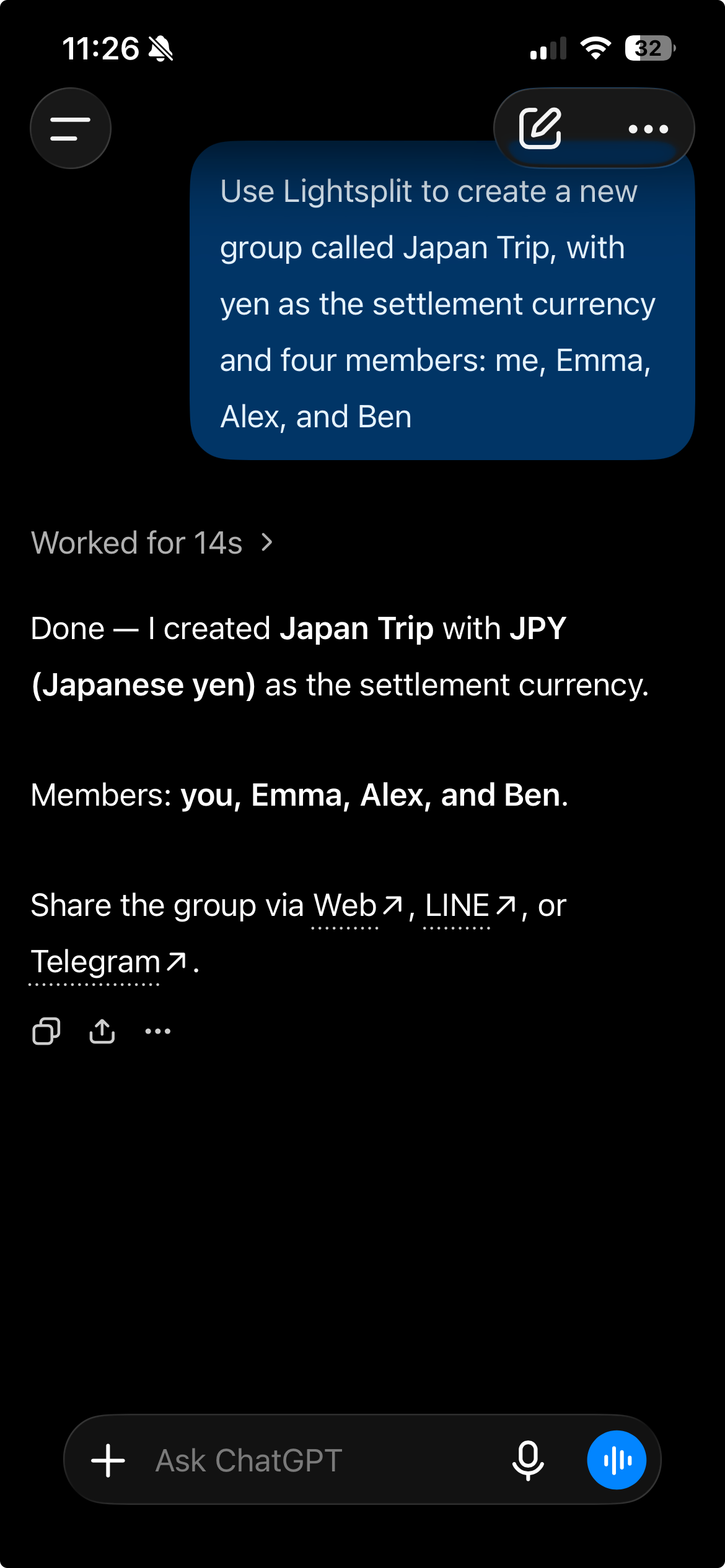
Use Lightsplit to create a new group called Japan Trip, with yen as the settlement currency and four members: me, Emma, Alex, and Ben
Give the group name, currency, and members together. For later expenses, you can simply name who paid and who should share the cost. If ChatGPT asks you to confirm an action, check the details before allowing it.
The reply confirms Japan Trip, JPY (Japanese yen), and all four members, with links to the group.
Share the Web, LINE, or Telegram link, depending on what your friends use. You've set up their names first; they can join the same group through a link later.
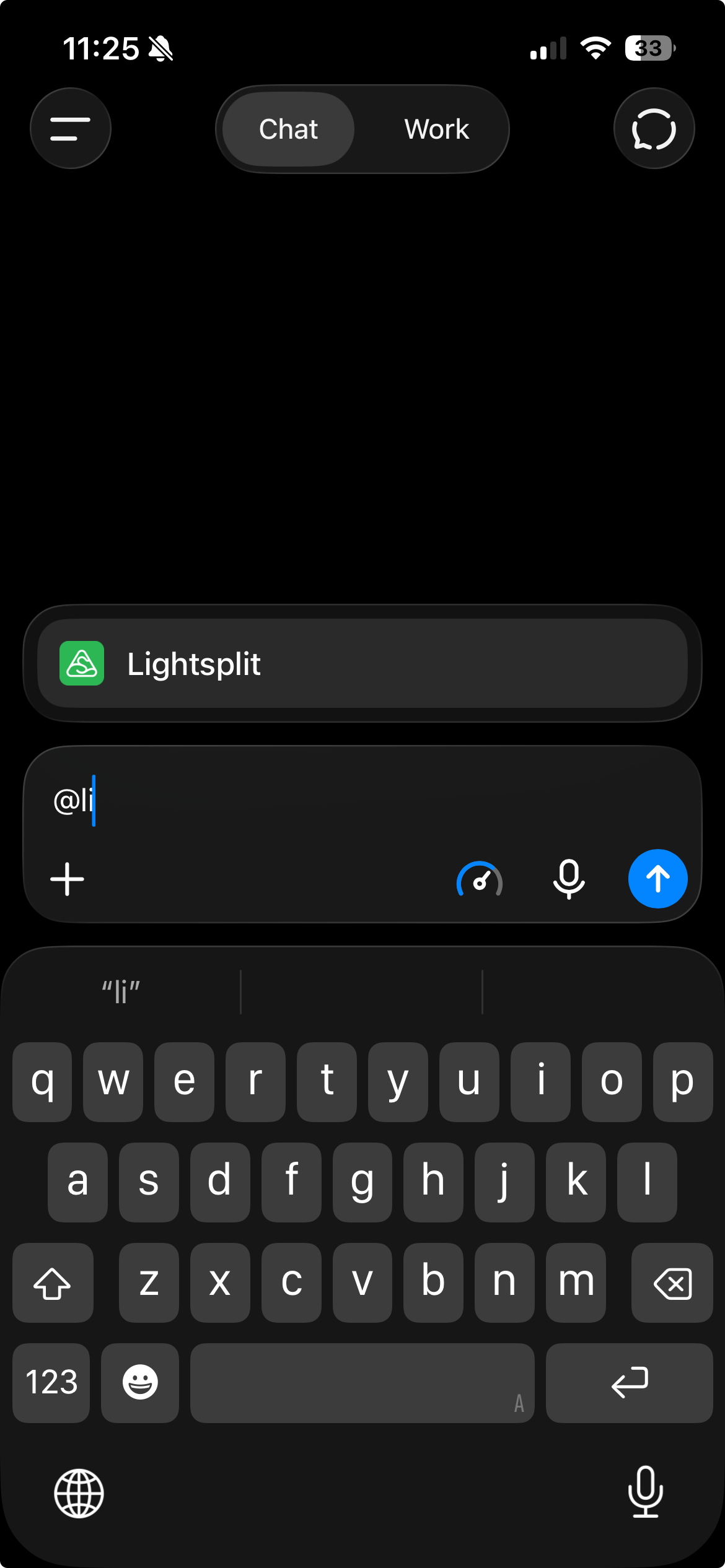
ChatGPT didn't use Lightsplit? Type @
If ChatGPT only calculates a split without recording it in Lightsplit, type @li in the message box and tap Lightsplit when it appears. Then enter your request to tell ChatGPT which plugin to use.
Log ramen with one quick message
With the group ready, stay in the same chat and type:
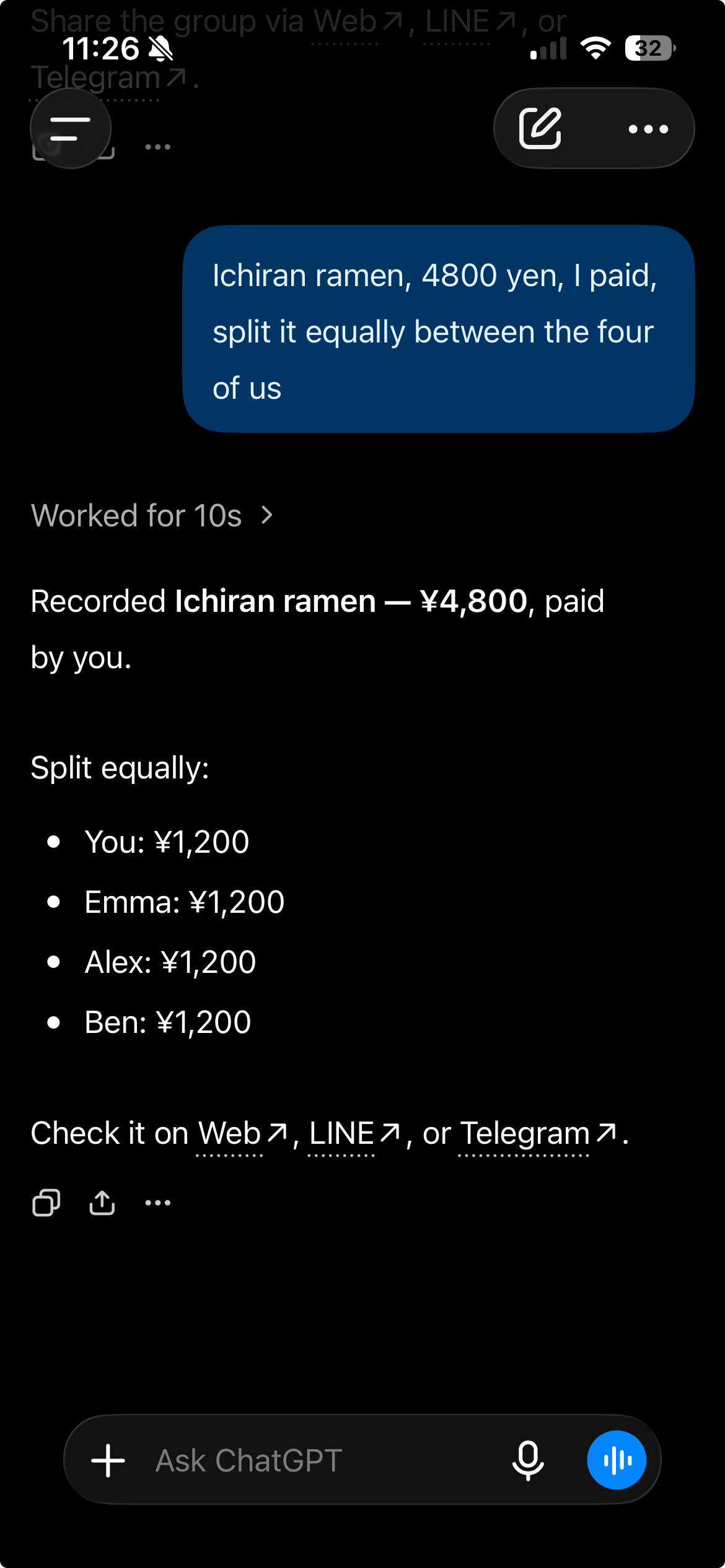
Ichiran ramen, 4800 yen, I paid, split it equally between the four of us
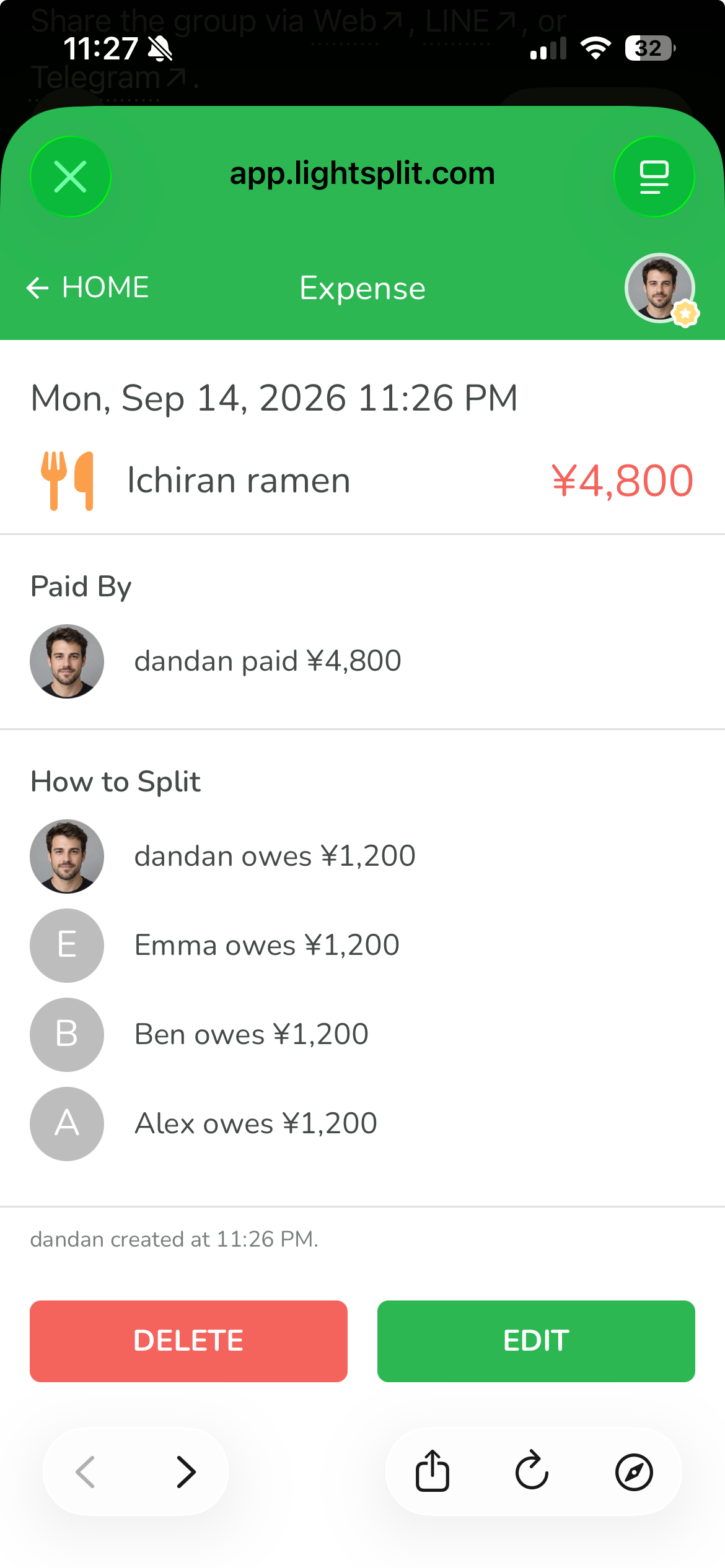
That's the expense, payer, and split in one message. ChatGPT records 4800 yen in Japan Trip, paid by you, with each person covering 1200 yen.
Tap a link in the reply to open the entry in Lightsplit and check it. The account named dandan in these screenshots is the person saying “I” in the chat.
Use voice input to split a taxi ride
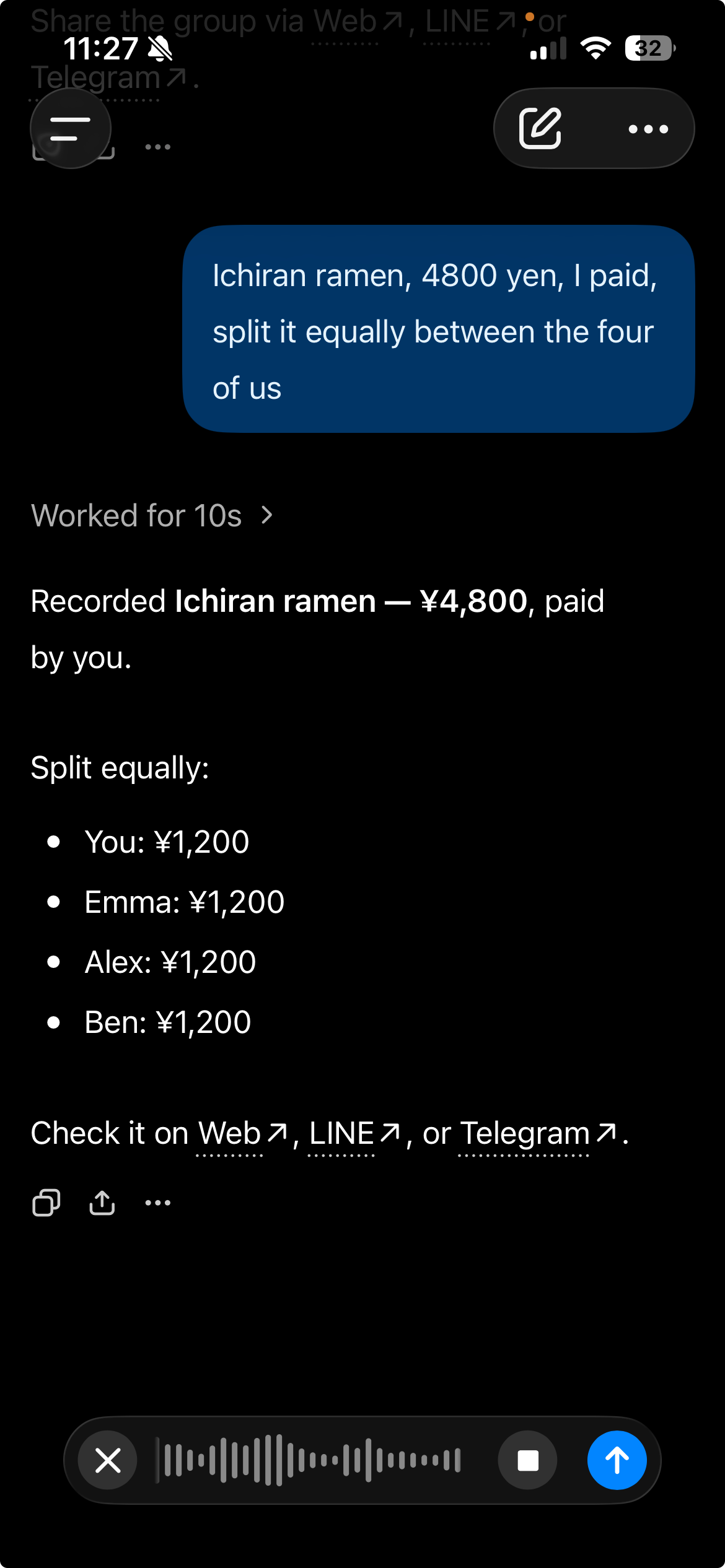
Next, Emma pays for a taxi, but Ben doesn't ride with you. Use voice input to say who paid and who should split it. Tap the microphone icon inside the message box and say:
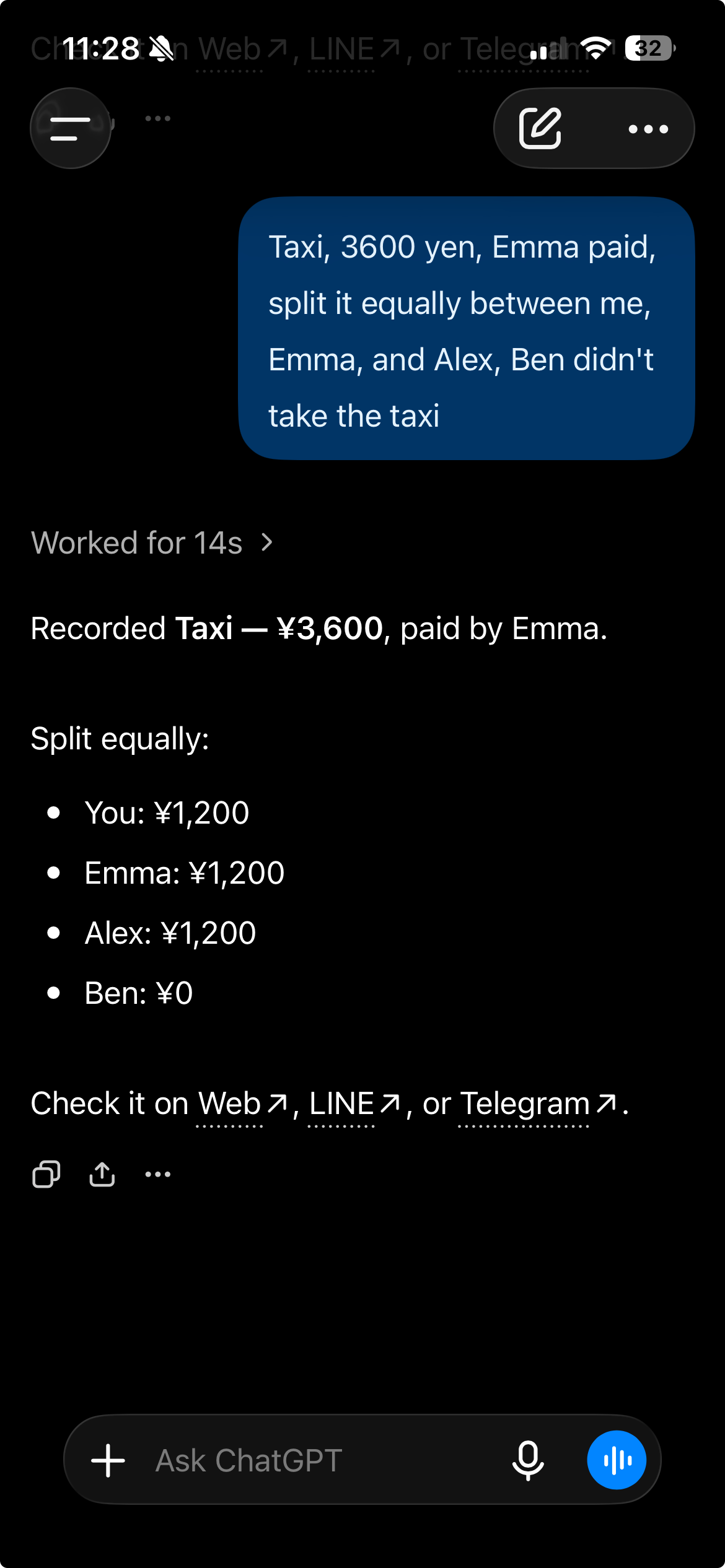
Taxi, 3600 yen, Emma paid, split it equally between me, Emma, and Alex, Ben didn't take the taxi
When you're done speaking, tap the blue send button in the bottom right to send it directly and have ChatGPT record it through Lightsplit. You can also turn it into text first, check the amount, currency, and names, and make any edits before sending.
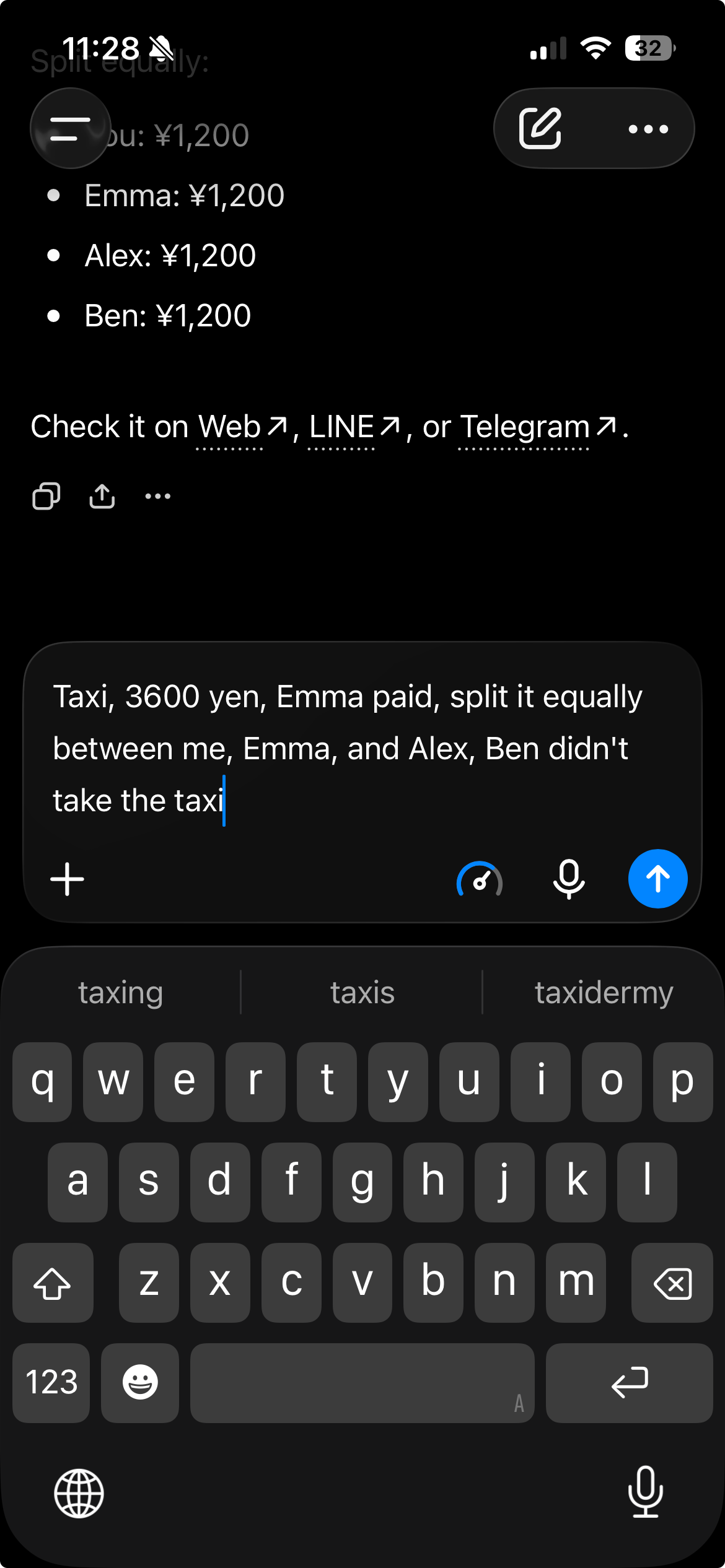
Emma pays 3600 yen. You, Emma, and Alex each cover 1200 yen, and Ben pays nothing for this ride. Each expense can include just the people involved, even when there are four members in the group.
Split a drugstore receipt by item
At the drugstore, everyone puts their shopping in one basket and one person pays at checkout. An equal split wouldn't make much sense here.
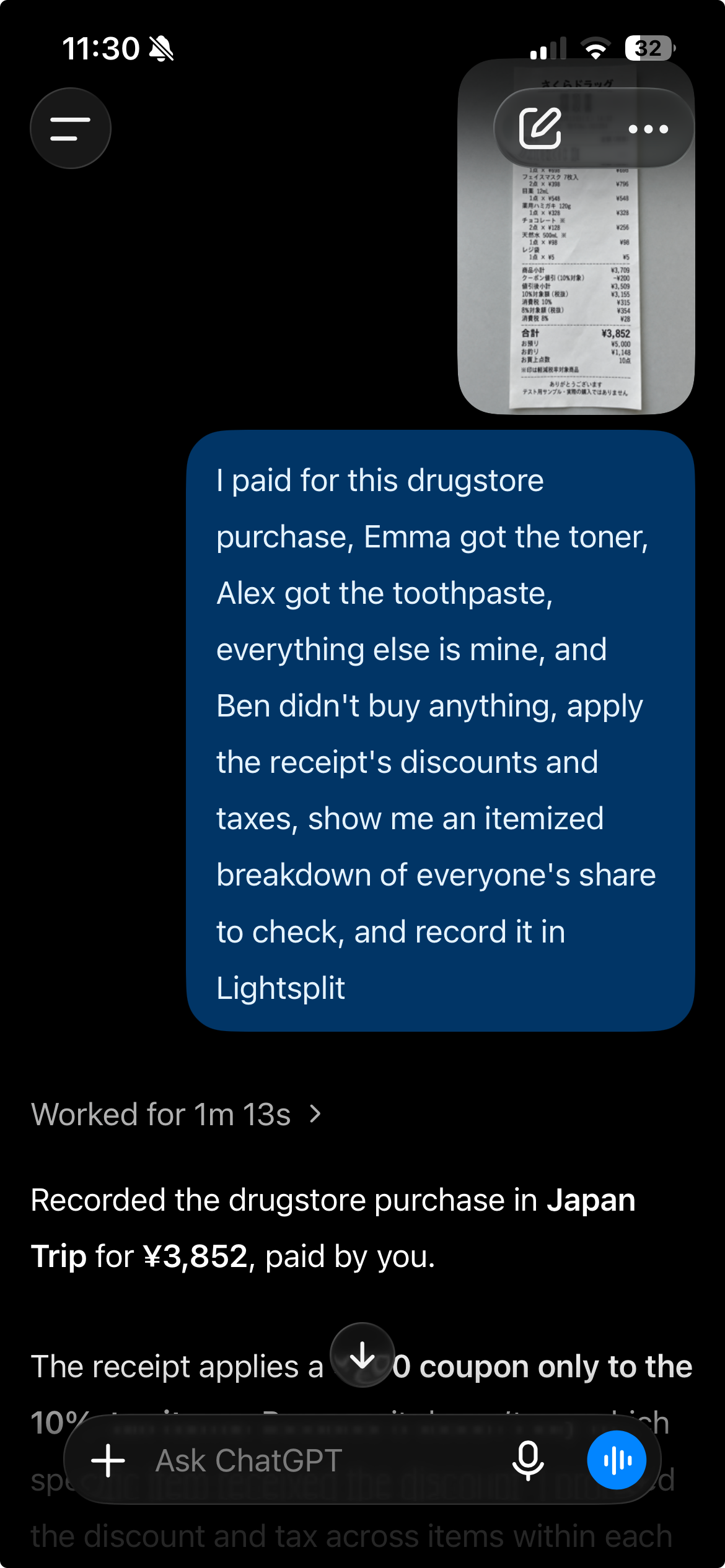
Send ChatGPT a photo of the receipt, then explain who paid and which items belong to whom:
I paid for this drugstore purchase, Emma got the toner, Alex got the toothpaste, everything else is mine, and Ben didn't buy anything, apply the receipt's discounts and taxes, show me an itemized breakdown of everyone's share to check, and record it in Lightsplit
This receipt totals 3852 yen. It includes items taxed at 10% and 8%, plus a 200 yen coupon that applies only to the 10% items. ChatGPT works through the item ownership, discount, and taxes, then records the expense in Lightsplit.
Here's the split recorded in this example:
| Member | Purchases | Share |
|---|---|---|
| You (dandan) | All other items | 2791 yen |
| Emma | Toner | 722 yen |
| Alex | Toothpaste | 339 yen |
| Ben | Nothing | 0 yen |
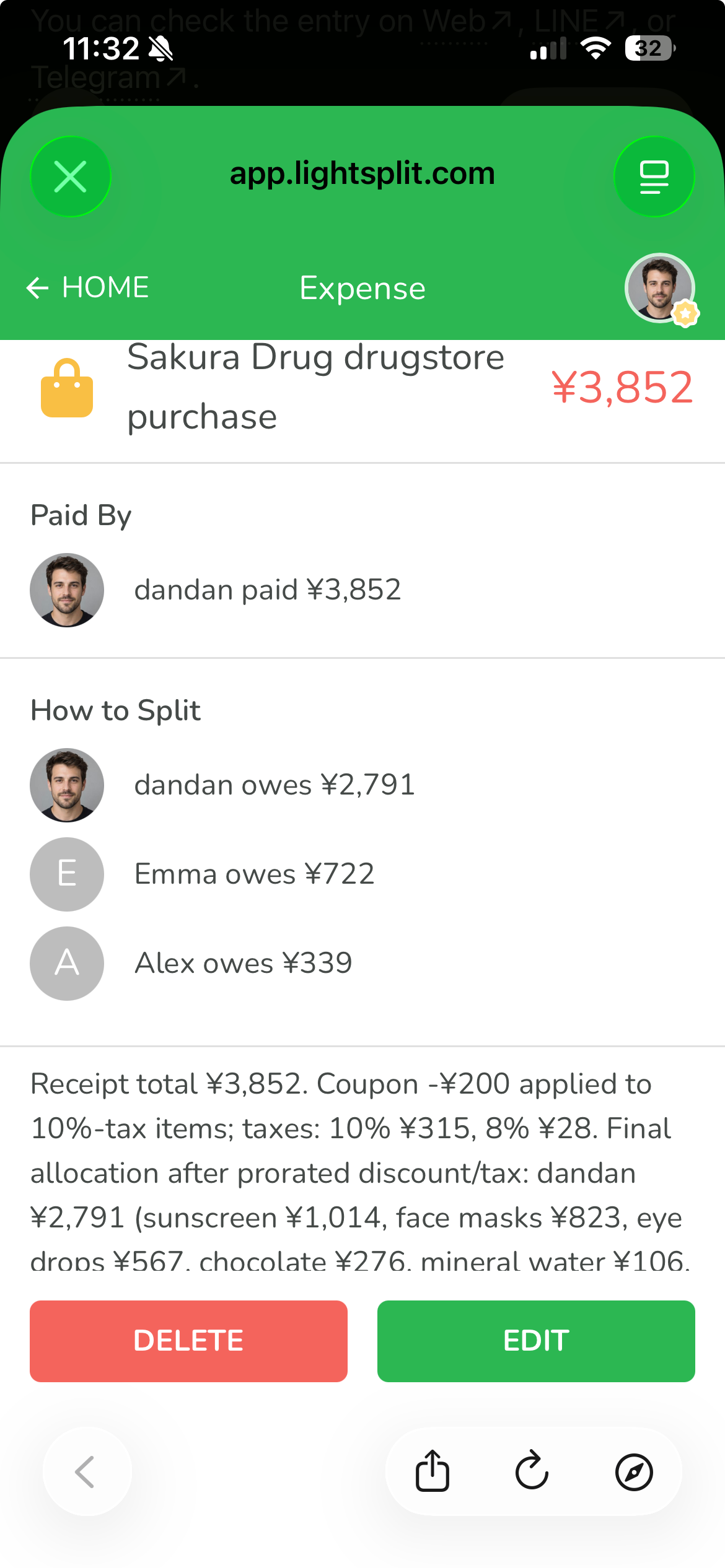
Open the Lightsplit entry to check the payer, each person's items and amount, and the discount and tax notes. You can review the breakdown without typing every receipt item into the app yourself.
Trip over? See who owes what
You paid for ramen, Emma paid for the taxi, and everyone bought different things at the drugstore. At the end of the trip, ask in the same chat:
The trip is over, check the current settlement and briefly list who owes who and how much in yen
For this trip, the settlement is:
- Alex pays you 2739 yen
- Ben pays you 722 yen
- Ben pays Emma 478 yen
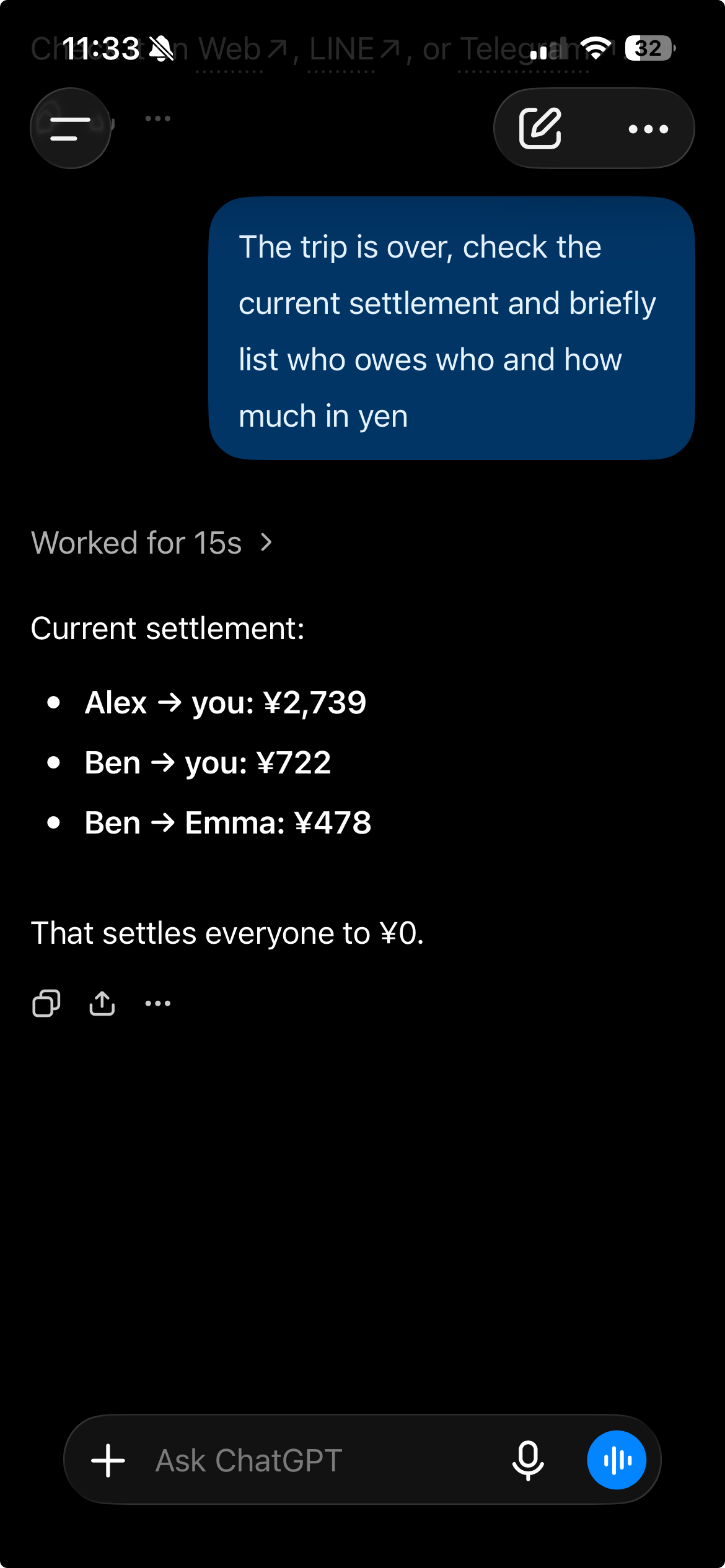
Once those three payments are made, everyone's balance is settled. No need to reconstruct every time someone covered a bill.
Record it when a friend pays you back
After Alex's payment arrives, say:
Please record that Alex paid me back
With the settlement already in the conversation, ChatGPT records Alex paying you back 2739 yen and provides a link to the entry. Open it in Lightsplit to see the Transfer from Alex to dandan for that amount.
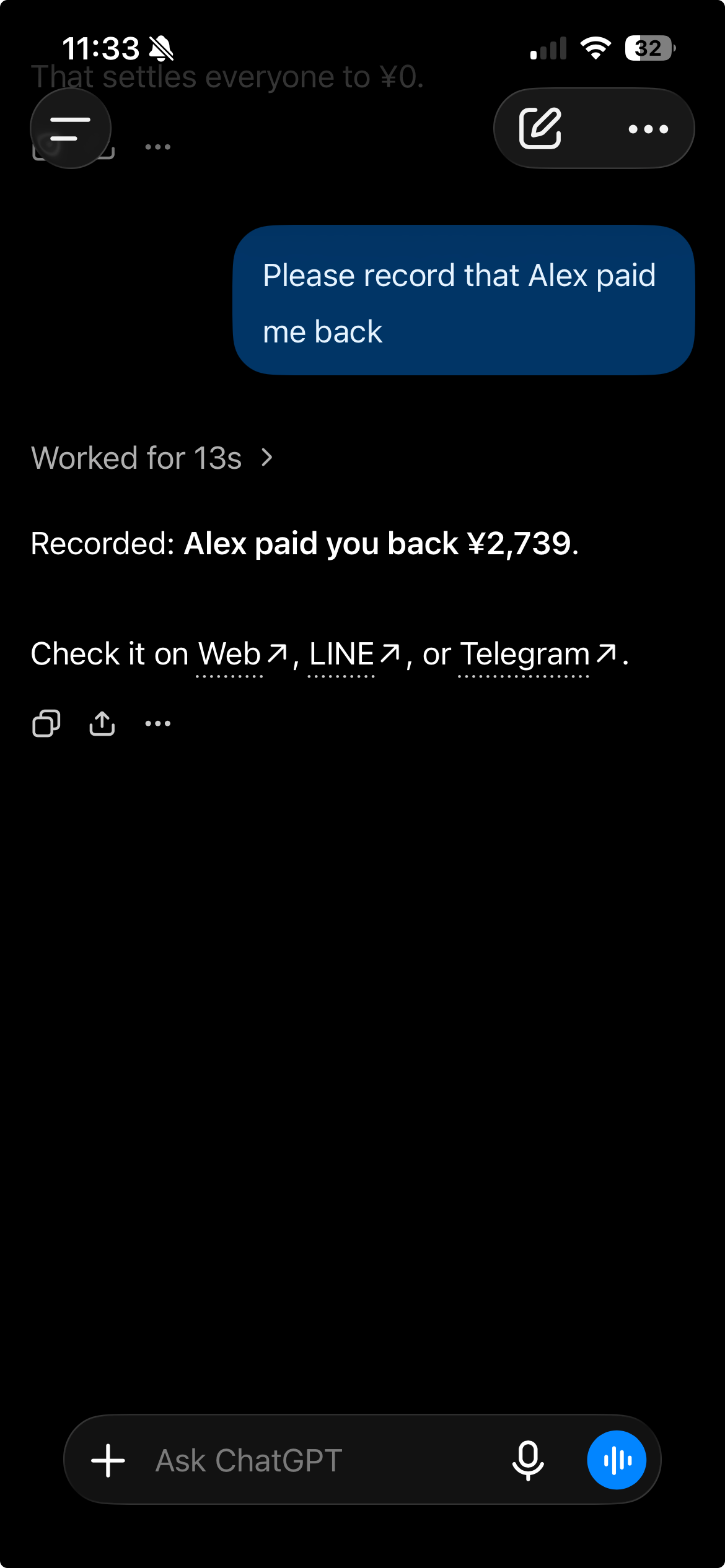
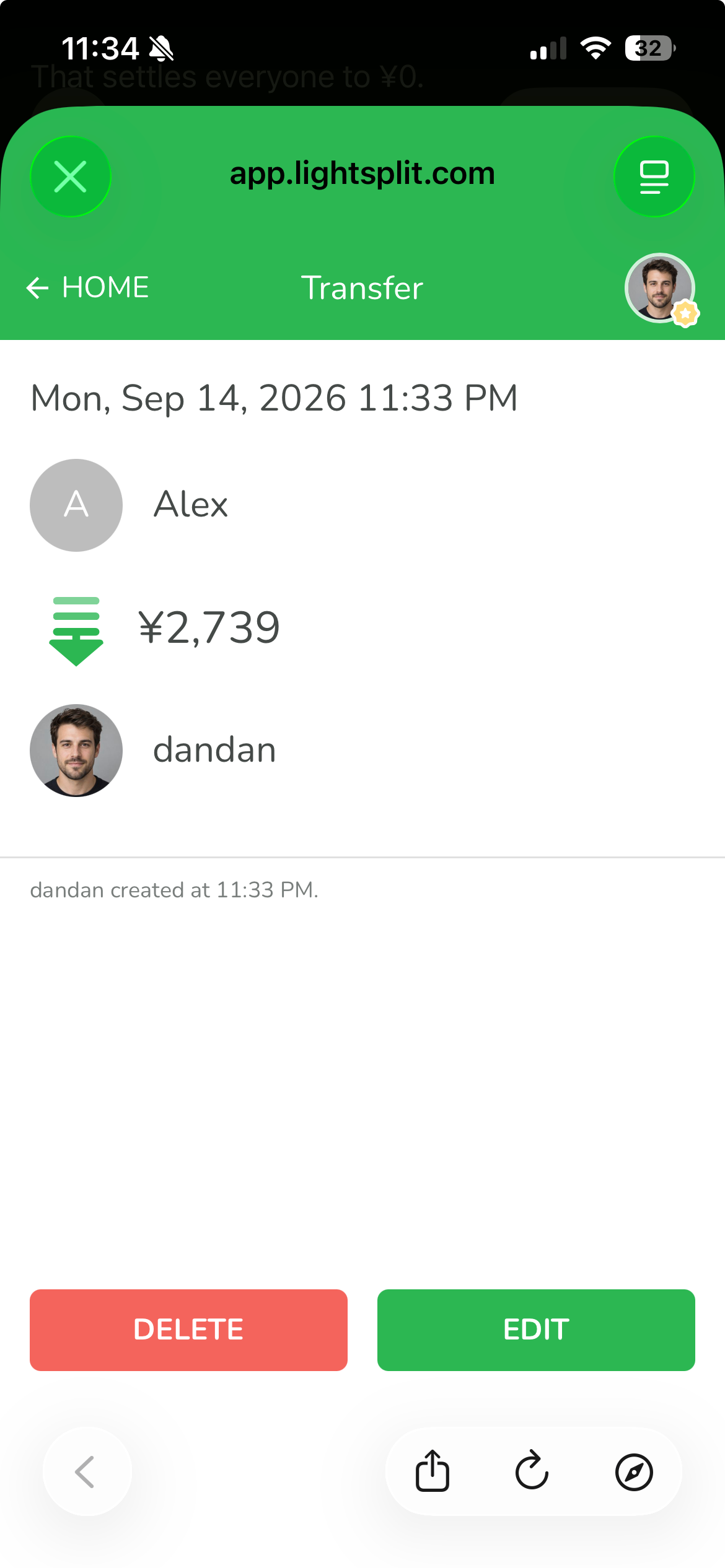
You're recording money you've already received. Alex is settled up, while Ben's two payments are still outstanding. If a friend only pays part of what they owe, include the amount you actually received.
Choose a stronger model for complex splits
For a simple ramen bill split four ways, start with your usual model.
For receipt reading, discounts, different tax rates, or friends taking turns paying with different splits each time, choose a model with stronger reasoning. The drugstore example involves matching items to people, checking which items the coupon covers, and allocating tax. A stronger model can help work through those extra steps and save you time organizing the details with Lightsplit. Give the finished breakdown a check too.
Before your next trip, install Lightsplit from the ChatGPT Plugins Directory and create a group. Record expenses after meals and taxi rides, open Lightsplit whenever you want to check them, and leave less sorting out for the journey home.