Shared Shopping List That Splits Expenses for Groups

A week before your trip, the group chat is already chaos. "Who's booking the flights?" "I paid the hotel deposit, FYI." "Should we grab the theme park tickets now?" Messages keep scrolling, and nobody actually remembers who paid for what.
Then you get home and start splitting up the bill. It's even worse. You scroll back through the chat, copy stuff into a spreadsheet, and start nudging your friends like "hey, you still owe me that ¥30,000 for the Airbnb, right?" Everyone agreed to split things before you left. So why does it feel like you're chasing down debts now?
And to make this work, you're juggling two apps: a shared list (like Notes or Google Keep) and a split-bill app (like Splitwise). There's no bridge between the list and the splitting.
Good news: Lightsplit's new "Reminders" feature merges your list with your expenses
We built Reminders: a shared to-do list for your group, where you can plan out every expense ahead of time. Check something off and turn it into a split expense with one tap.
What's different from a regular split-bill app? Lightsplit can track money you haven't spent yet. From the trip planning list all the way to settling up, the whole flow lives in one app.
What are Reminders?
Reminders are shared lists inside your group. Every group member opens the app and sees the same list.
Each reminder can include:
- Description (required): What needs to happen. For example "Hotel deposit" or "Universal Studios tickets"
- Amount + currency (optional): A rough estimate so you can budget
- Completion status: Checked items get a strikethrough and turn gray, so you can scan the list fast
- Drag to reorder: Pin urgent stuff to the top
The best part? When you check something off, Lightsplit asks: "Want to log this as an expense?" Tap yes and it becomes a real expense record, with the description and amount already filled in.
How do you start a trip planning list? Three steps
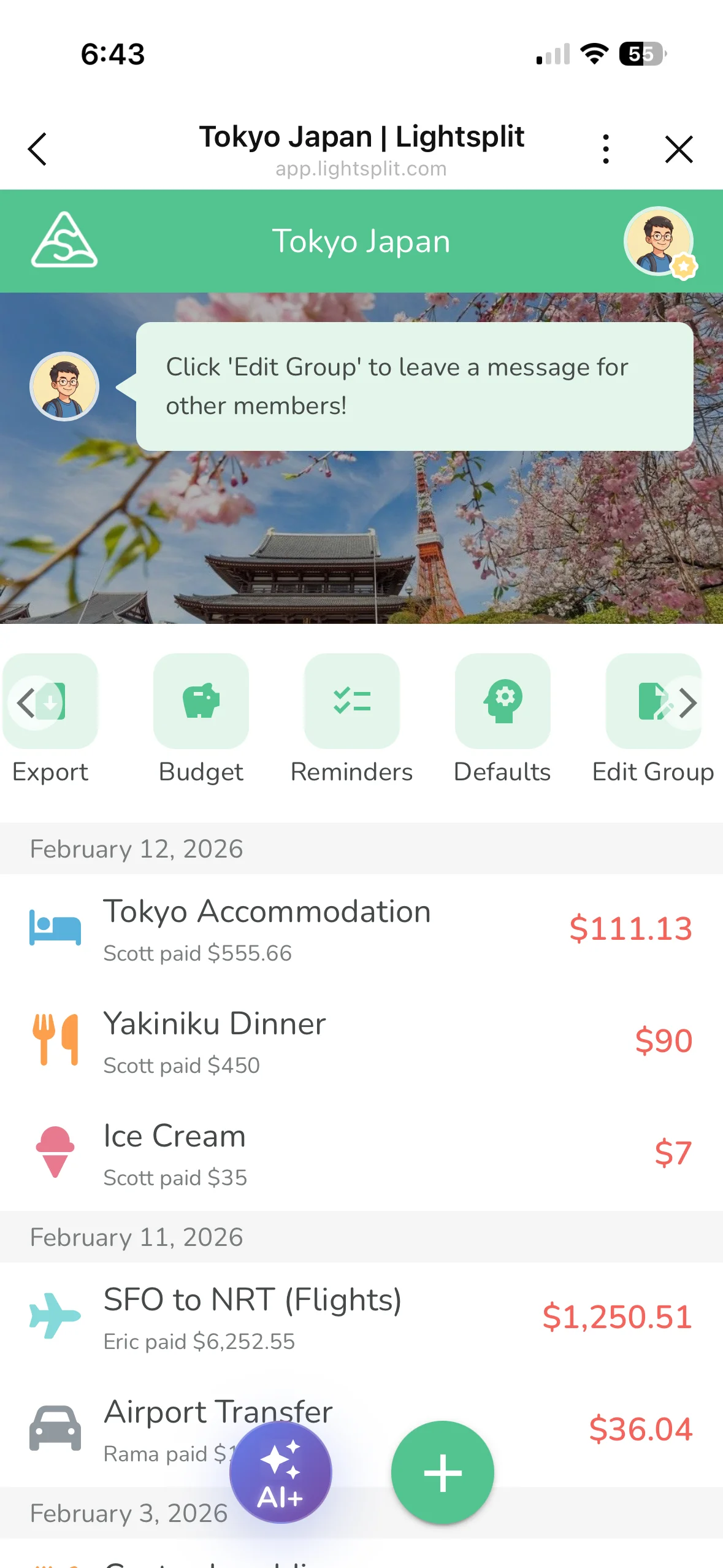
Step 1: Open your group and tap the "Reminders" tab
Go into your trip group and find the "Reminders" tab in the tab bar. If it's a brand new group, the screen will prompt you to tap "Add" to get started.
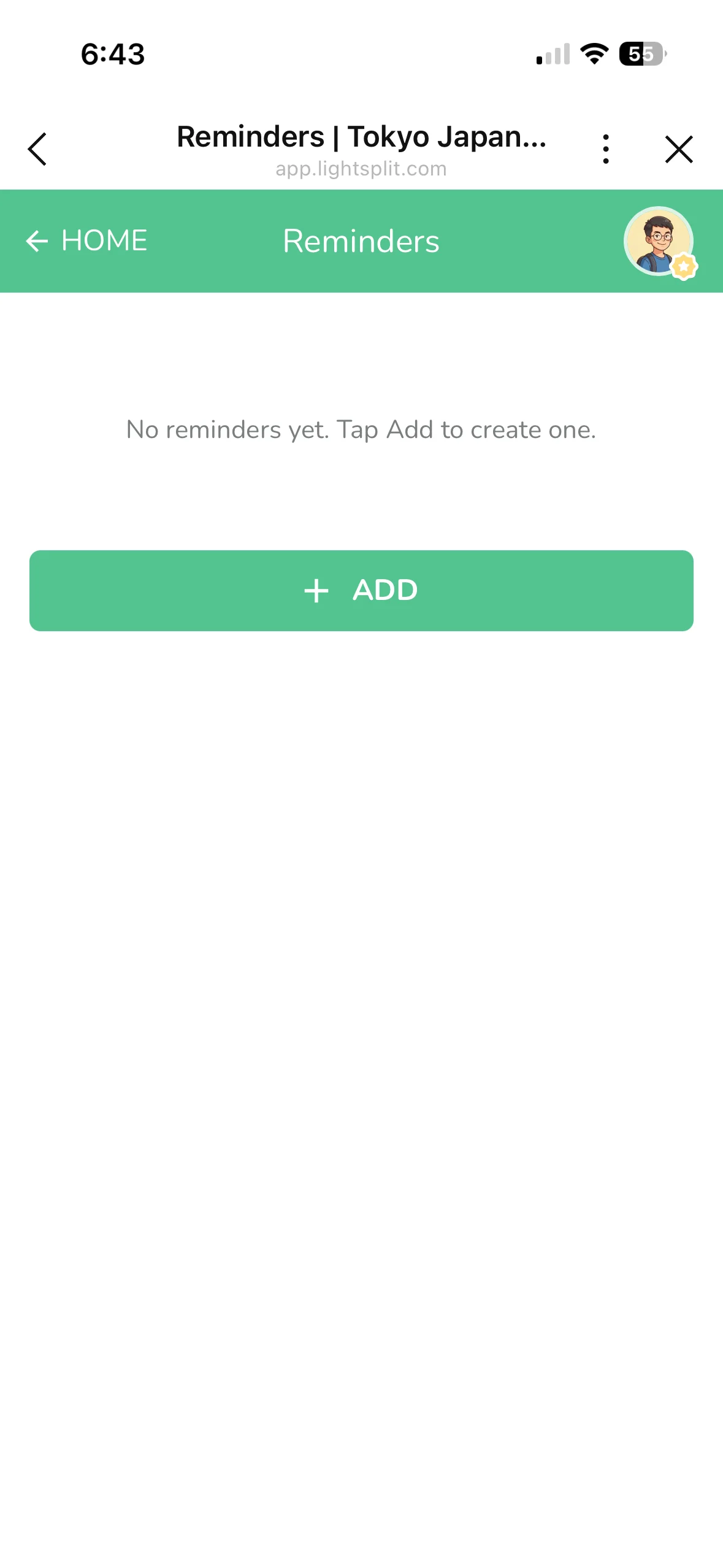
Step 2: Tap "Add" to create your first item
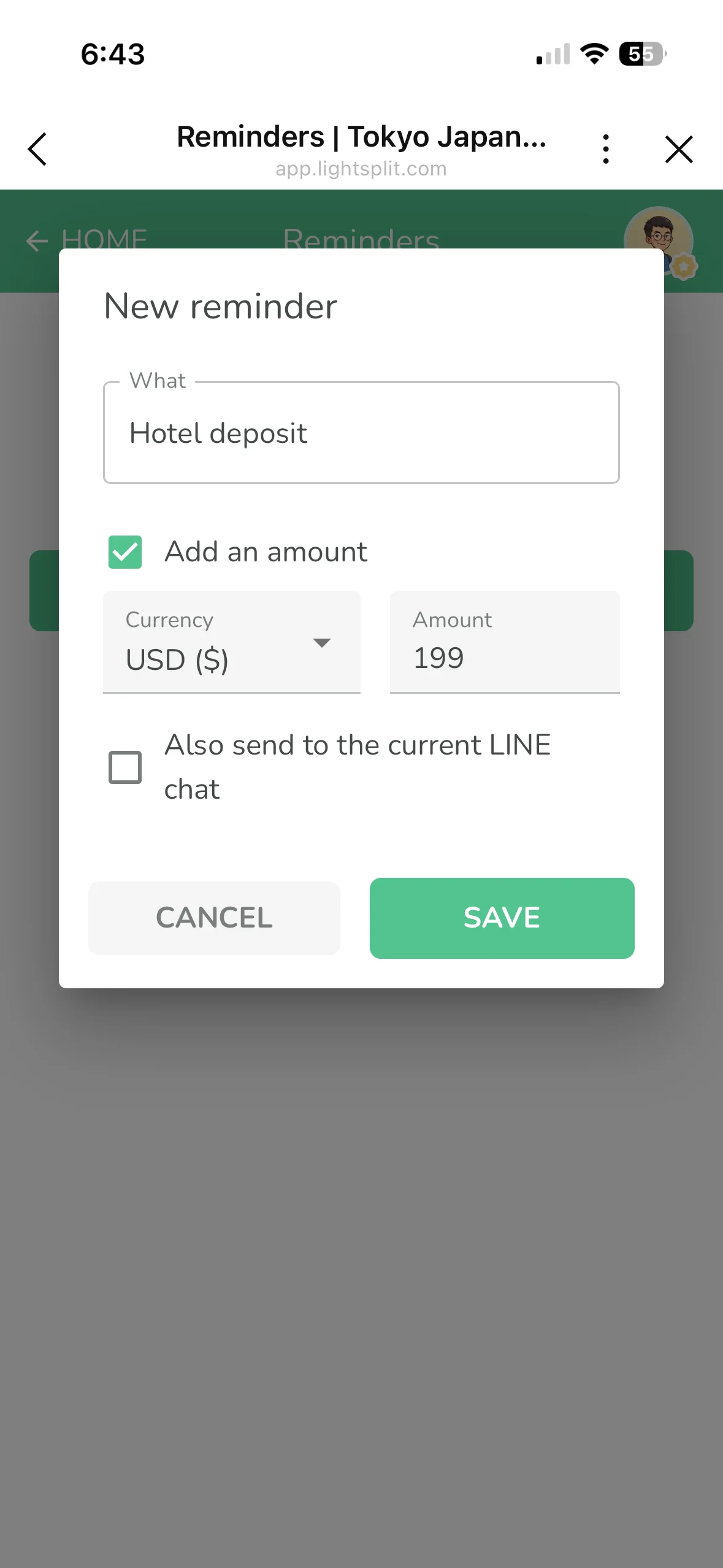
When the new item dialog pops up:
- Type what needs to happen in the "Description" field, like "Hotel deposit"
- Want to add an amount? Toggle "Add amount" to enter the currency and value
- Tap "Save"
Adding an amount is totally optional. But it's super handy to drop estimates in before the trip as a rough budget, then use the same numbers when you actually log the expense.
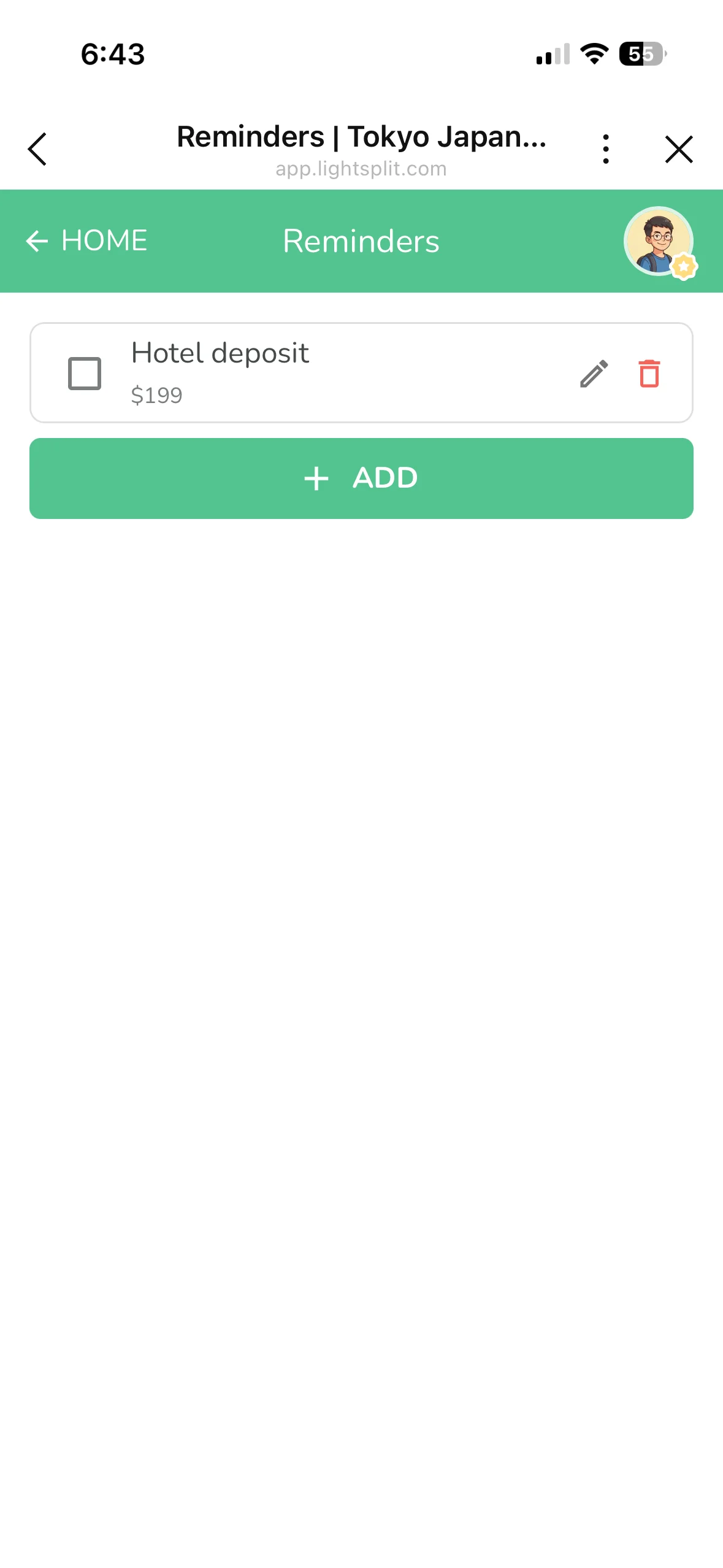
Once you save, the reminder shows up in the list with edit and delete buttons right next to it, so it's easy to manage.
Step 3: Check it off and turn it into a split expense
When something's done (like you actually paid the hotel deposit), tap the checkbox.
A dialog pops up with two options:
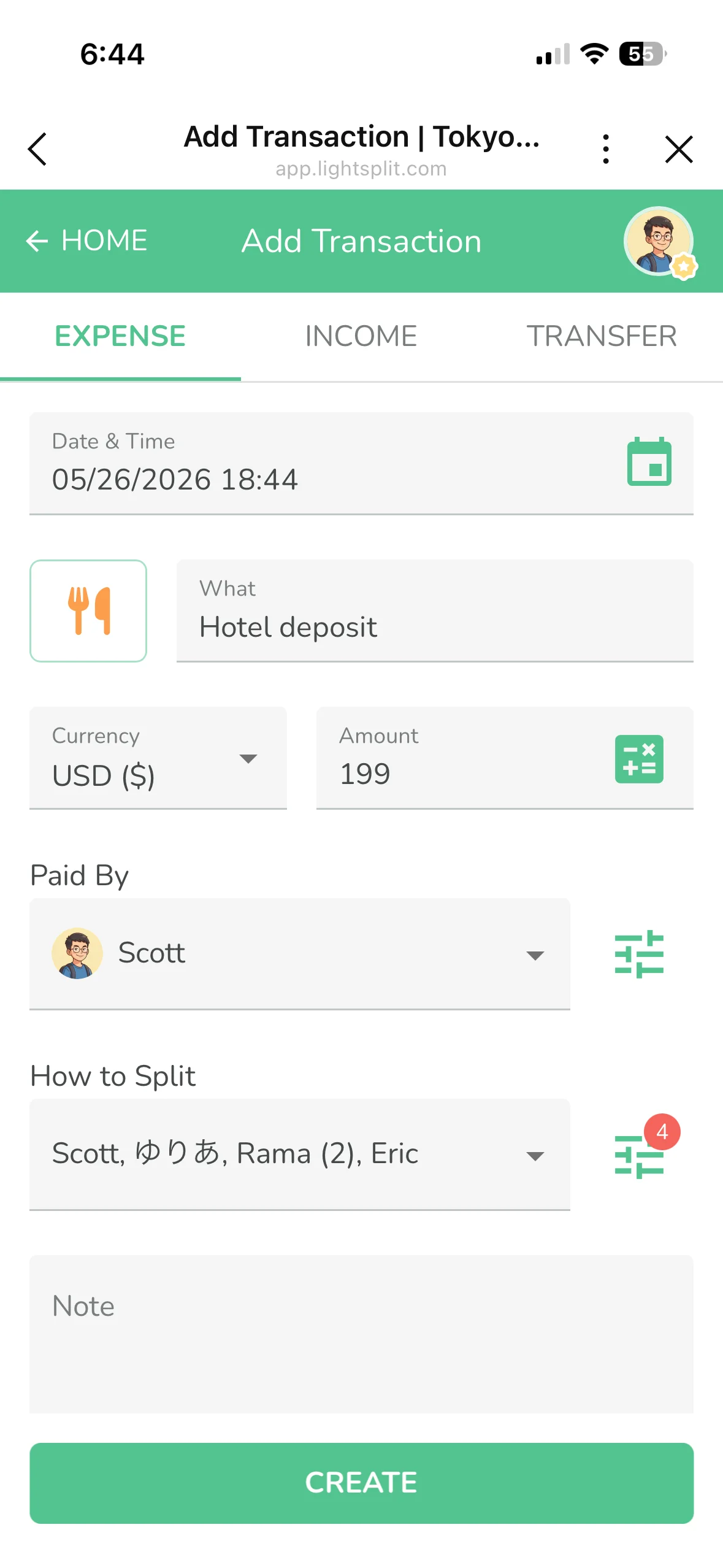
- "Add expense": Auto-fills the description, amount, and currency into the expense form. All you do is pick who paid and who's splitting it
- "Just mark complete": Pure check-off, no expense logged. Perfect for things that are just "remember to do this"
Two buttons, pick whichever you need. From planning to splitting, you just skipped a bunch of steps.
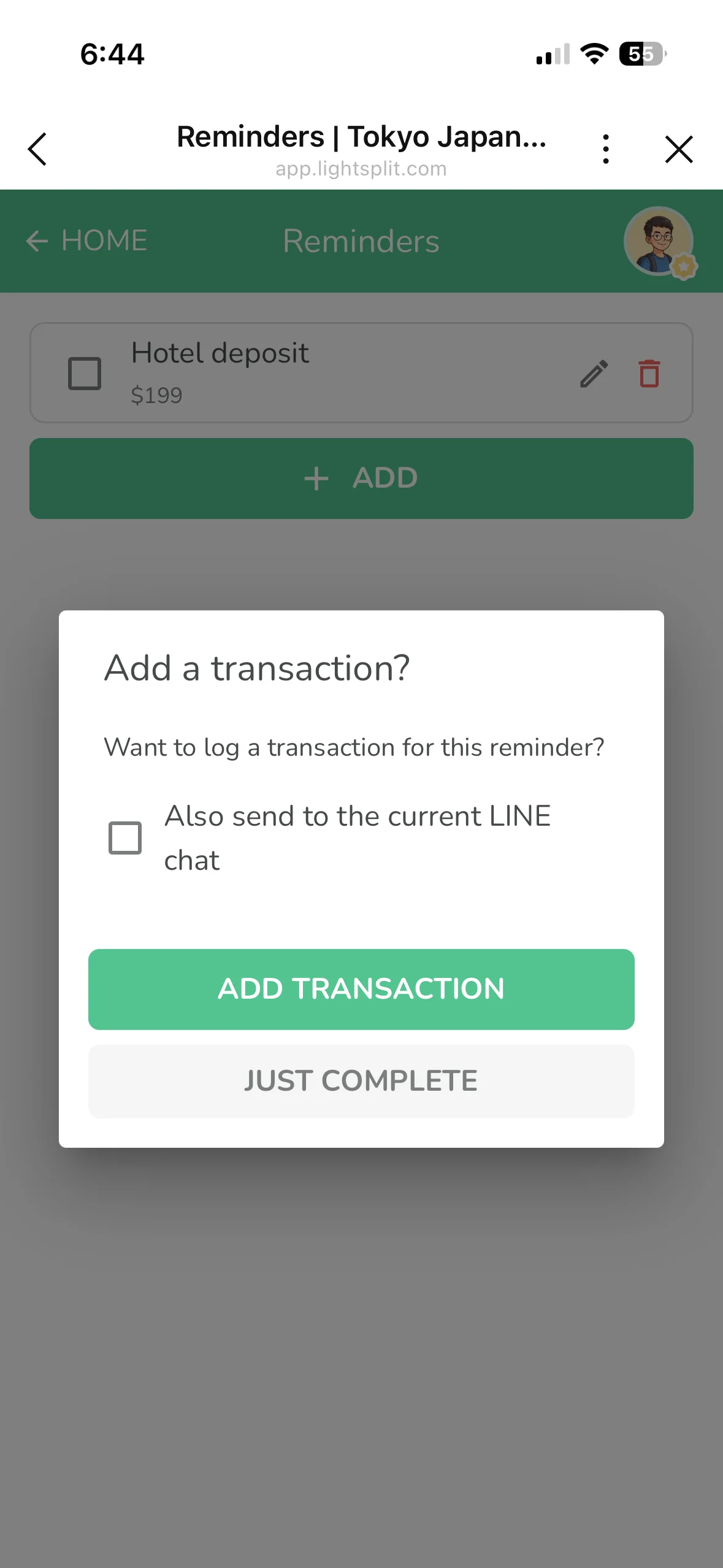
Tap "Add transaction" and the expense form opens with the description, currency, and amount already filled in. All that's left is confirming who paid, choosing how to split it, and tapping Create.
Three scenarios where this really shines
Group trips: list everything you need to book and buy
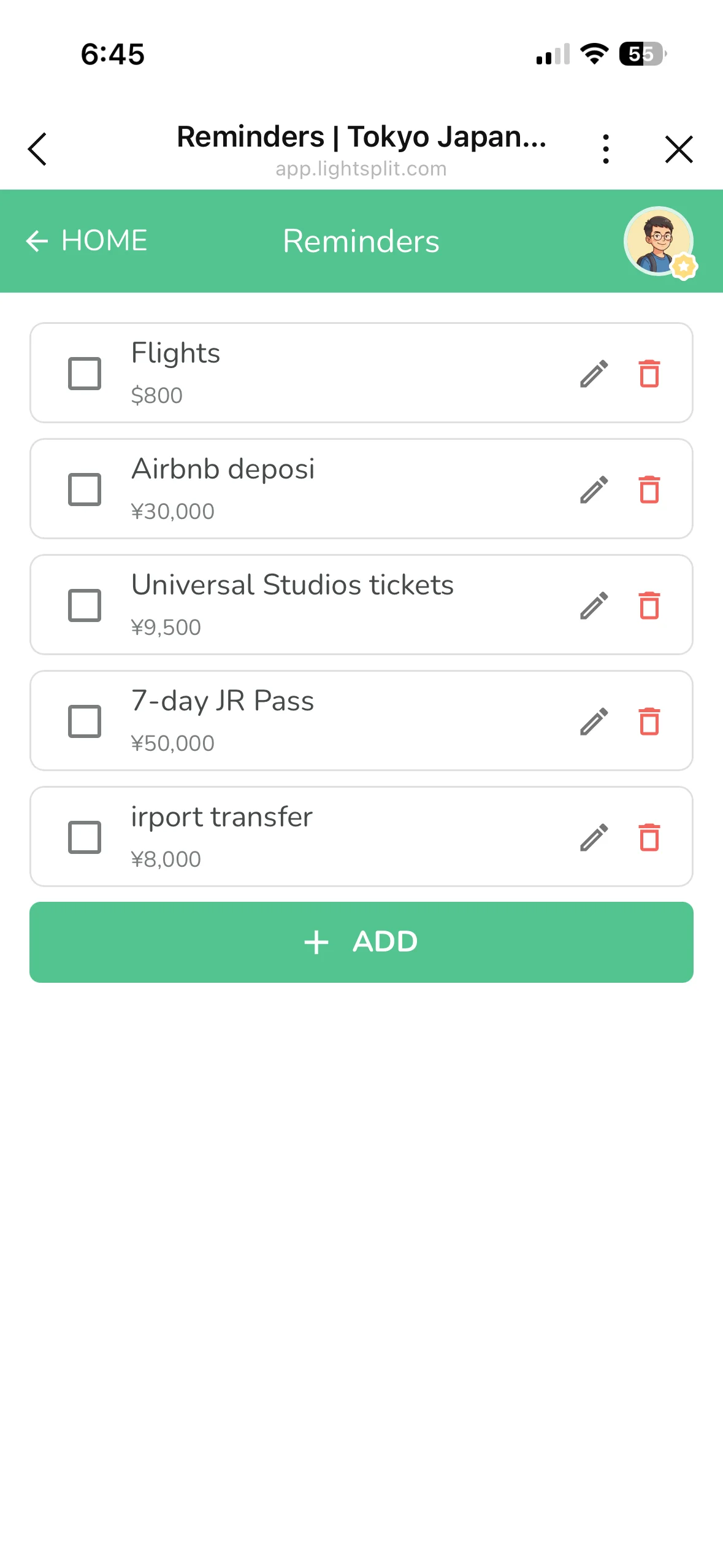
Start your list a month before you leave:
- Flights ($800)
- Airbnb deposit (¥30,000)
- Universal Studios tickets (¥9,500)
- 7-day JR Pass (¥50,000)
- Airport transfer (¥8,000)
Whoever pays first checks it off and logs the expense. Anyone who hasn't paid can still see the list, so nothing slips through the cracks.
Roommate supply runs: monthly household stuff
If you've ever shared a place, you know the drill. The same household items every month:
- Toilet paper ($15)
- Dish soap ($5)
- Shared Wi-Fi bill ($30)
Whoever grabs it checks it off and logs it. End-of-month settling is crystal clear, and nobody has to remember "wait, who bought the dish soap last time?"
Group dinners, parties, and wedding planning
Splitting the cost of an event with friends? List every expense up front:
- Venue deposit
- Cake order
- Gifts
- Decorations
Each person claims what they'll cover, checks it off when they pay, and it goes straight into the split. No more "wait, I thought you were buying that!" awkwardness.
A couple of pro tips
Drag to reorder, urgent stuff goes up top
Long-press an item to drag it. That hotel deposit due next week? Pin it to the top so you don't forget.
Amounts are estimates, not set in stone
Reminder amounts are estimates. You can change them when you actually log the expense. If you estimated $800 for flights but snagged a $700 deal, just type the real amount when you log it.
The group home tells you how many are still open
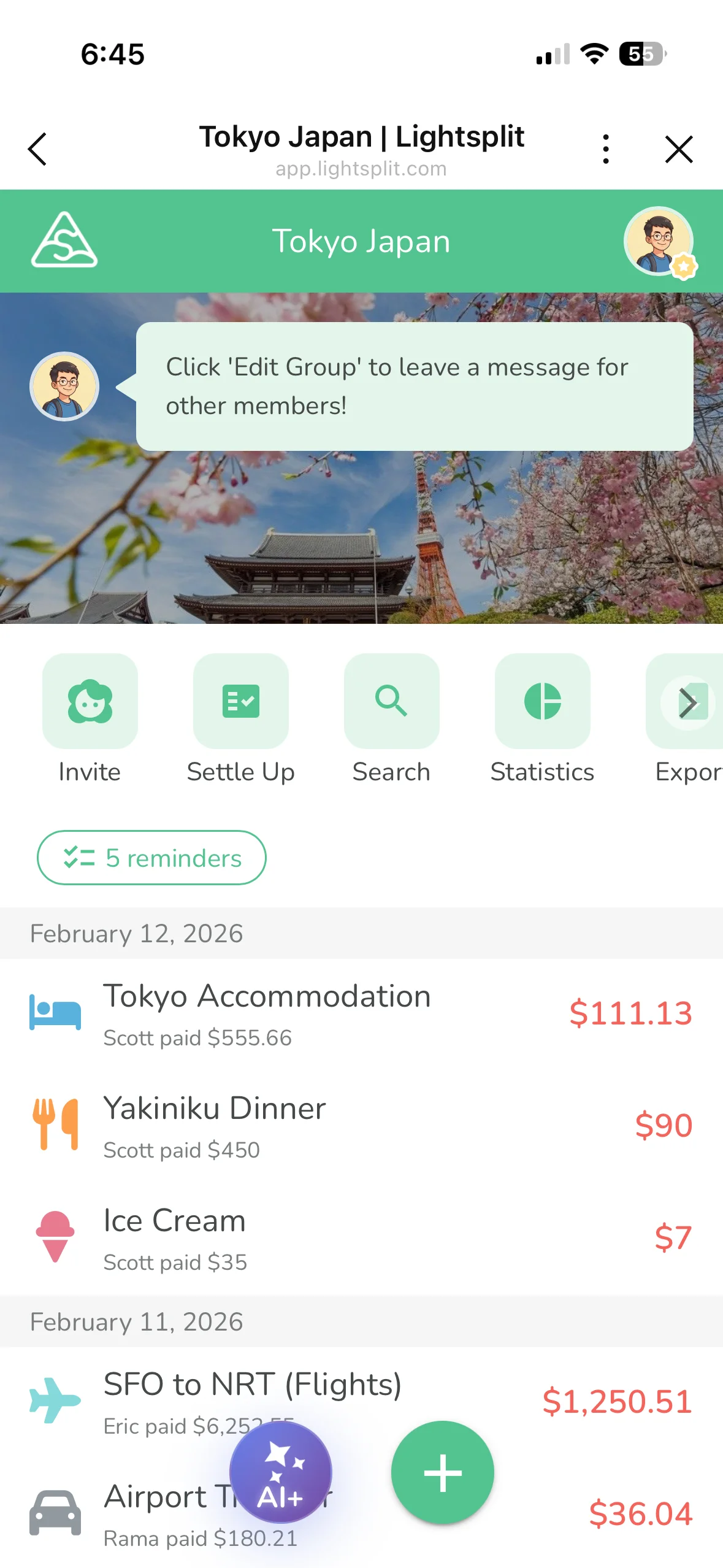
Pop back to the group home and you'll see a green "X reminders" chip near the top. One glance tells you the list still has stuff to handle, so nothing slips your mind. Tap it to jump straight into the list.
Give it a try
Next time you're planning a trip, splitting roommate supplies, or throwing an event with friends, stop juggling two apps!
Head to lightsplit.com, create a group, and tap the "Reminders" tab to start your list. From planning to splitting, Lightsplit walks the whole path with you.
When your list and your split bills live in the same place, you'll never have to chase down friends for money after you get home again.