How to Split Expenses in iMessage Without the Awkward Ask
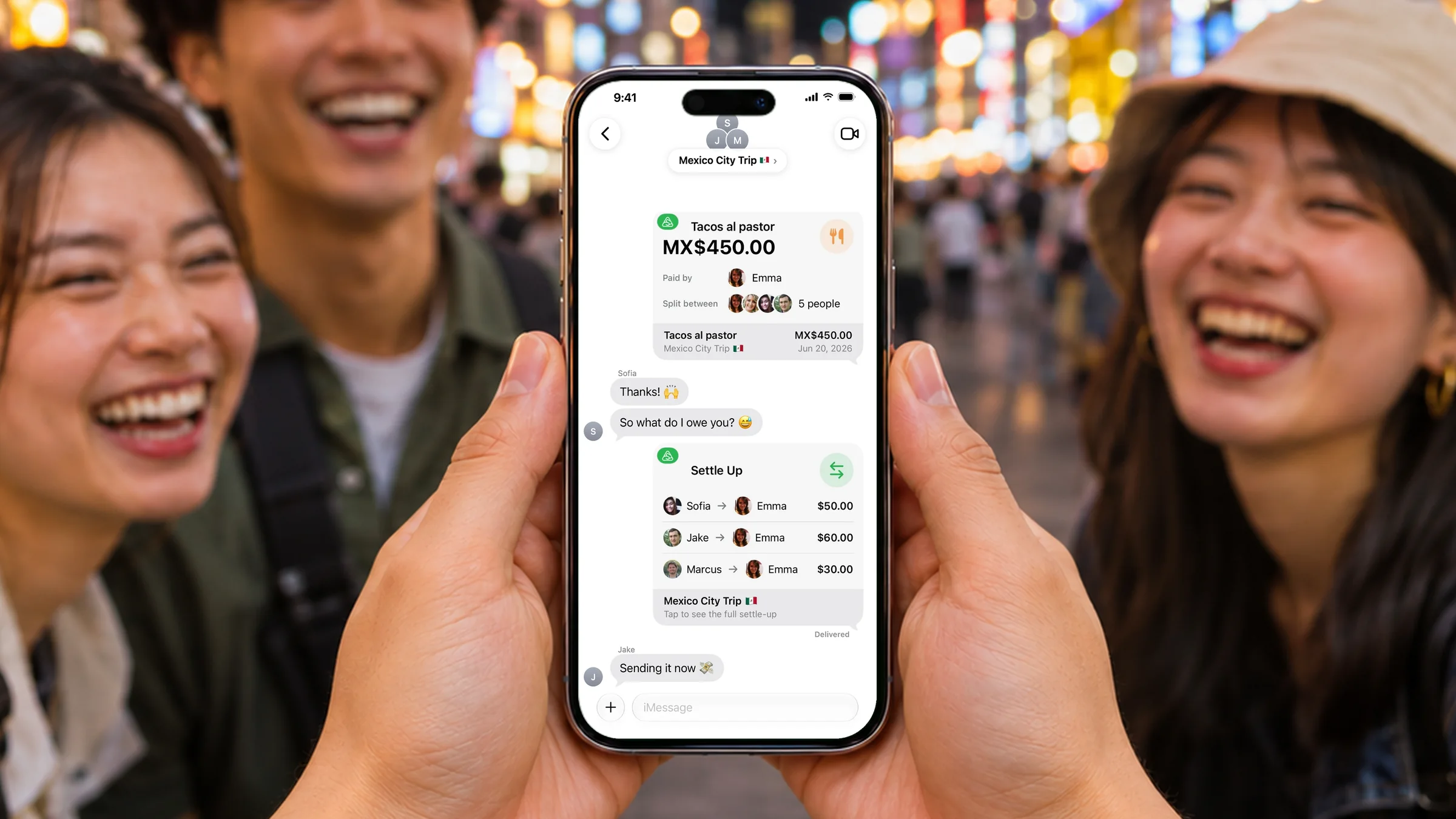
You're planning a June trip to Mexico City with friends in iMessage. Flights and hotels all get sorted right there in the chat. So why is it so hard to split expenses in iMessage too? The moment money comes up, everyone jumps to another app to log it, then comes back to paste screenshots.
It gets worse once you're home. Who paid for what? Who still hasn't paid you back? Asking a friend for money always feels a little awkward, right?
Sure, Apple Cash can split a bill in Messages. But only one bill at a time. Tacos, taxis, the hotel: each one is its own request, and nothing adds them up for the whole trip.
Good news: you don't have to leave the chat at all.
Lightsplit is now in iMessage
Just install Lightsplit and it shows up in the "+" list in iMessage. Open it in a chat to log expenses, invite friends to a split group, and send a settle-up card at the end so everyone pays up.
You never leave iMessage, and your friends can see every expense too.
What can you do in iMessage?
Everything Lightsplit sends is a "card" with a picture and an amount, so your friends get it at a glance.
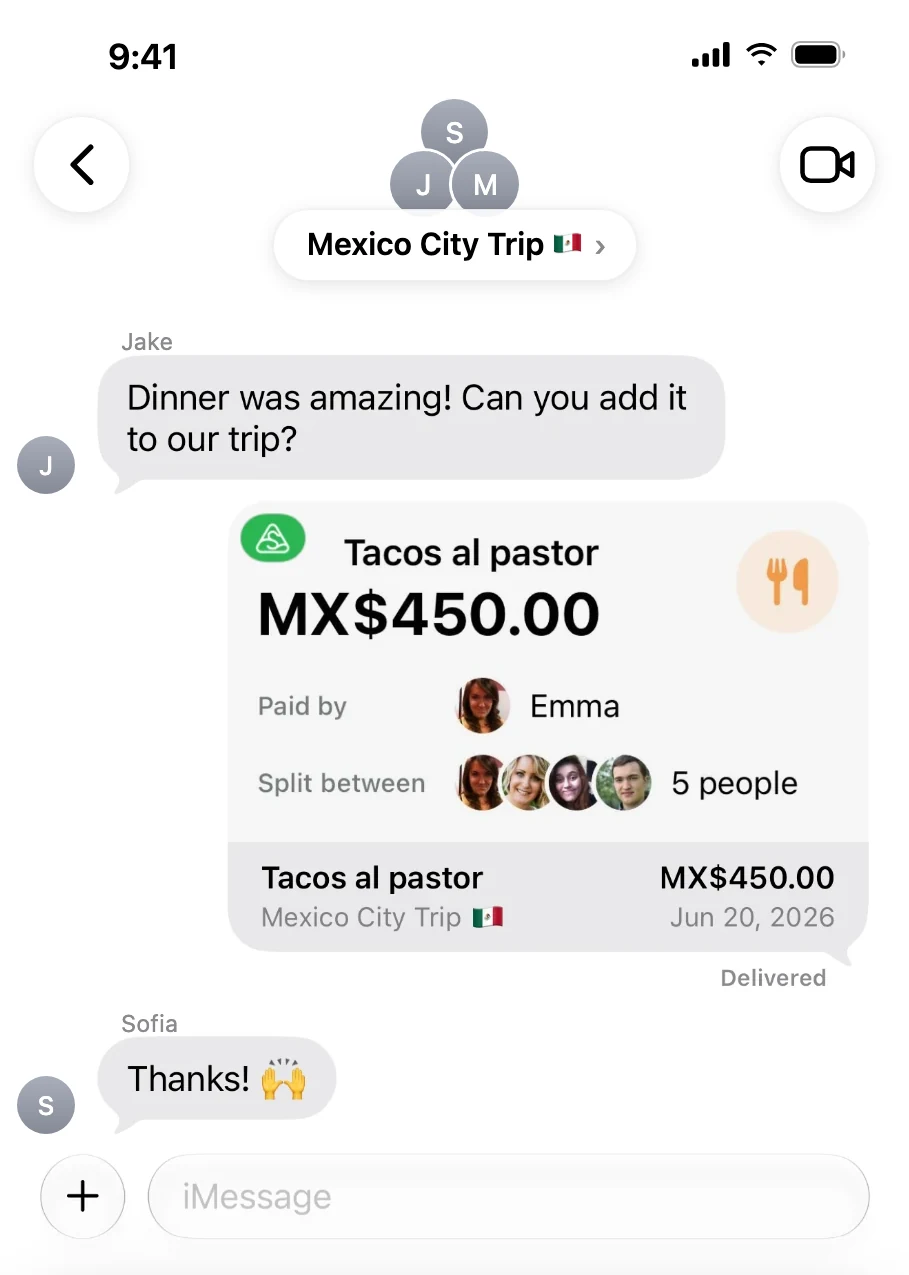
- Expense card: log a cost and the card shows what it was, how much, who paid, and who's splitting it
- Invite card: friends tap it once to join the split group
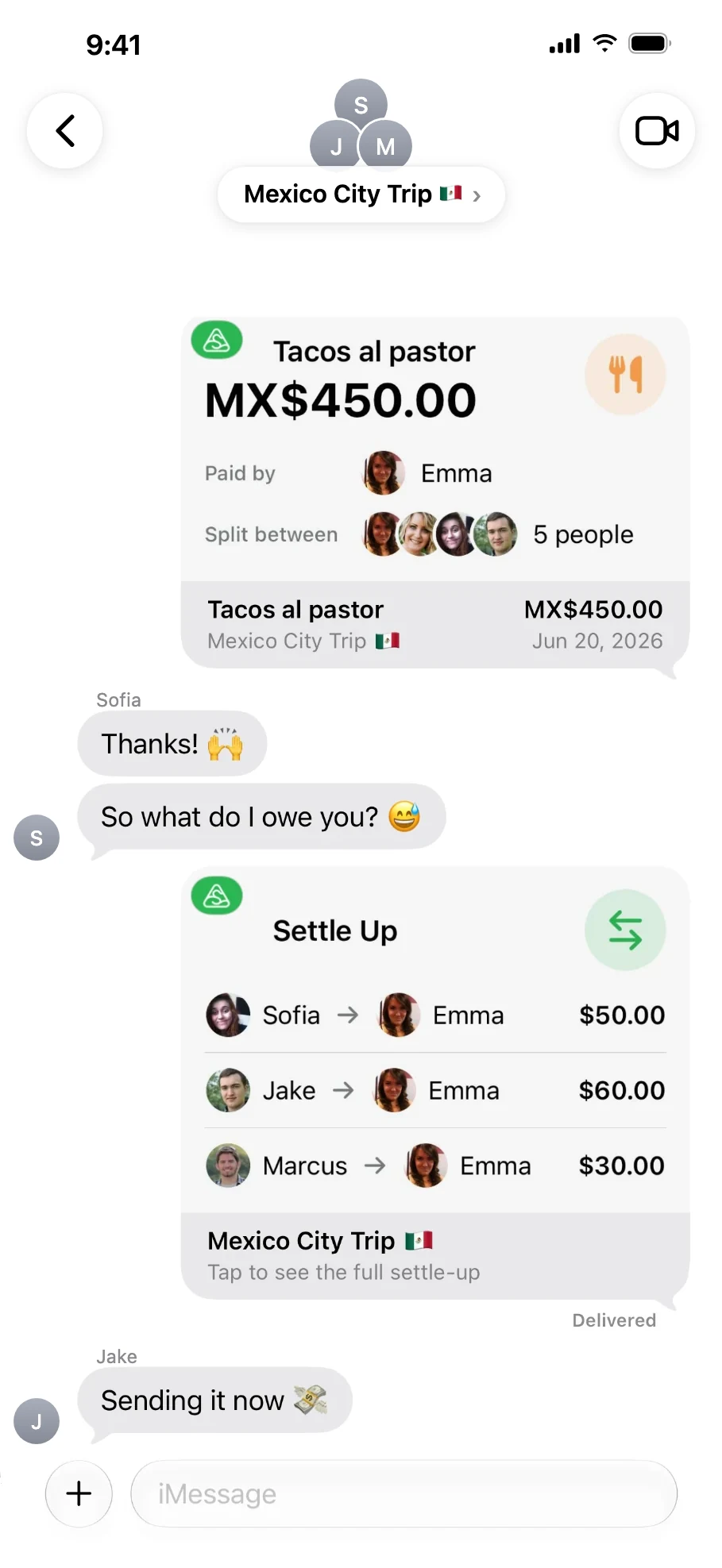
- Settle-up card: who pays whom and how much, all on one card
- One-tap split group: Lightsplit adds members for you based on how many people are in the chat
How to split expenses in iMessage
Step 1: Download Lightsplit and sign in
The iMessage app comes with Lightsplit, so there's nothing extra to download.
Download Lightsplit on the App Store
Once it's installed, open Lightsplit and sign in once. That's what makes your split groups show up in iMessage.
Step 2: Open Lightsplit in iMessage
Open the iMessage chat you want to split with, tap the "+" to the left of the message field, scroll down the list, and tap Lightsplit.
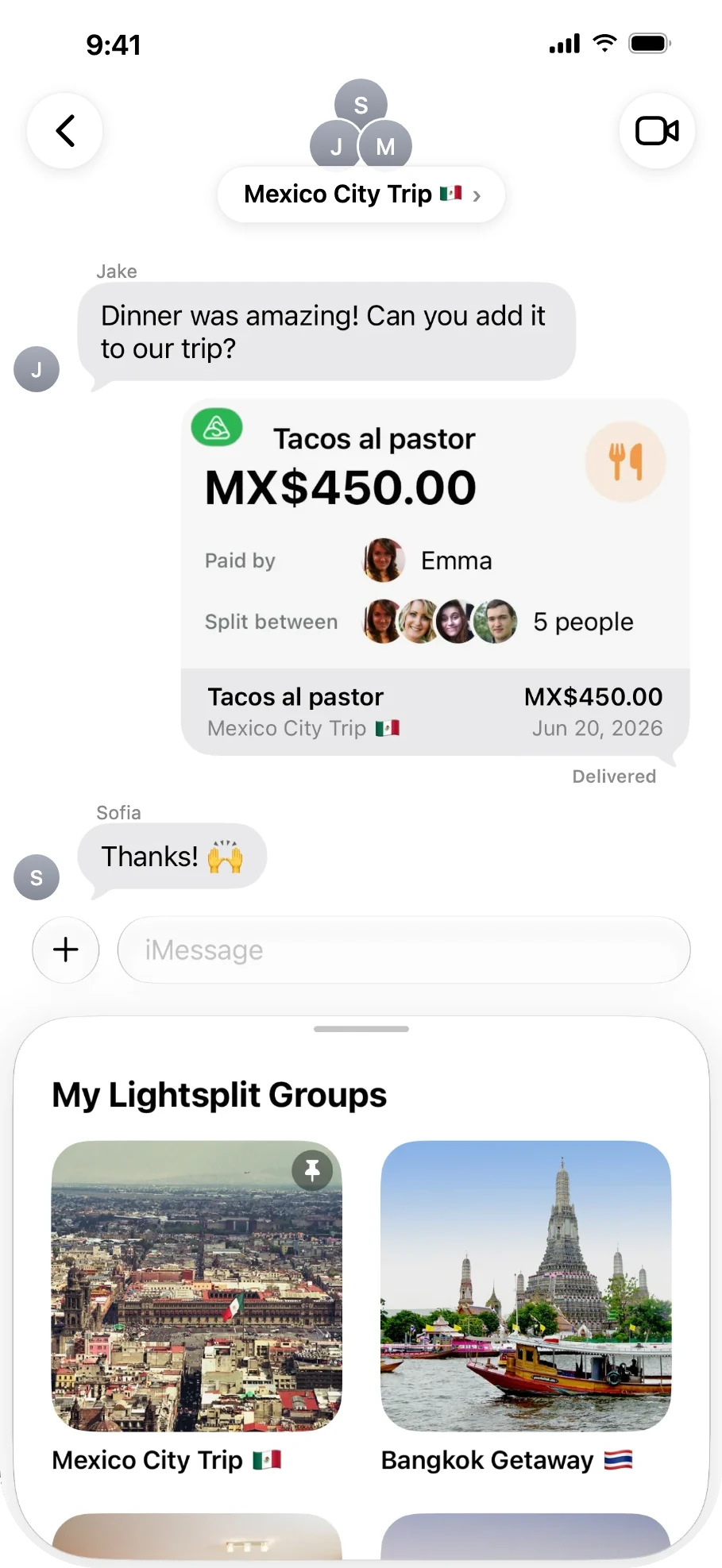
"My Lightsplit Groups" pops up under the chat. All your Lightsplit split groups are right there.
Step 3: Create a split group and send the invite
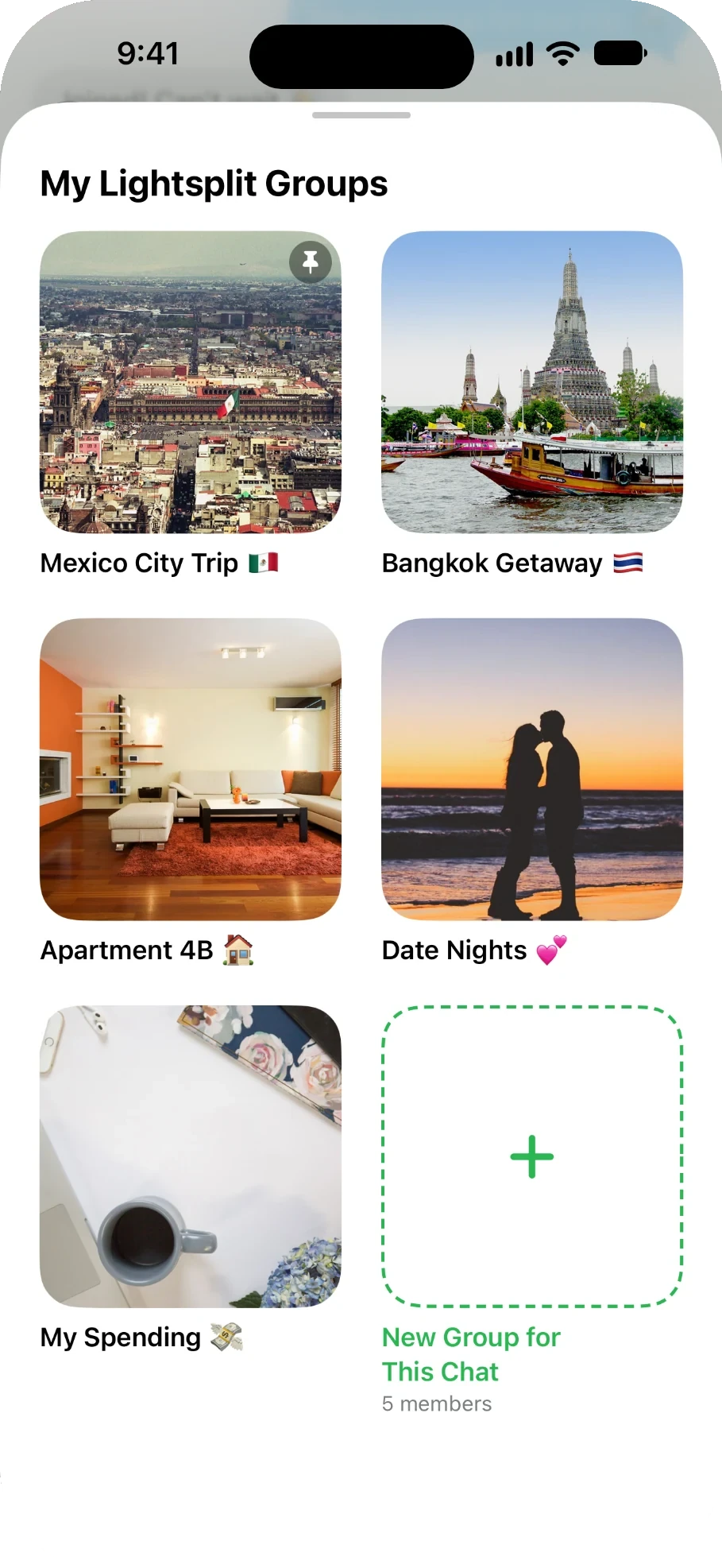
No split group for this trip yet? Drag the Lightsplit panel up to make it bigger, then scroll to the last tile, New Group for This Chat. It creates a split group just for this iMessage chat.
The small text under it shows how many people are in the chat, and Lightsplit adds that many members for you.
Next, fill in the group name and settlement currency. You can add an announcement board and a cover too if you like. Then tap Create.
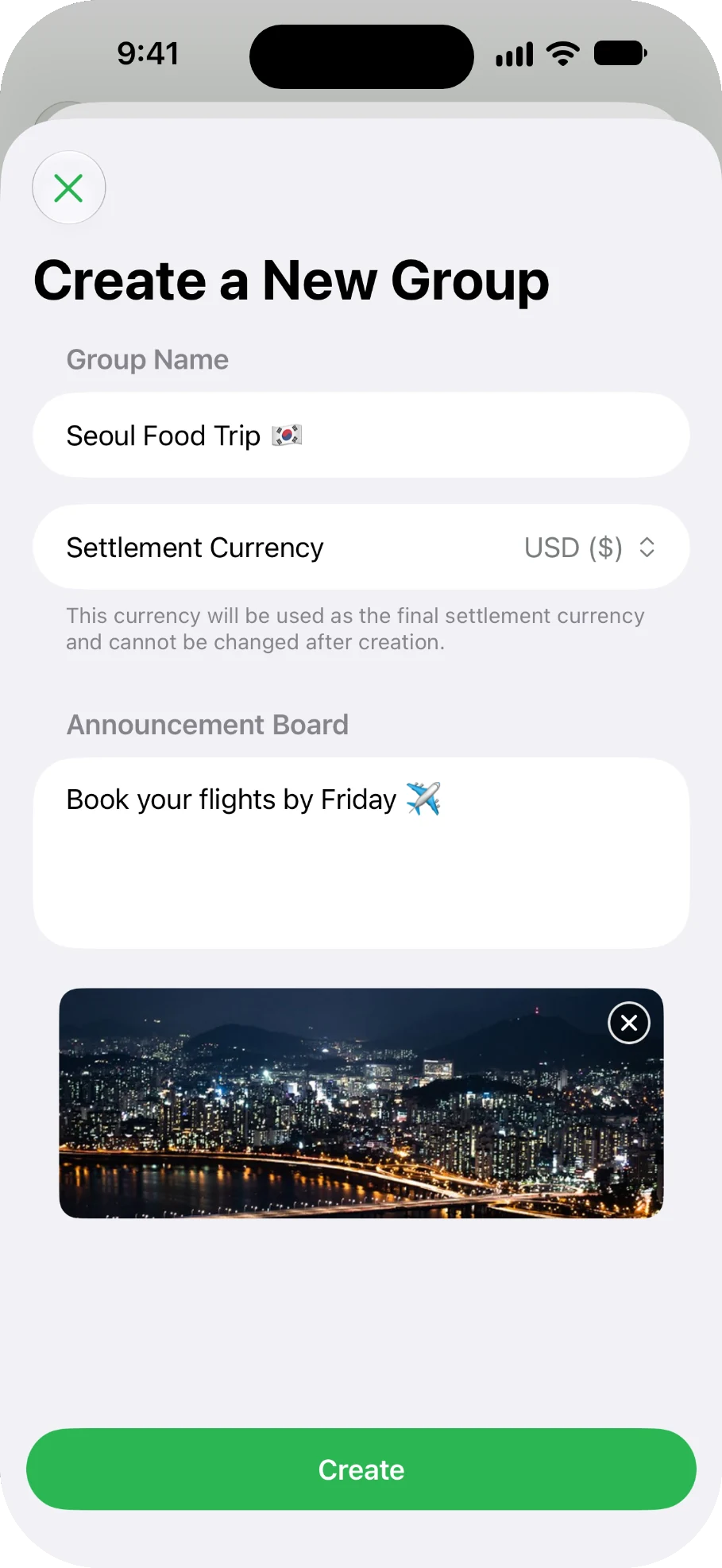
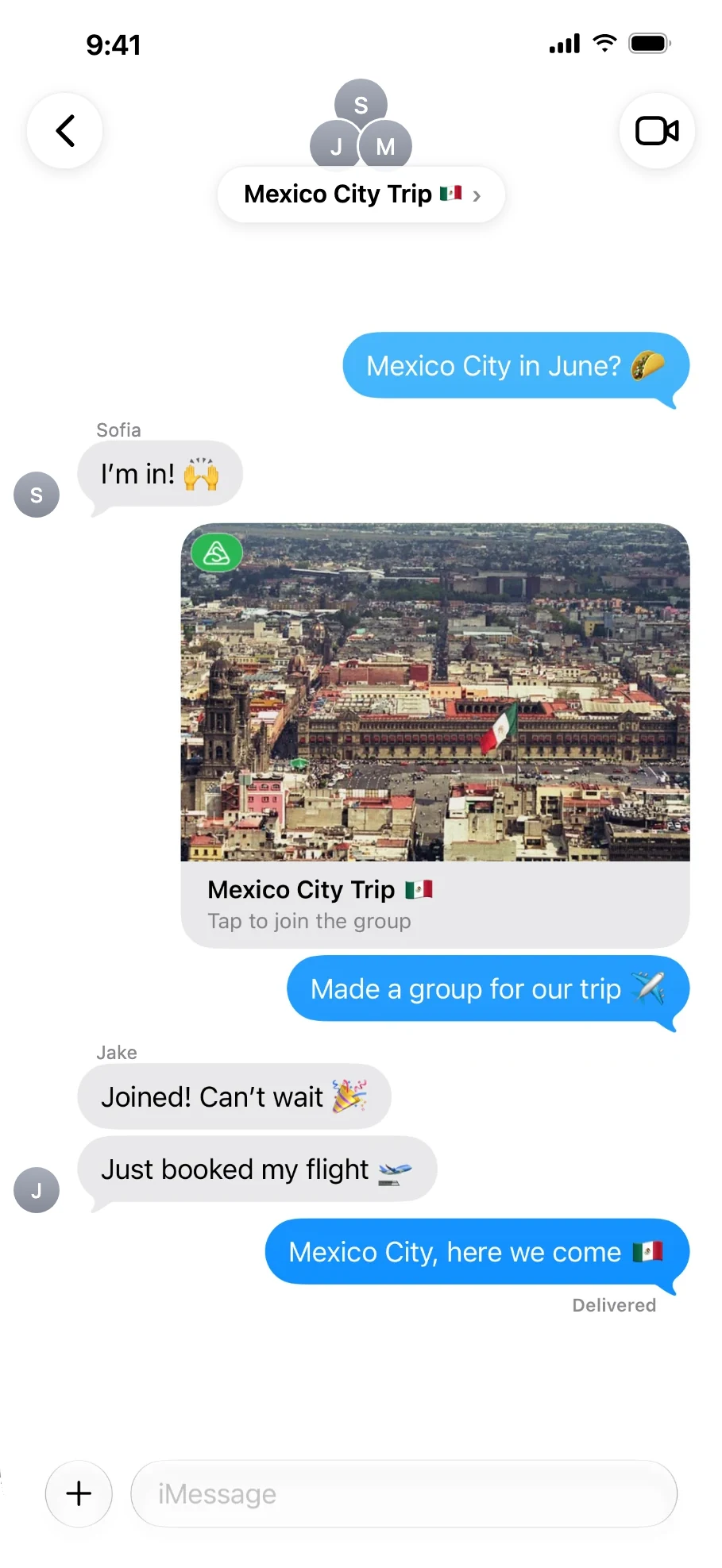
Once it's created, the invite card drops right into the message field. Just hit send.
Already have a split group? Long-press it and choose Send Invite to get the same invite card. Friends tap the card once to join the split group.
Step 4: Log an expense in iMessage
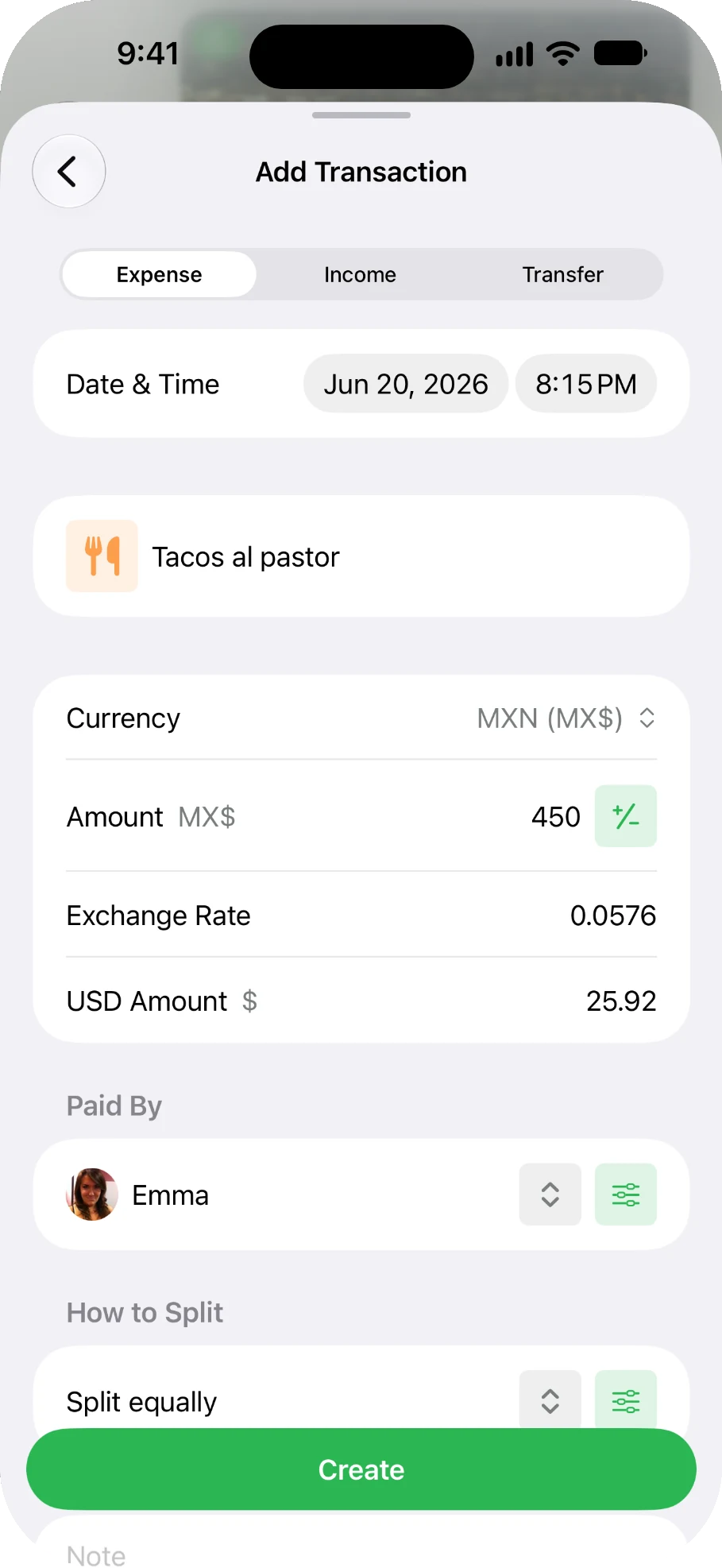
You just finished tacos al pastor, and your friend texts, "Dinner was amazing! Can you add it to our trip?" Tap your split group and "Add Transaction" opens.
You can log expenses, income, and transfers. Paid in pesos? Pick MXN and type 450. Lightsplit fills in the exchange rate and converts it to US dollars for you ($25.92 here). Then set "Paid By" and "How to Split", and tap Create. Done!
Your expense turns into an expense card and lands in the message field. Hit send, and your friends instantly see who paid and who's splitting it.
Step 5: Remind friends to settle up without asking
The trip's over and your friend asks, "So what do I owe you?" No need to do the math yourself.
Long-press the split group and choose Remind to Settle Up. Lightsplit works out who owes whom right now and puts it on a settle-up card in the message field. The card lists up to 3 transfers, and friends can tap it to see the full settle-up.
If everyone's already square, no card is created. You'll see "Everyone's settled up." on the screen instead.
What happens when friends tap a card?
When a friend taps a Lightsplit card in the chat, Lightsplit opens right up:
- Expense card: opens that transaction
- Settle-up card: opens the split group's "Settle Up" page with every transfer
- Not in the split group yet: takes them to the join screen
- No Lightsplit yet: takes them to the App Store to download it
Why it's easier in iMessage
- No app switching: planning, logging, and settling up all happen in the same iMessage chat
- The cards are your ledger: scroll up to see who paid for each expense and who's splitting it
- No awkward money talk: just send a settle-up card. You don't have to bring up money yourself
- Fewest transfers: Lightsplit finds the simplest way to pay everyone back, so it's not A pays B, then B pays C, all the way around
- Foreign currency, auto-converted: pesos, yen, baht, log them as they are. Everything adds up in your settlement currency
Tips and tricks
- Move Lightsplit up: in the "+" list, long-press Lightsplit and drag it to the top. No more scrolling next time
- Pin your go-to groups: long-press a split group and choose "Pin to top" so it comes first
- See the whole picture: long-press a split group and choose "Open in Lightsplit" to see every expense, stats, and the settle-up
FAQ
Q: Can't find Lightsplit in the "+" list?
A: Update Lightsplit to the latest version first, then scroll down the "+" list. It might just be further down.
Q: What does "Sign in to Lightsplit to send your groups here." mean?
A: It means you haven't signed in to Lightsplit yet. Tap "Open Lightsplit", sign in, then head back to iMessage and you're all set.
Q: Why didn't a card show up when I tapped "Remind to Settle Up"?
A: Everyone might already be settled up. In that case you'll see "Everyone's settled up." on the screen. Also, if you're the only one in the split group, "Remind to Settle Up" won't show up in the menu at all.
Q: If I edit an expense later, does the card update too?
A: No. The card shows things as they were when you sent it. But tapping a card always opens the latest data in Lightsplit, so nobody ends up looking at old amounts.
Q: What about friends in the split group who use Android?
A: iMessage cards can't reach Android phones. In the Lightsplit app, tap "Invite" and send them the link. They can join the split group that way too.
Next trip, keep it all in iMessage
No more switching apps. No more scrolling back to find who paid for what. Reminding friends to pay you back takes just one card. Next time you travel with friends, split expenses in iMessage!
Download Lightsplit on the App Store, or check out lightsplit.com for more ways to split.