Already Pay for Claude? Add a Connector to Split Expenses

You already pay for Claude. You use it every day to clean up notes, rewrite documents, look things up. So can you just split expenses inside Claude too?
You can. Add a Claude connector.
Three of you go to Japan. Someone covers the ramen, someone taps their card for the lift pass, someone fronts the deposit on the room. The old way is scrolling back through a group chat two weeks after you get home, still asking "so what do I actually owe you?" With the connector on, you type "Add 2500 Ramen" the moment it happens and it's done.
What's a Claude connector?
It hands Claude a key to your Lightsplit. Say "Add 2500 Ramen" and it doesn't just work out the arithmetic and stop there. It actually writes the expense in. The group, the amount, who paid, all of it sticks around, and it's waiting for you next time you open Lightsplit.
You don't need to write any code or run a server. You paste one address into a settings box.
Before you start
You'll need a Lightsplit annual plan. Whatever Claude plan you're already on is fine.
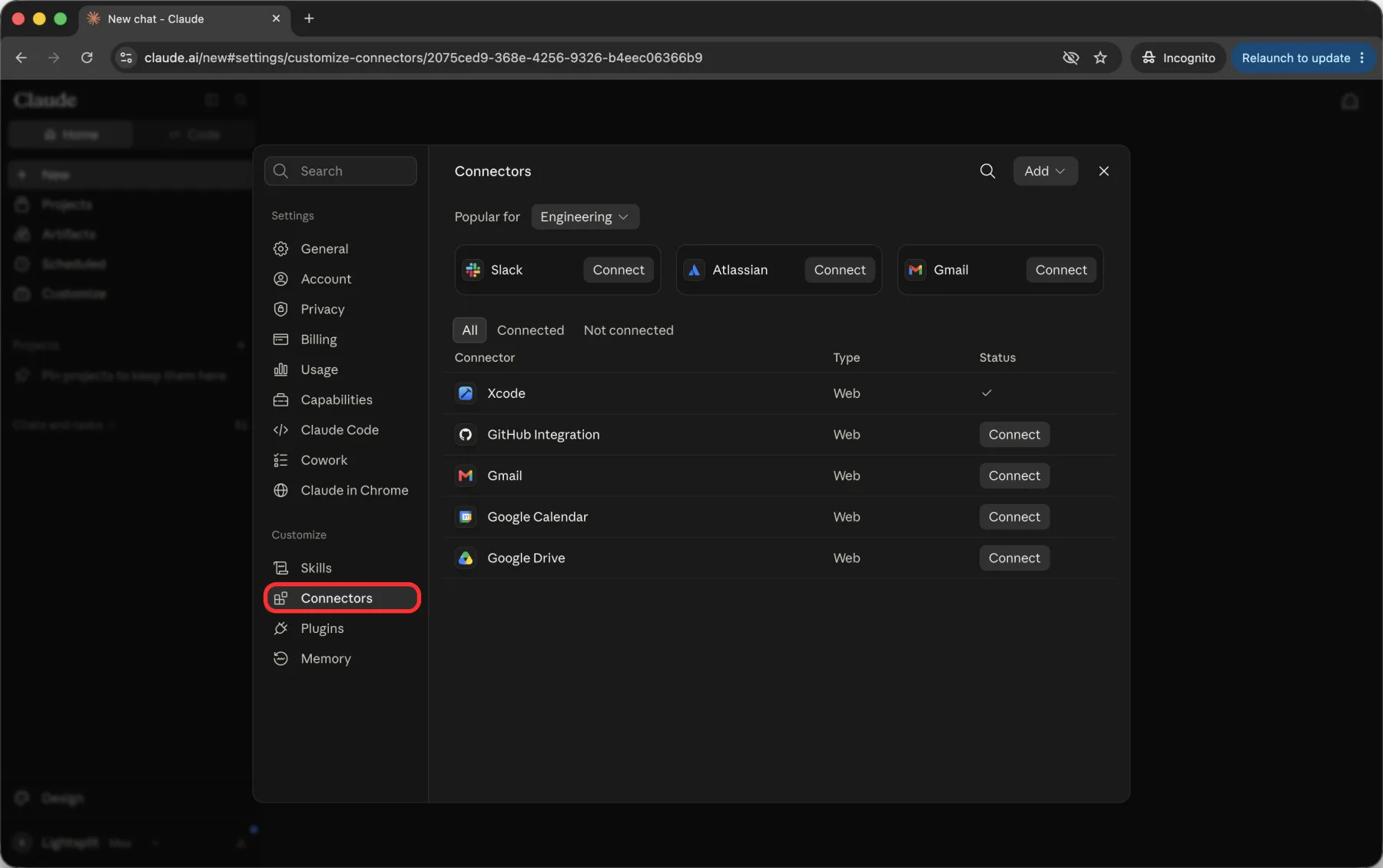
Step 1: Find the Connectors settings
On a computer, open claude.ai and go to Settings. In the left menu, scroll down to the Customize section and pick Connectors.
Step 2: Add a custom connector
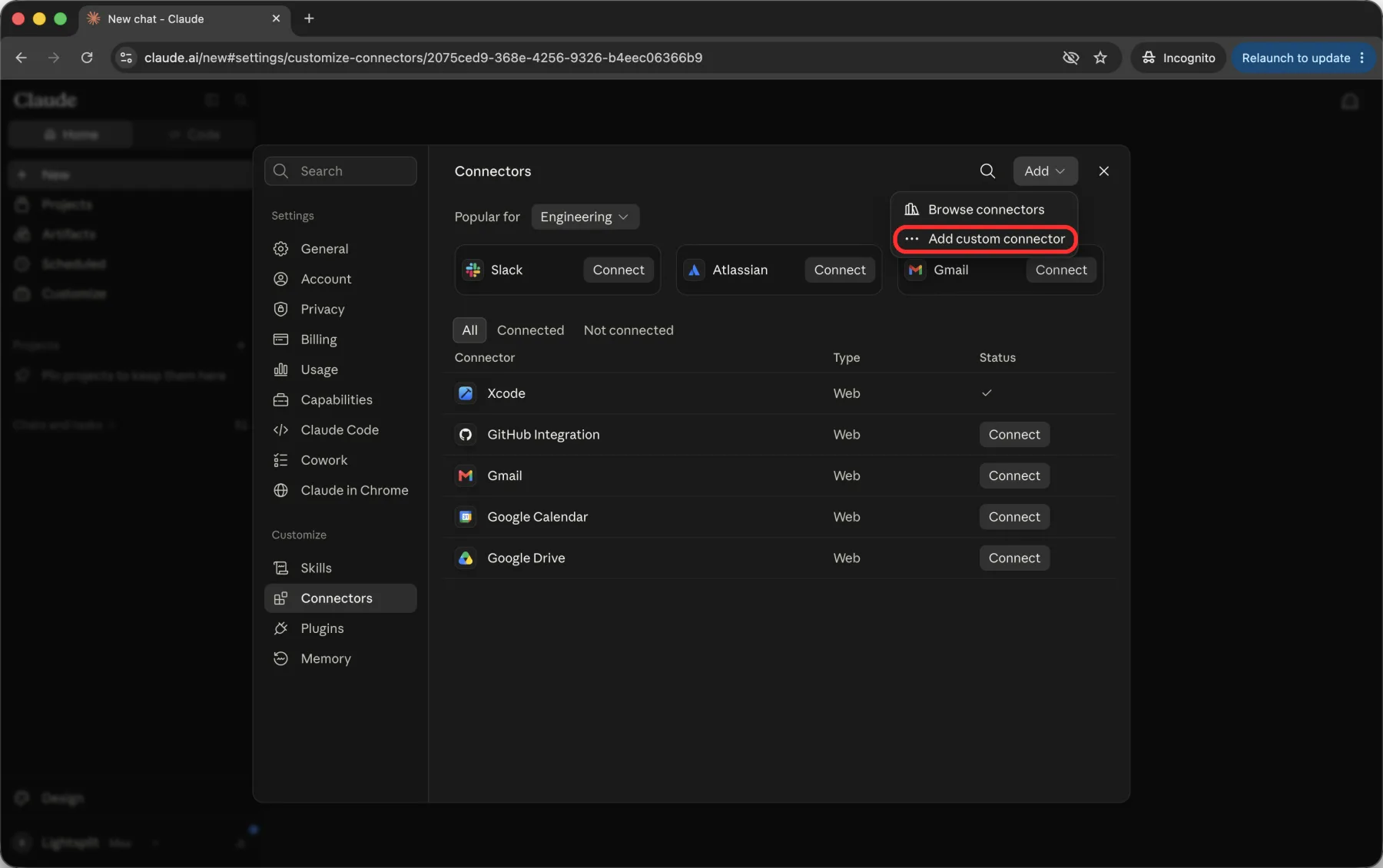
Hit Add in the top right, then Add custom connector.
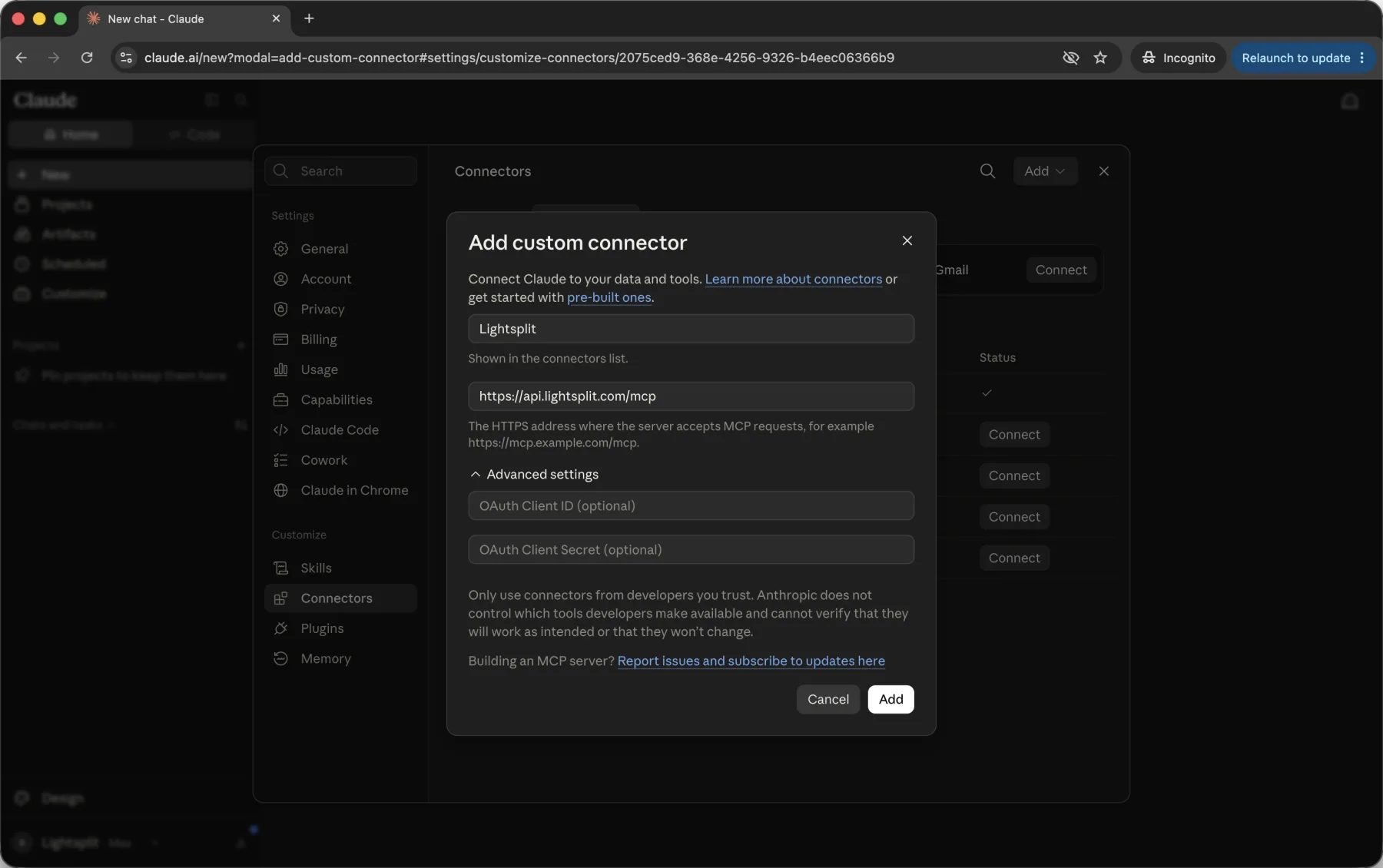
The dialog only needs two fields:
- Name: type "Lightsplit"
- Remote MCP server URL: paste this
https://api.lightsplit.com/mcp
Leave Advanced settings alone, both boxes stay empty. Then hit Add.
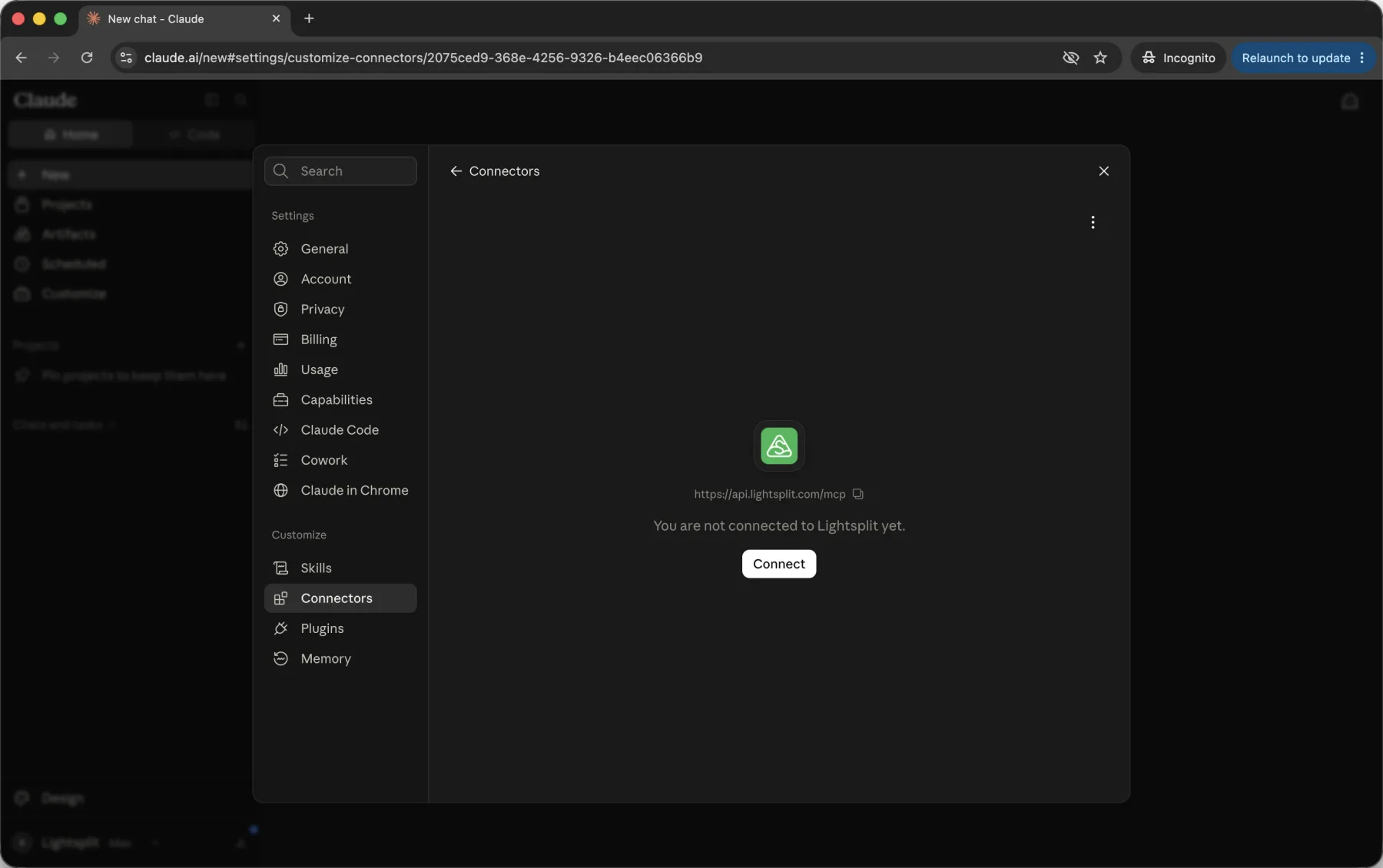
Step 3: Hit Connect
You'll land on Lightsplit's connector page, which says you're not connected yet. Hit Connect.
Lightsplit's approval screen comes up. It names claude.ai as the app asking, and lists exactly what it will be able to do. Read it, then hit the green CONNECT.
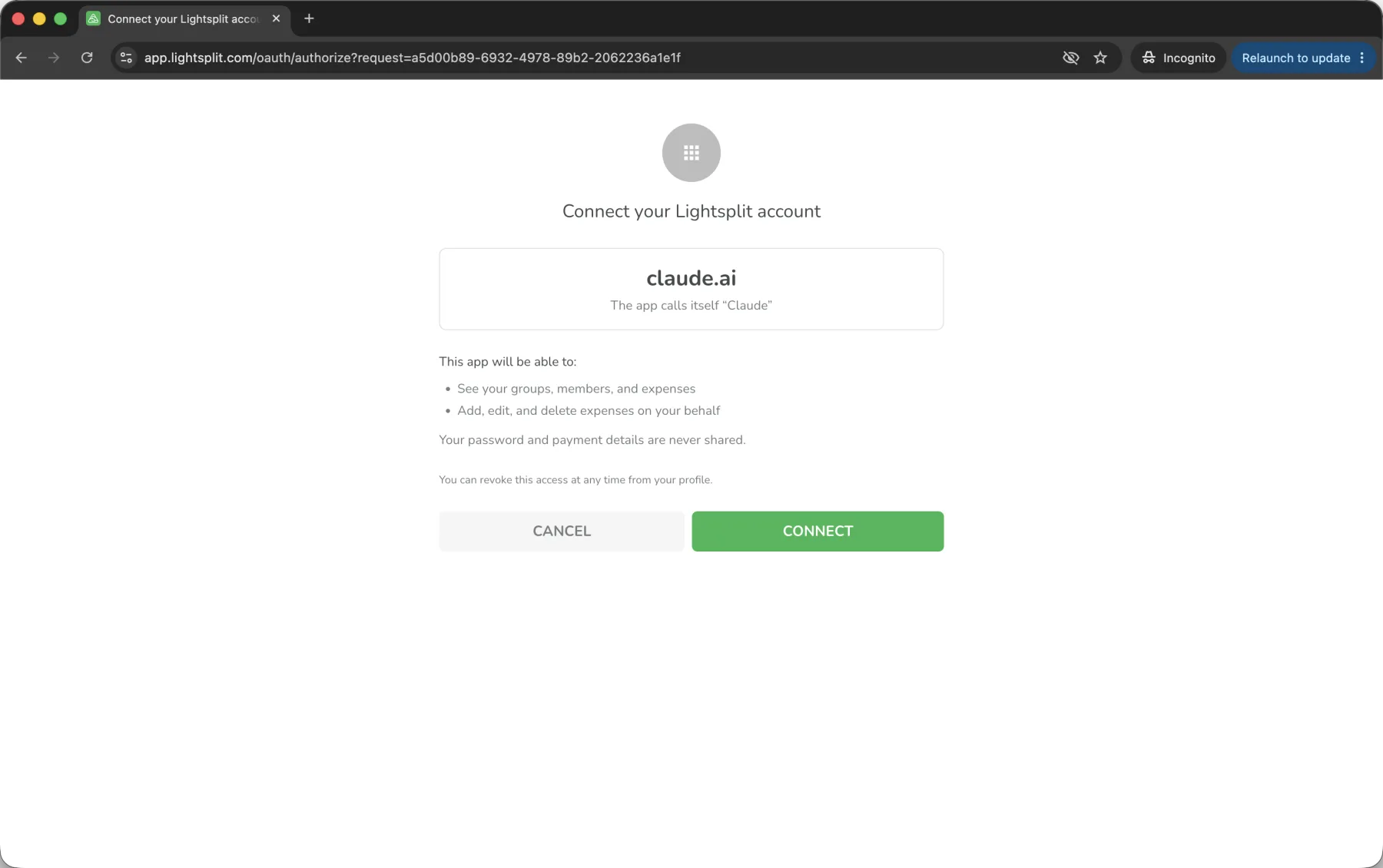
If you're not signed in to Lightsplit yet, it'll ask you to sign in first and bring you back automatically.
Step 4: Check the tool permissions
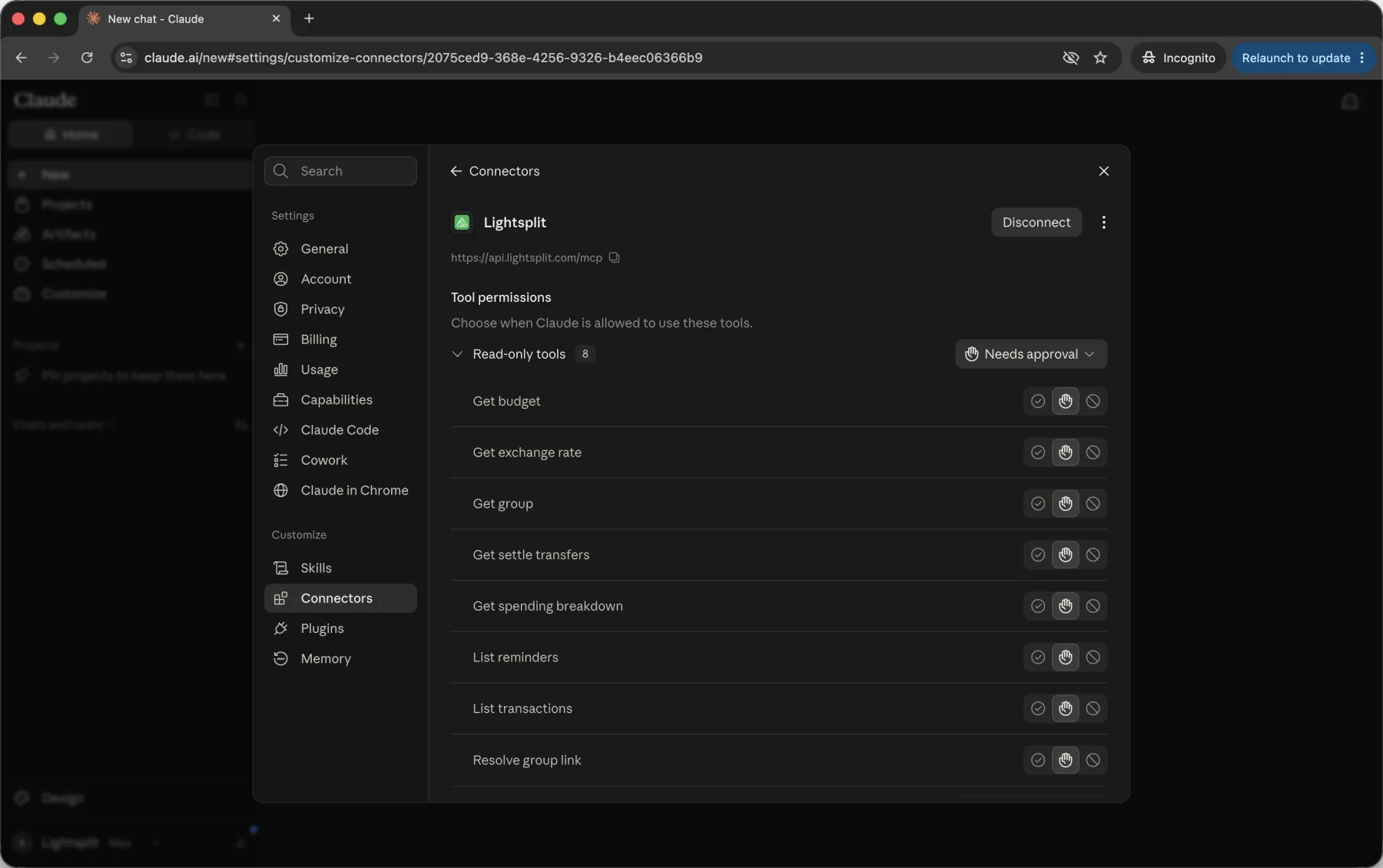
Once you're connected, the button turns into Disconnect and a Tool permissions section appears underneath.
That's the list of things Claude is allowed to do. Everything defaults to Needs approval, so it checks with you before it touches anything. If that gets tiring, switch the ones you use constantly over to automatic.
Create a group by asking for one
Time to try it. Type:
Create a new Lightsplit group
Claude asks what to call it, which currency balances should be reported in, and who else is in it. Answer in one line:
Japan Trip - JPY
That's the group made. Tell Claude the other names and it adds them, then hands you three invite links: web, LINE, and Telegram.
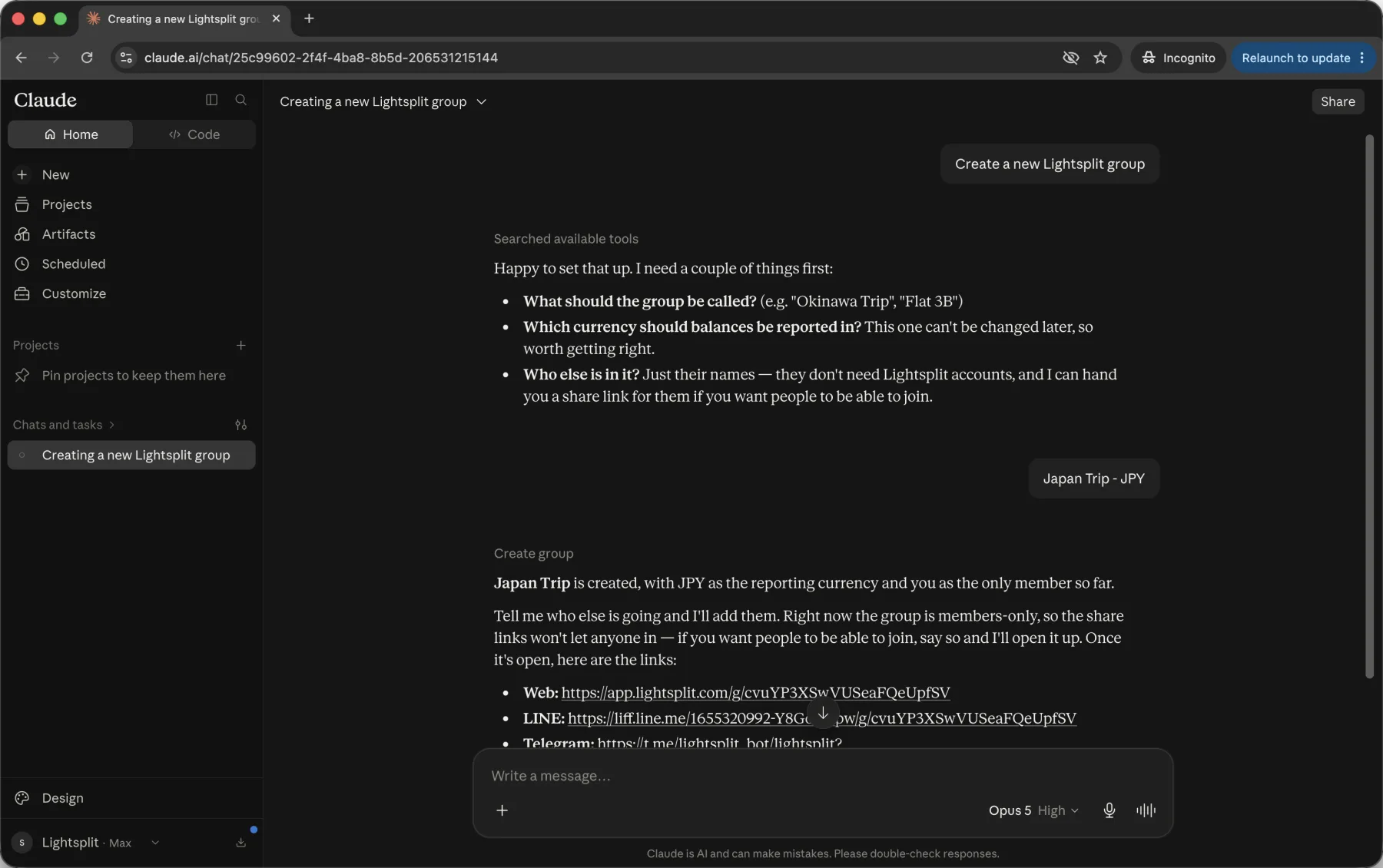
Pick the link that matches how you're sending it. If you're sending it over LINE, use the LINE one, because the web link won't open the group inside LINE.
The reporting currency is locked once the group exists, so pick it deliberately.
Two things worth knowing. Your friends never touch Claude, and they don't need Lightsplit accounts either. The group is shared, so they can open it in LINE, Telegram, or the web and both read the ledger and add expenses of their own. You're the only one who needs a connector. And a new group starts members-only, so tell Claude to open it up if you want people to be able to join through those links.
If the group already exists, you don't need a new one. Copy that group's share link from Lightsplit and paste it to Claude. It works out which ledger the link points at and logs straight into it.
Logging an expense takes three words
Once the group exists, this is the whole thing:
Add 2500 Ramen
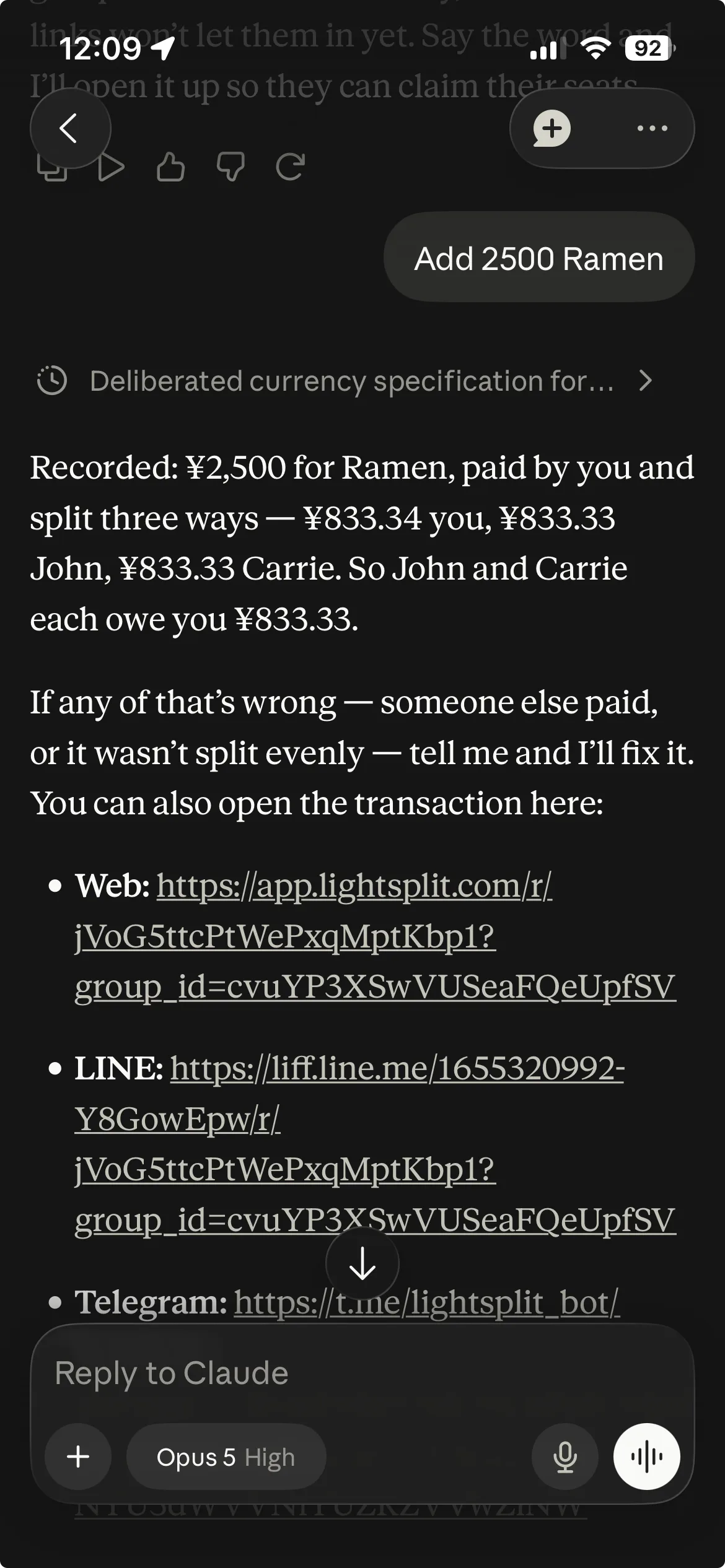
Claude replies with "Recorded: ¥2,500 for Ramen, paid by you and split three ways", the exact per-person amounts, and a link to the transaction if you want to change anything.
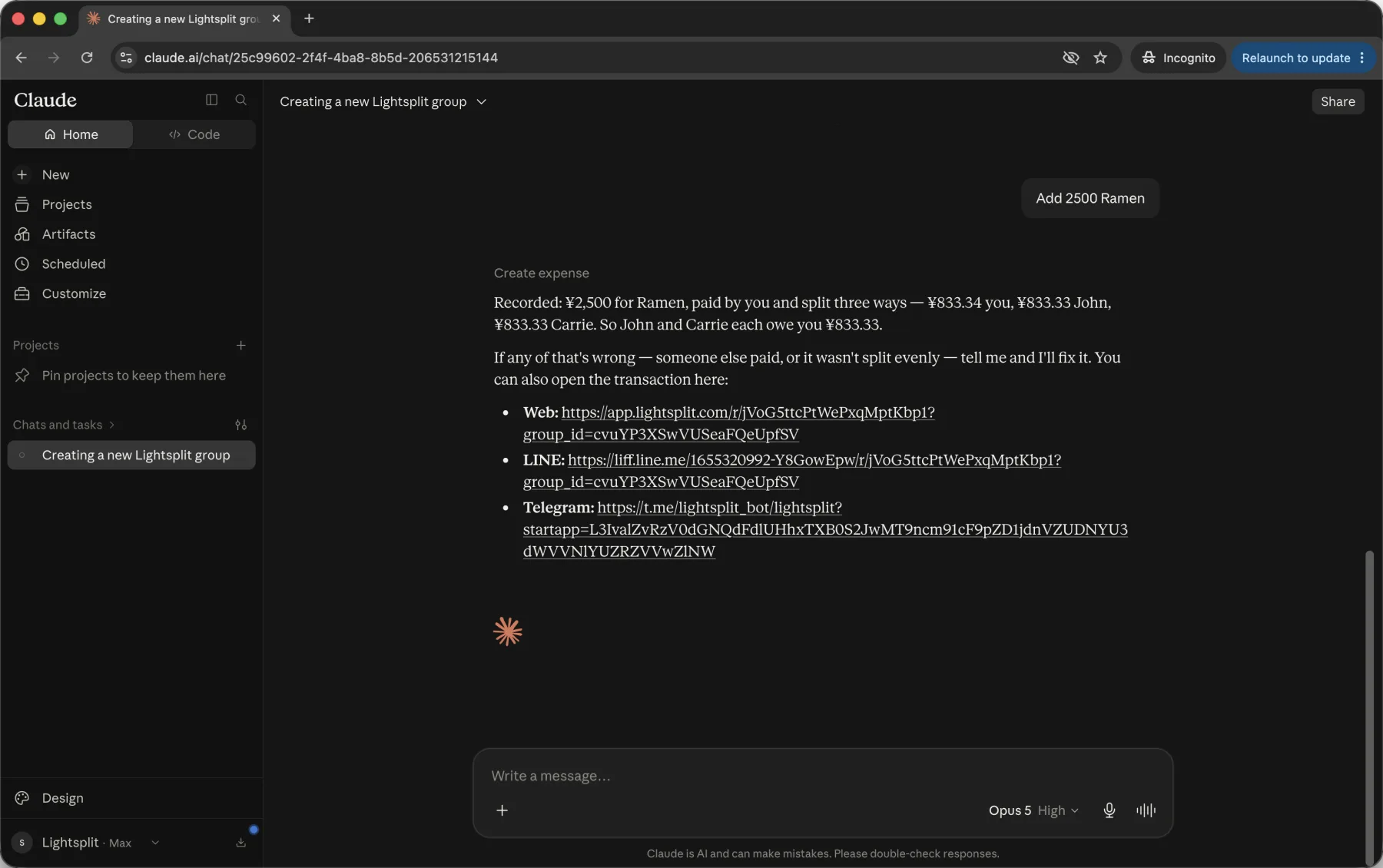
If you didn't pay, or somebody sat that one out, just say so:
Lift pass 8400, John paid, Carrie wasn't there
Type "settle up" to see who owes what
The worst part of any trip is two words:
settle up
Lightsplit works out the smallest number of payments that clears everyone, and Claude reads it back. Three people paying for each other all week can come out as two transfers.
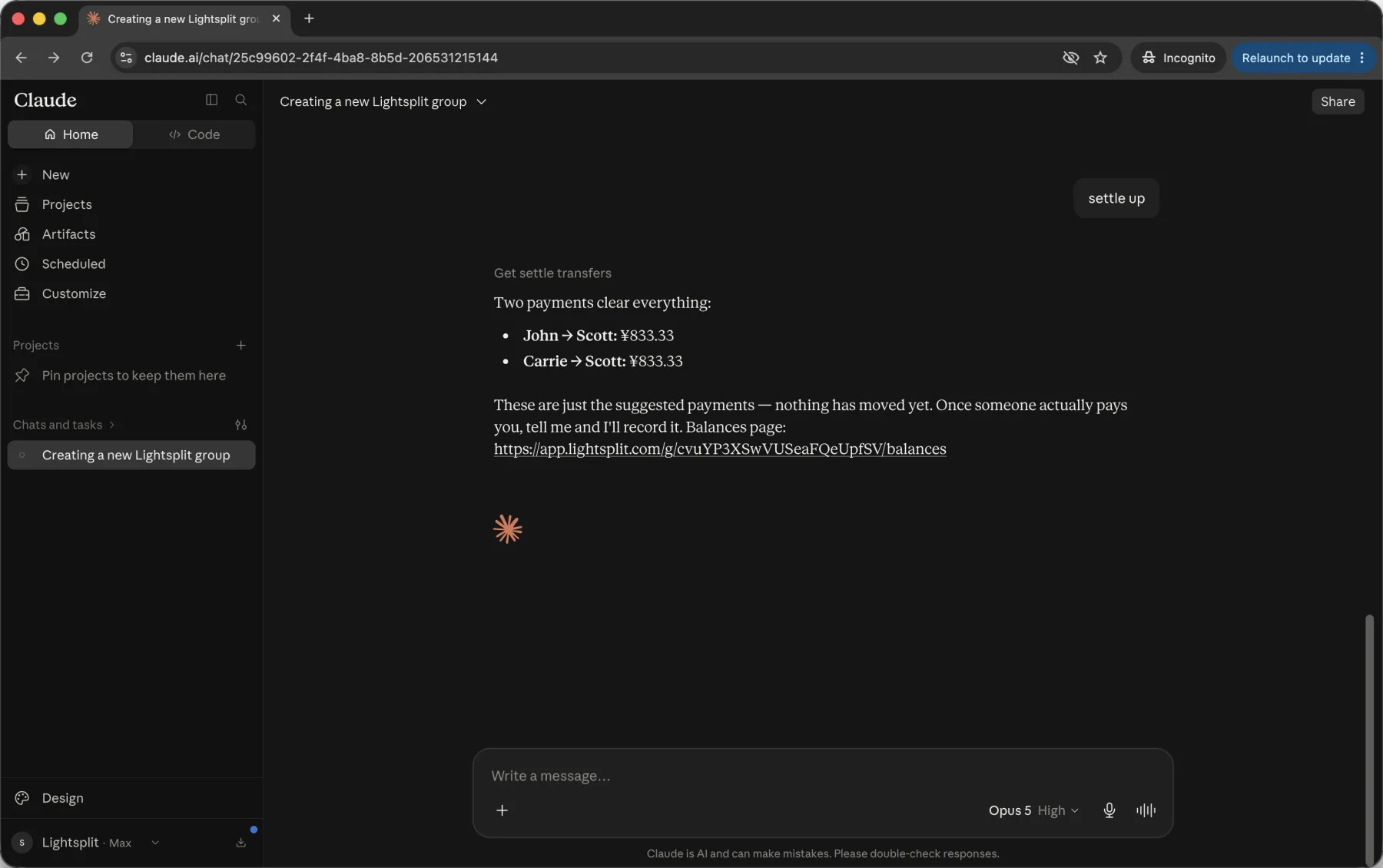
Nothing has actually moved at that point. Once someone really does pay you back, tell Claude and it records the transfer to clear the balance.
Using it on your phone
Connect it once on a computer and the Claude app on your phone just works. There's no second setup.
This is the best part, honestly. Get it connected at home before you leave, then stand outside the ramen place, type "Add 2500 Ramen" on your phone, and it's logged.
Done with it? Disconnect any time
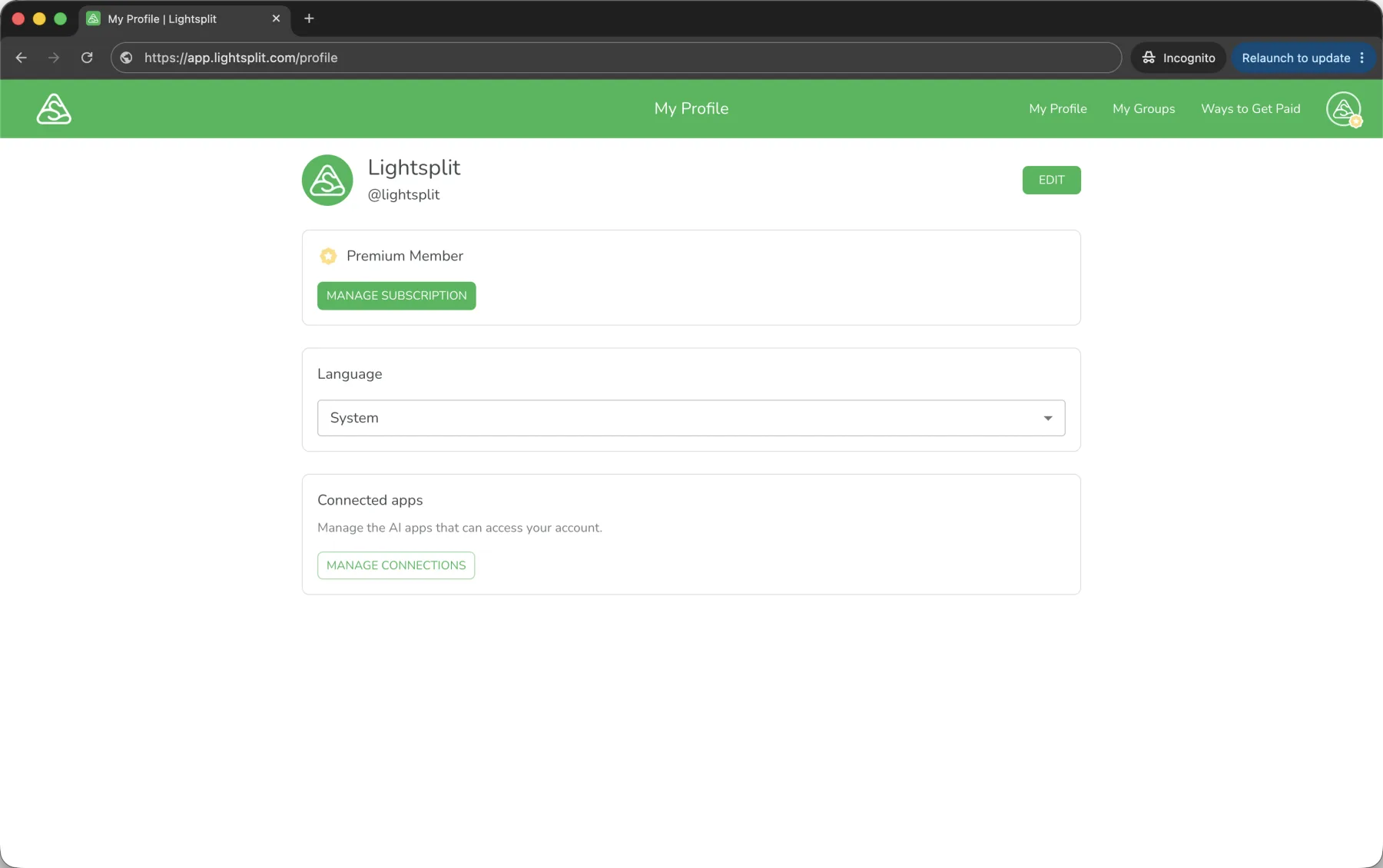
Go to your Lightsplit profile and hit Manage connections under Connected apps.
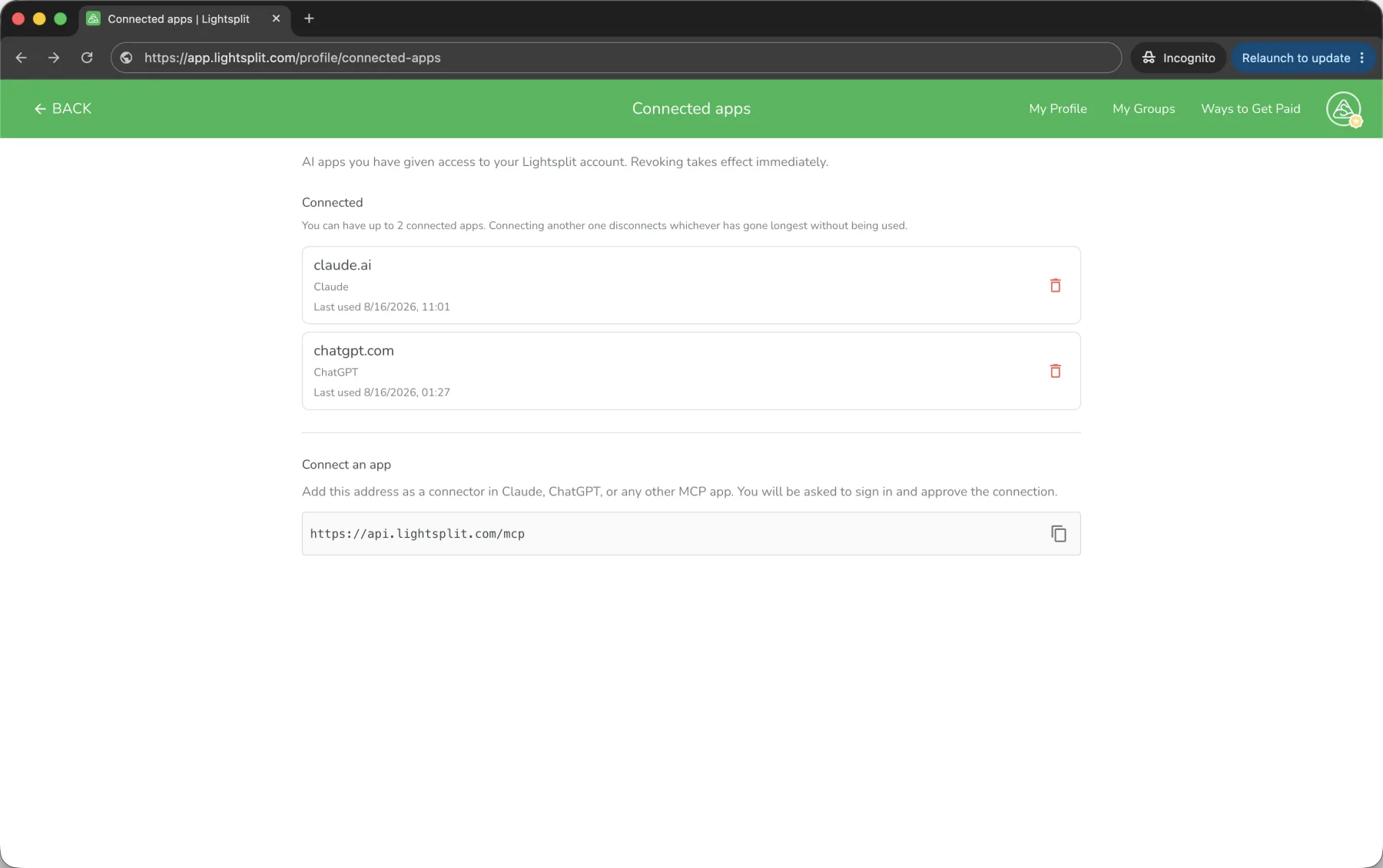
Every AI app with access to your account is listed here. The bin icon revokes it, effective immediately. You can have two connected at once, so running Claude and ChatGPT together is fine.
Tips
- Talk instead of typing: tap the mic and say "Add 2500 Ramen" out loud. Works while you're walking
- Several at once: "breakfast 900, subway 320, dinner 6200, all me" gets logged as three separate expenses
- Complicated splits or photos? Use a smarter model: for percentage splits, or when you want Claude to read a receipt photo, a stronger model is noticeably more accurate
FAQ
Q: Can I add the connector from the phone app?
A: Adding it has to happen on a computer, but once it's connected the phone app works fine.
Q: Claude just gives me the numbers instead of actually logging it
A: Check that Lightsplit is switched on for that conversation. Tap + at the bottom left of the message box, pick Connectors, and look at the Lightsplit toggle. It's on by default, but if it gets switched off Claude will only do the arithmetic in the chat.
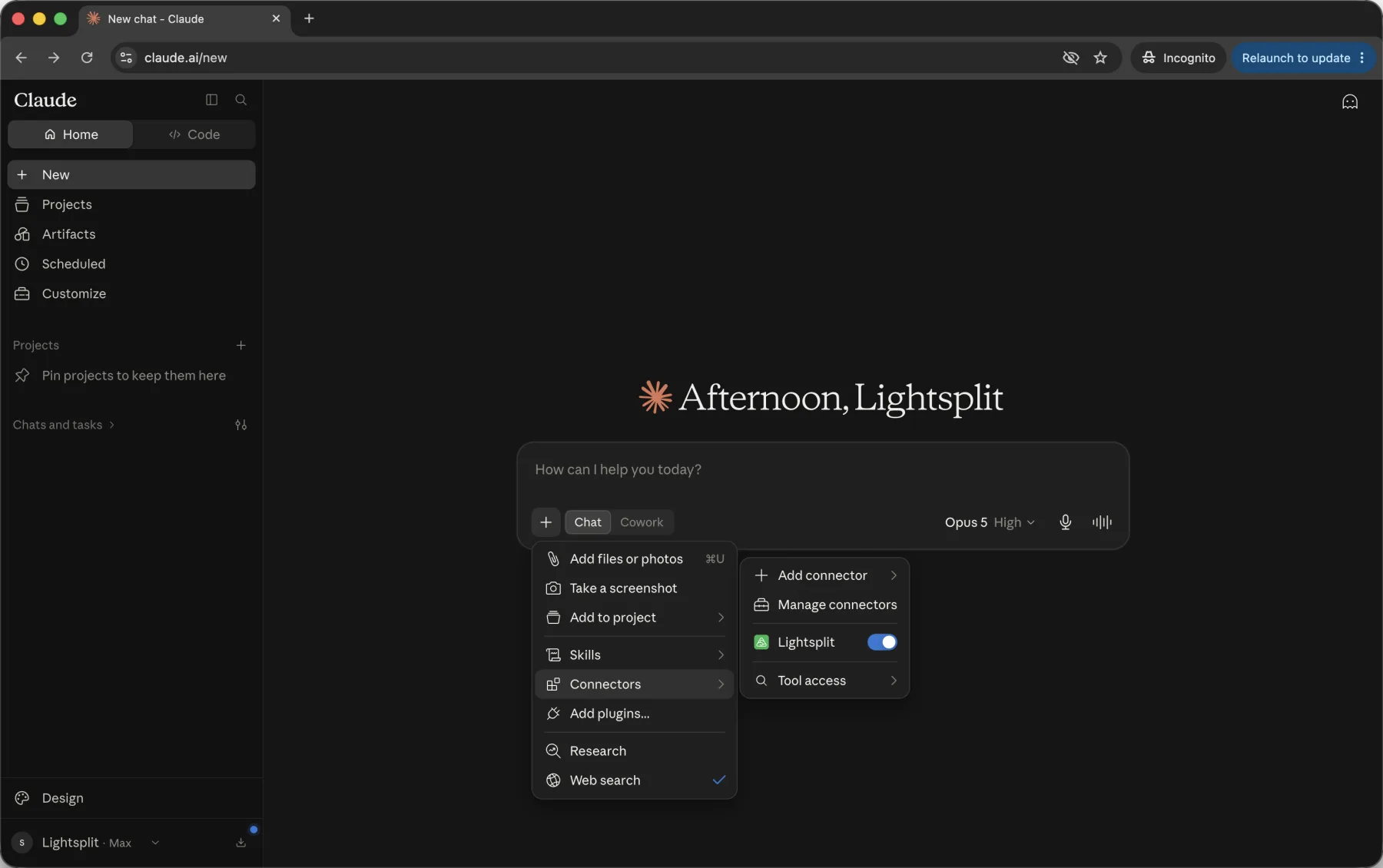
Q: Why does Claude keep asking for permission?
A: Tool permissions default to Needs approval, so it confirms before every action. Set the ones you use often to automatic on the connector page and it'll stop asking.
Q: Is this safe? Can Claude see everything?
A: The approval screen spells out what it can do before you agree to anything. Your password and payment details are never shared, and you can revoke access whenever you want.
Q: Can I send Claude a photo of the receipt?
A: Yes. Drop the photo straight into the conversation and Claude will read the amount off it and log the expense. The photo itself doesn't get saved into Lightsplit though, so attach it to the record in Lightsplit if you want to keep it.
Q: Does everyone in the group need to set this up?
A: No, only you. Everyone else opens the invite link you send in LINE, Telegram, or the web, and they can read and add expenses the same as always.
Give it a go
Paying for Claude means you're already comfortable handing work to an AI.
So take it one step further. Add the Lightsplit connector and hand over trip expenses too, the fiddliest thing on the list and the one everybody puts off. Making the group, logging what you spent, working out who owes what, all of it happens in the chat window you already have open.
Head to Lightsplit, spend five minutes connecting it, and it'll be ready for your next trip.