Split Expenses with AI: Just Type Who Paid for What

It's night three of your five-day trip to Japan. Everyone's back at the hotel, but you're the one keeping track of expenses, so you still have to log today's spending. Ken and Amy both chipped in for the teamLab tickets. Ken didn't drink at the izakaya, so he's out of that one. And you already paid Amy back the 3,000 yen you borrowed yesterday.
Wish you could just split expenses with AI by typing one quick sentence? The catch is that most AI expense trackers only log your own spending. They can't tell who paid or who's sharing. So you end up opening your splitting app and adding each one by hand: pick the currency, type the amount, tick who's in. A bit of a hassle, right?
Funny thing is, what you said in the group chat already covers it all: "Izakaya 12000, Amy paid, Ken didn't drink."
Good news! Lightsplit's AI Bill Split now has a "Text" mode. Type a sentence like you're messaging a friend, and the AI sorts out who paid, who's sharing and who paid who back!
Split Expenses with AI: What Is "Text" Mode?
"Text" lives inside AI Bill Split, right next to "Image" for snapping receipts. Curious about the receipt side? Check out the AI receipt scanning guide.
Think of it as an AI expense splitter you can talk to like a friend. Describe your spending in plain, natural language, and the AI breaks it into separate entries:
- Expense: who paid, who's sharing and how to split it
- Income: like a deposit you got back or money from selling something
- Transfer: friends in the group paying each other back
You can check and edit every entry, then create them all at once. It works in both the web app and the iOS app.
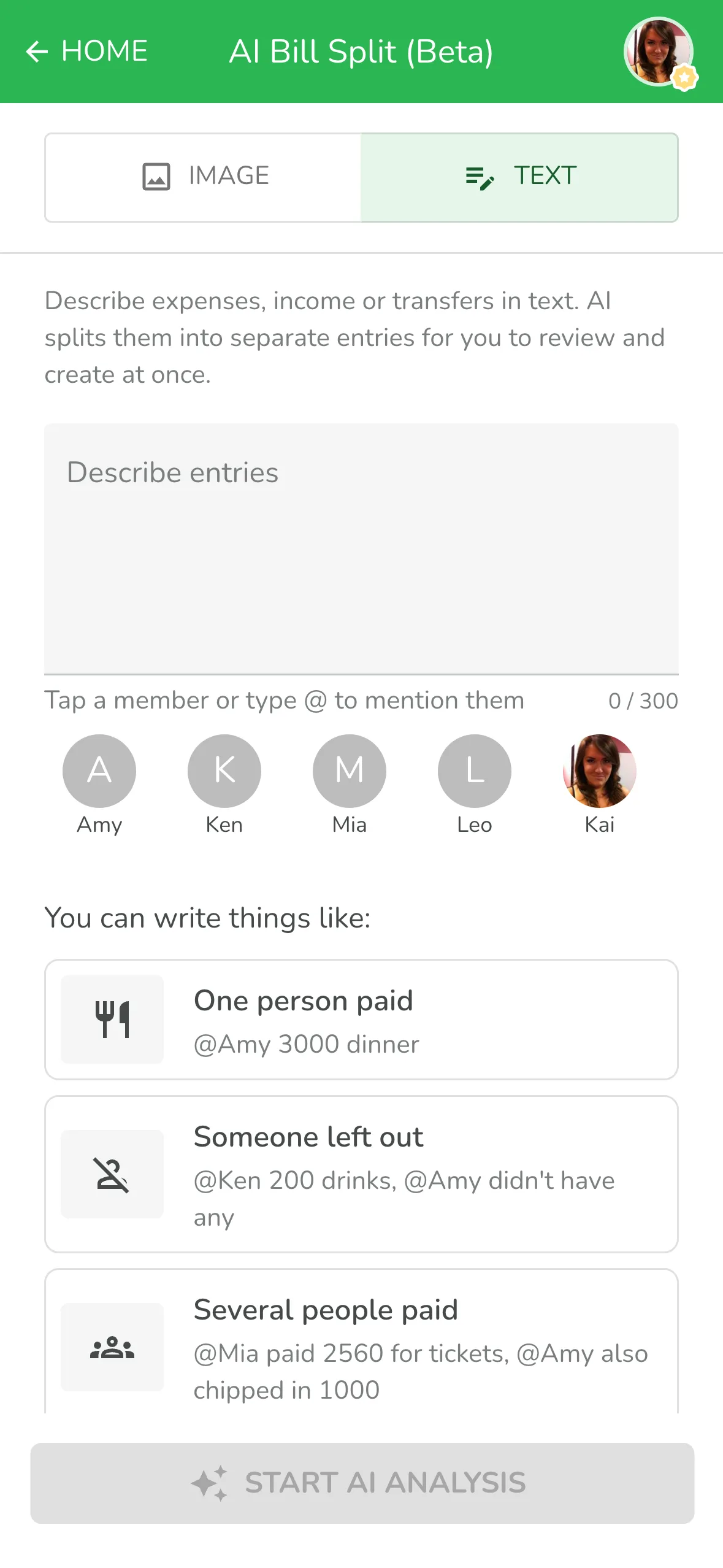
How to Use It in 3 Steps
Step 1: Tap "AI+" and Switch to "Text"
Open your group and tap the purple "AI+" button at the bottom of the screen. Once you're in AI Bill Split, switch the toggle at the top to "Text". Next time, it'll remember which one you used last.
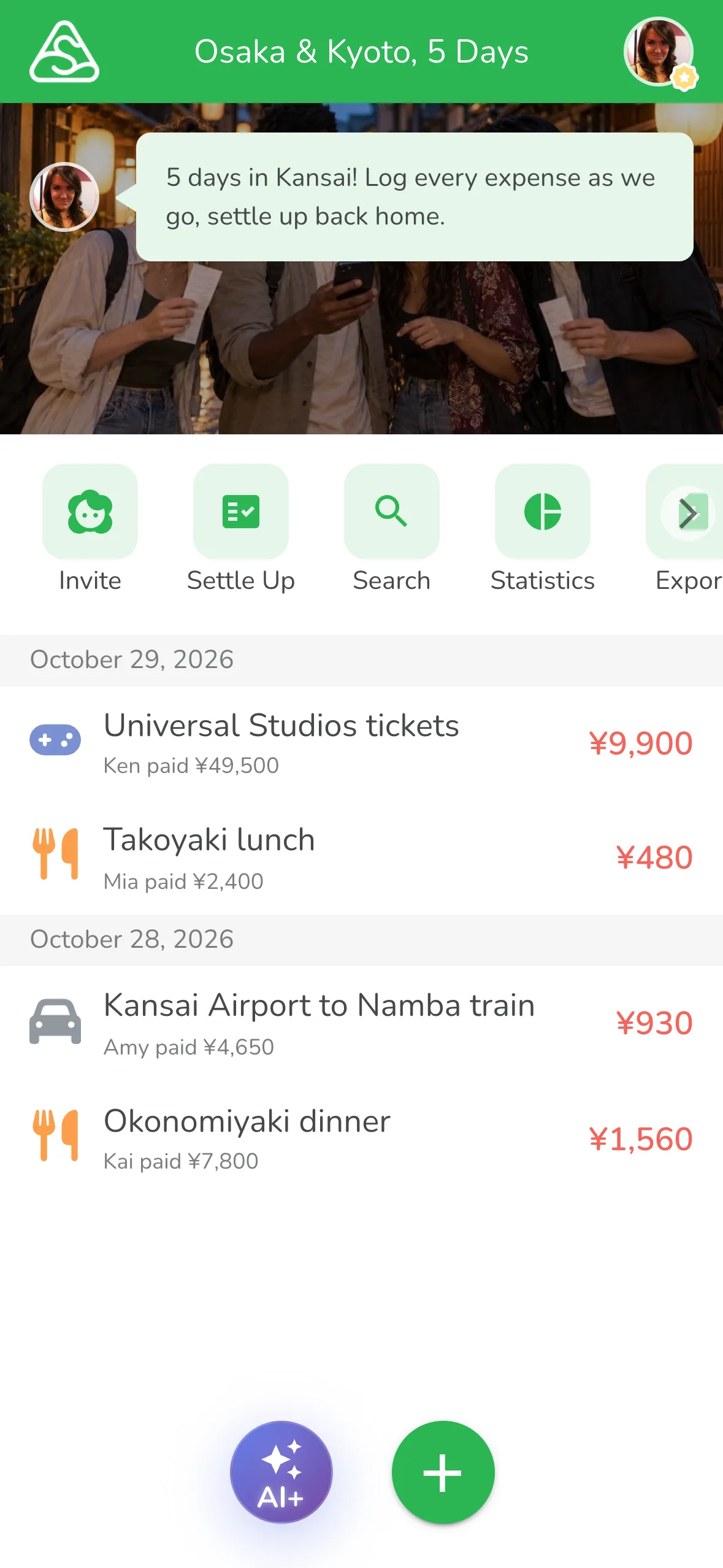
Step 2: Type It Out and @Mention Your Friends
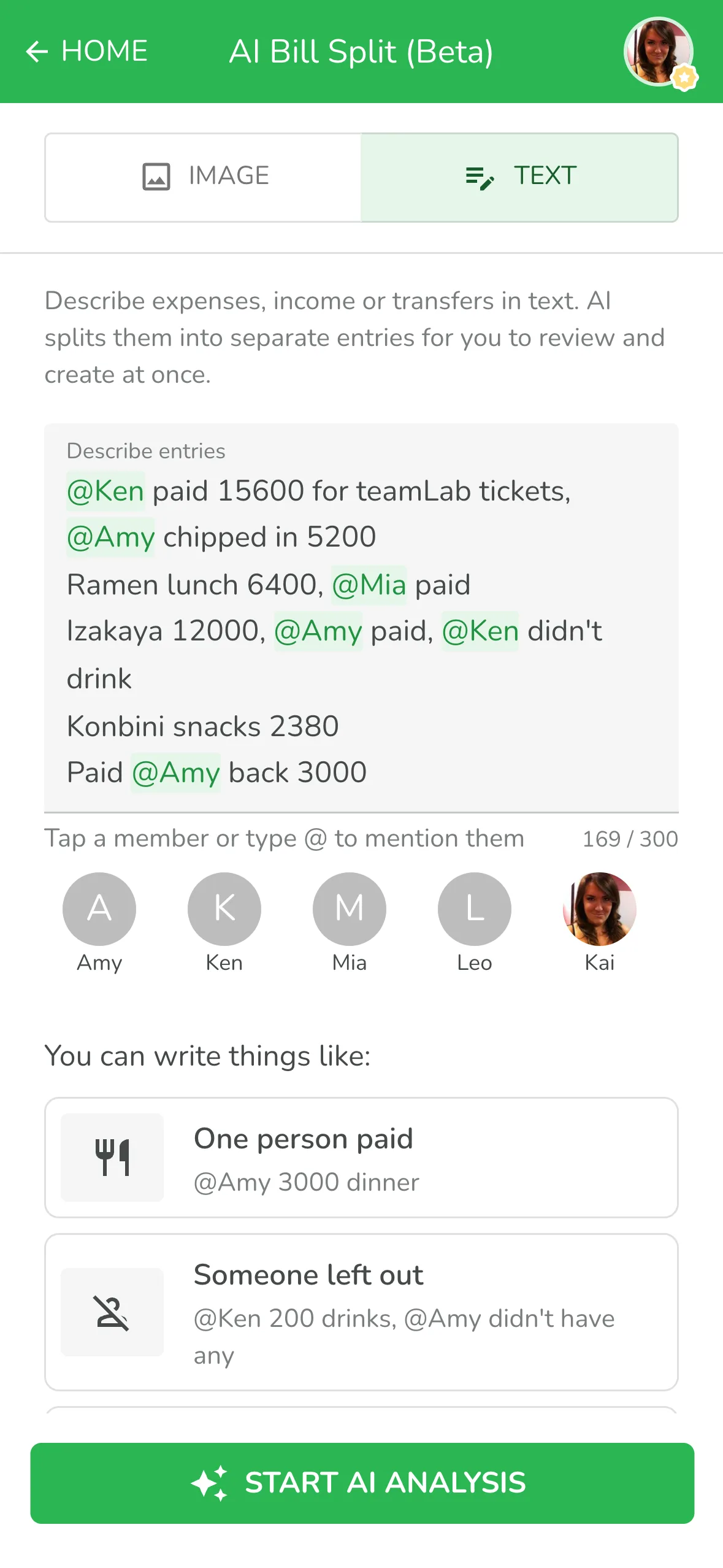
Type what you want to log in the text box. When you mention a friend, tap their avatar below the box or type @ and pick their name. That way the AI won't mix anyone up.
So for that day in Japan, you'd just type:
One entry per line is clearest. Don't feel like typing? Just use your phone's voice input. When you're done, tap "Start AI Analysis" and give it a few seconds.
Step 3: Check the Results and Create Them All at Once
Once the analysis is done, all five entries are ready. Ken and Amy paid for the tickets together, Ken's left out of the izakaya, and the snacks count as yours since you didn't say who paid. The last line turns into a transfer to Amy. All the yen gets converted to dollars too, so you can see what you spent at a glance.
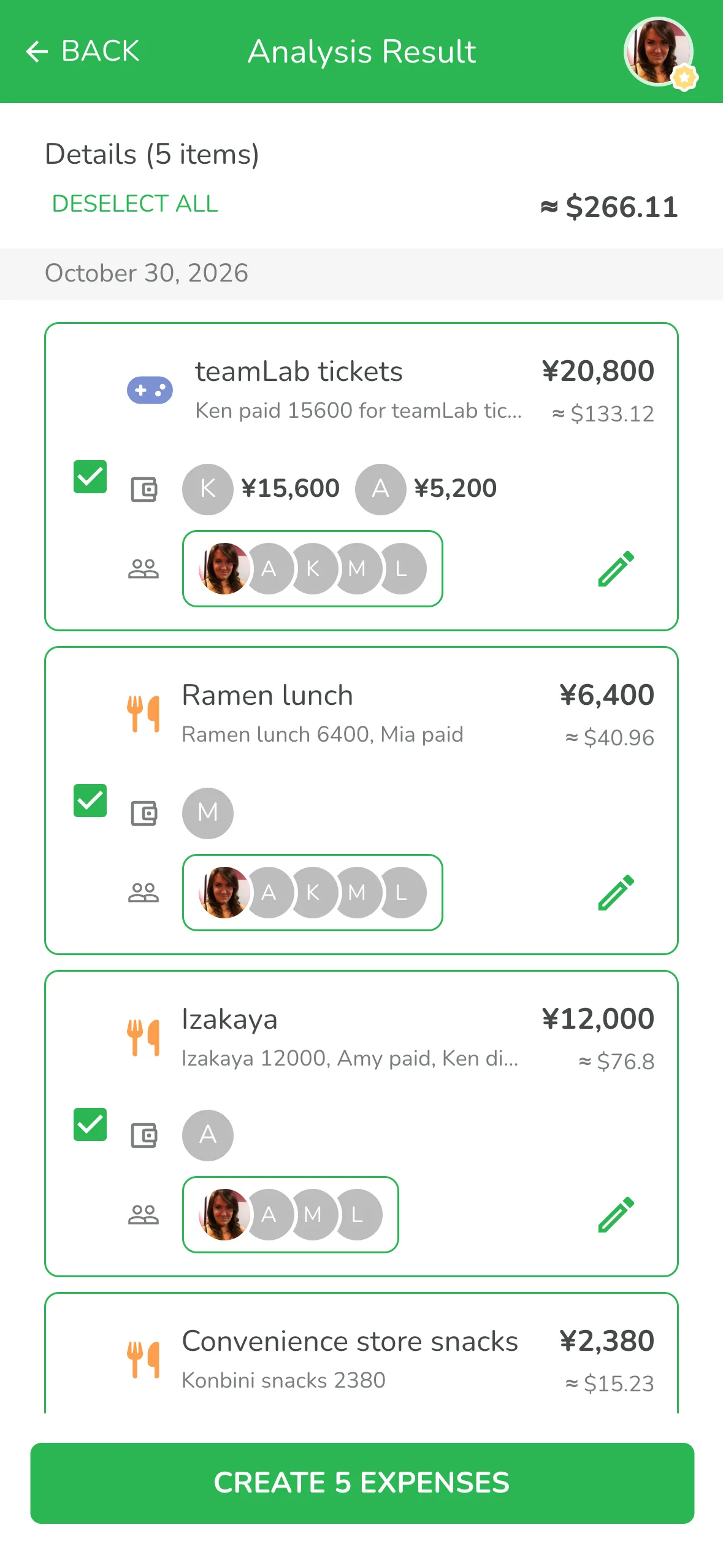
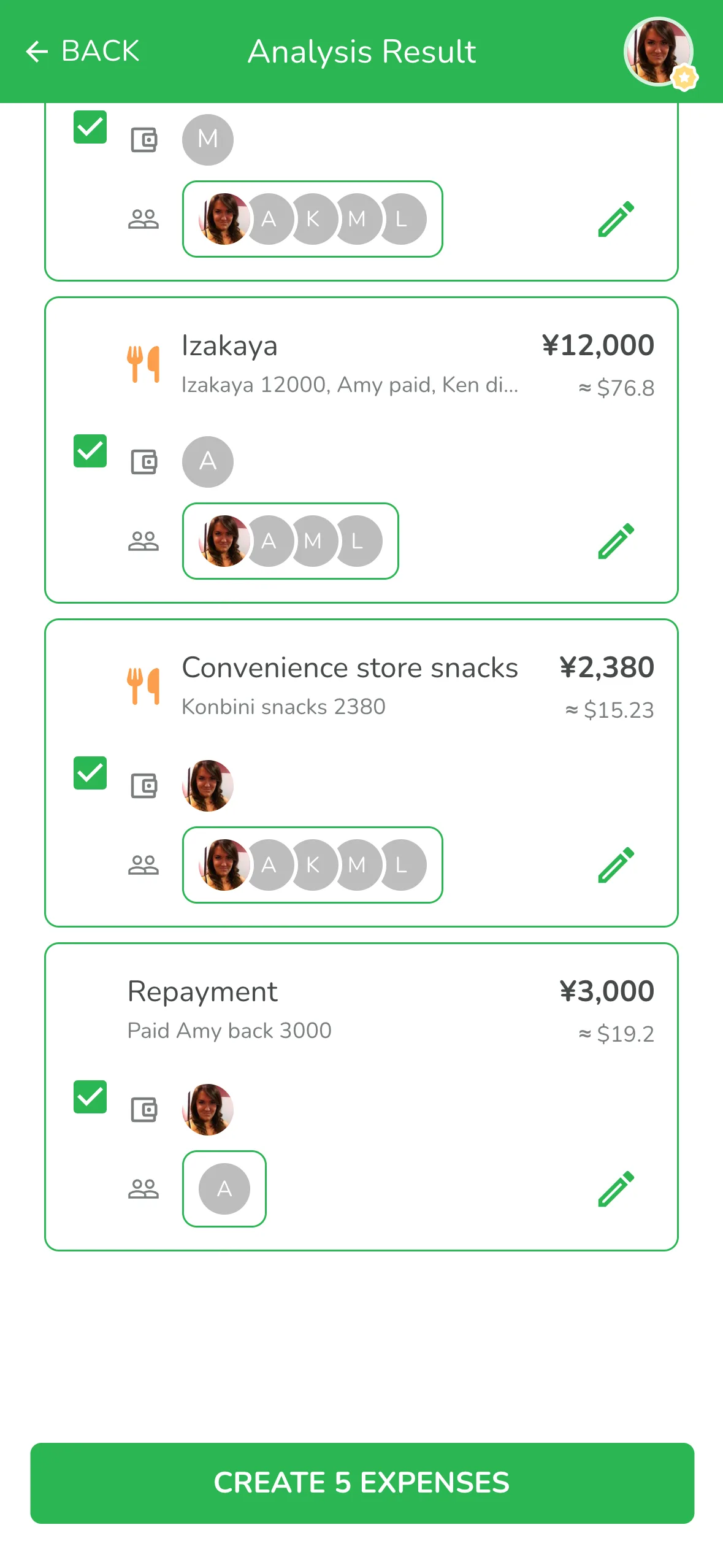
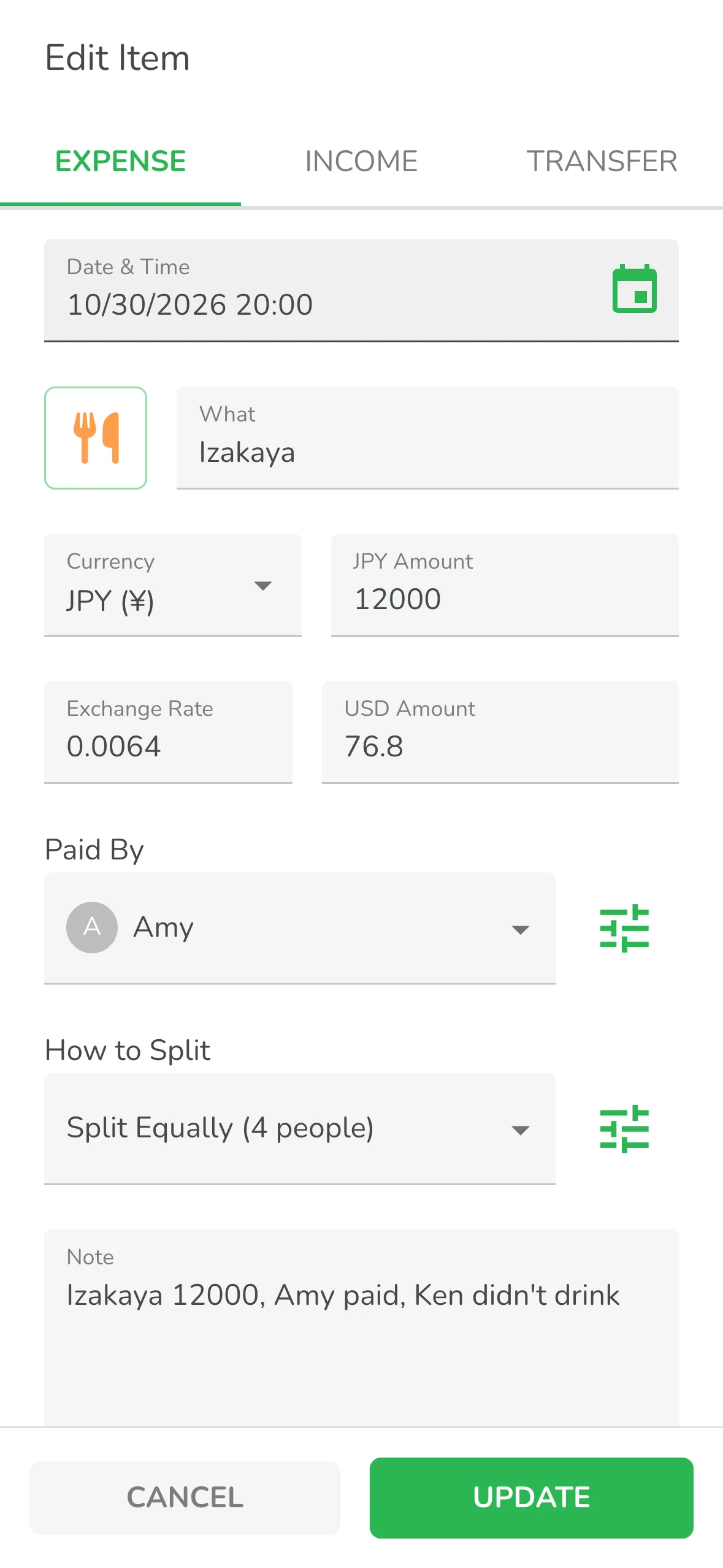
Something not right? Tap the pencil to edit it. You can change the type, date, amount, currency, who paid and how to split. For example, the izakaya doesn't have a time yet, so you can set it to 8 PM. Don't want to log one of them? Just uncheck it.
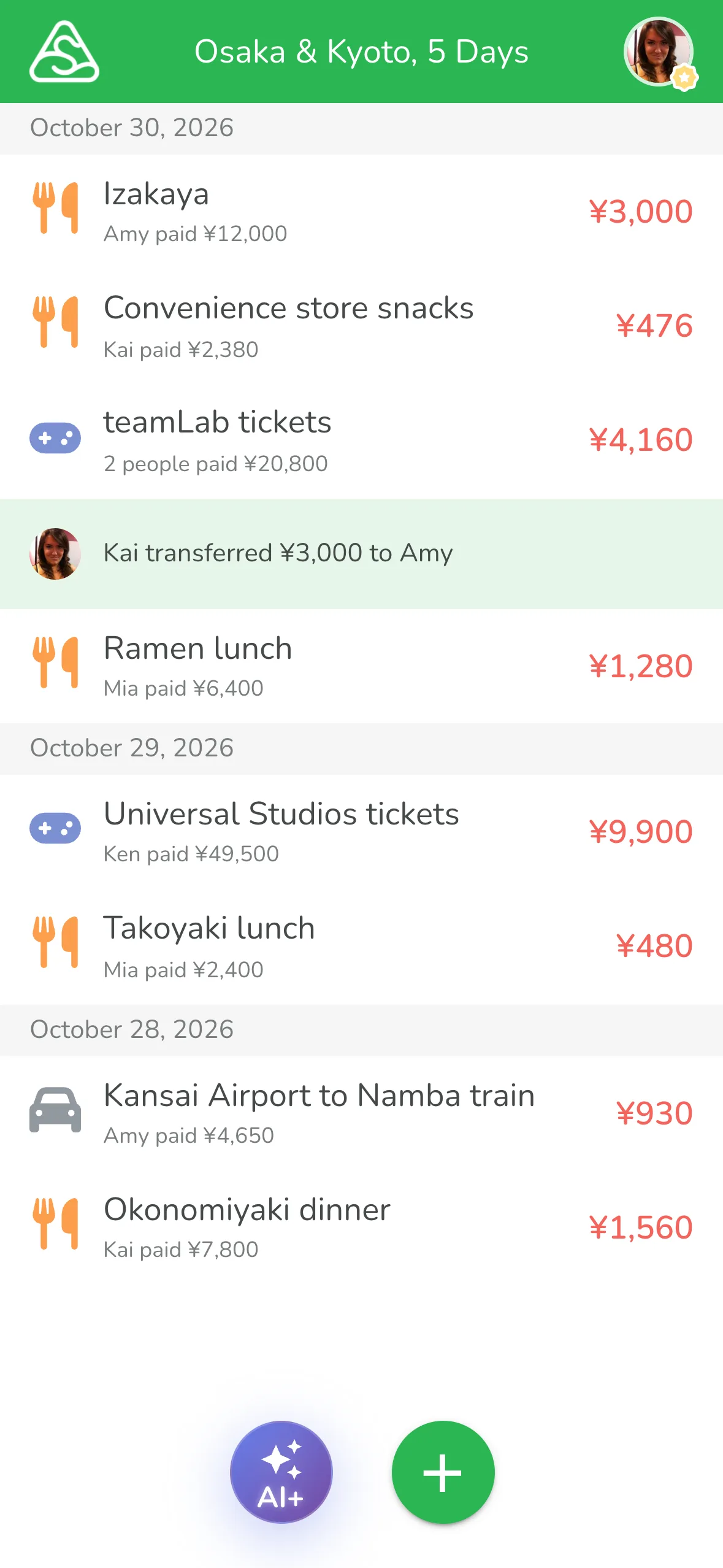
All good? Tap "Create 5 Expenses" and they're all added to your group!
What Can You Type? Common Examples
Trips abroad, dinners with friends, splitting the power bill with roommates. The AI gets all of these:
| You type | AI records it as |
|---|---|
| @Amy 3000 dinner | Amy paid, all share |
| @Mia 200 drinks, @Amy didn't have any | Amy left out |
| @Ken paid 2560 for tickets, @Amy also put in 1000 | Two payers, 3560 |
| Power bill 1852, me and @Mia 6:4 | You and Mia, 6:4 |
| Paid @Amy back 500 | Transfer to Amy |
| @Leo got the 5000 deposit back, split evenly | Income, all share |
| BBQ last night 12000 yen | Yesterday, in USD |
Why Is Typing Faster?
- No more filling in fields: Type it in the order you'd say it, and it's logged.
- Not just your own spending: Most AI expense trackers only care about what you spent. Here, who paid first, multiple payers, who's left out and who paid someone back all get logged too.
- Foreign currency, converted for you: Type yen or euros as-is, and the AI shows them in dollars.
- It gets "yesterday": "Last night" or "last Saturday" turns into the right date, so catching up later is no problem.
- Any language works: Type in whatever language feels natural to you.
- You review before anything's created: Check and edit every entry, so an AI slip-up is no big deal.
Tips
- Voice input is even faster: Tap the mic on your phone's keyboard and say "Izakaya twelve thousand, Amy paid, Ken didn't drink." Your phone turns it into text. Just say the names. The AI still knows who's who.
- One entry per line: Cram too much into one line and the AI is more likely to mix things up.
- Use @ to mention members: It's more accurate than typing names, so friends with similar names won't get mixed up.
- "I" means you: "I paid" or "me and Mia split it" both get logged under you.
- Leave it out and the defaults kick in: No payer? It's on you. No split? It follows your group's Transaction Defaults, or splits evenly if you haven't set any.
- Got a receipt? Snap it: Switch to "Image" and take a photo. It's even faster, and foreign item names get translated for you.
FAQ
Can the AI get it wrong? Can I fix it?
It can, which is why you see everything before it's created. If something's off, tap the pencil, fix it, then create.
Can I log a lot of entries at once?
Yep, you can type out a whole day's spending in one go. If it gets too long, the app will let you know to split it into two.
What exchange rate does it use?
If you've set a rate for your group, it uses yours. If not, it uses the current market rate. Want to know more? Check out the Japan trip yen splitting guide.
Can I type in other languages?
Sure! The AI understands lots of languages, so just type however feels natural to you.
How is this different from AI receipt scanning?
Receipt scanning is great when one receipt has lots of items. The AI reads each one and translates the names. "Text" is great when there's no receipt, or when you need to spell out who paid and who's sharing, like paying someone back or two people paying together. Both live in the same place, so you can switch anytime.
Next Time, Just Type It Out
Trips abroad, dinners with friends, bills with roommates. No more filling in field after field. Type in the same thing you'd say in the group chat, and let the AI handle the rest!
Ready to split expenses with AI? Open Lightsplit and give it a try!